> ## Documentation Index
> Fetch the complete documentation index at: https://docs.meetsquad.ai/llms.txt
> Use this file to discover all available pages before exploring further.
# Activity
> Who did what in your workspace, human and agent, in one feed you can filter.
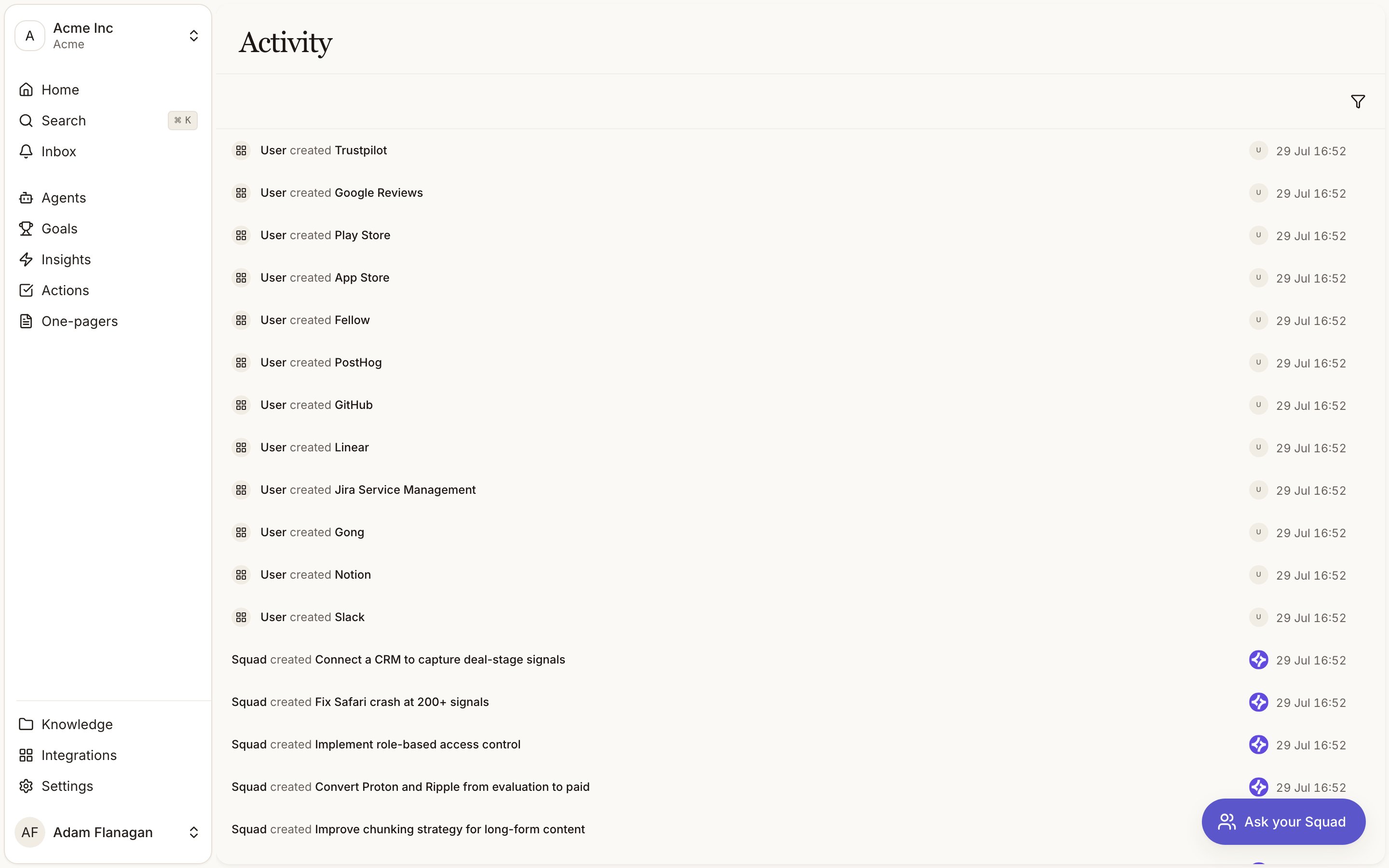
Activity is the record of every change in your workspace, made by a person or by Squad. Goals created, insight statuses moved, documents rewritten, integrations synced, agent runs started and finished. One feed, filterable, newest first.
 ## Getting there
Activity has no sidebar entry. You reach it from one of the four places below, or by typing the URL.
The **Recent activity** card. Hover it and **See all** appears in its top right.
**All activity** sits at the bottom of the notification **Inbox** in the sidebar.
**All activity** next to the **History** section on any goal, insight, or one-pager. These arrive pre-filtered to that entity type.
`/{your-org}/{your-workspace}/activity`
## Reading a row
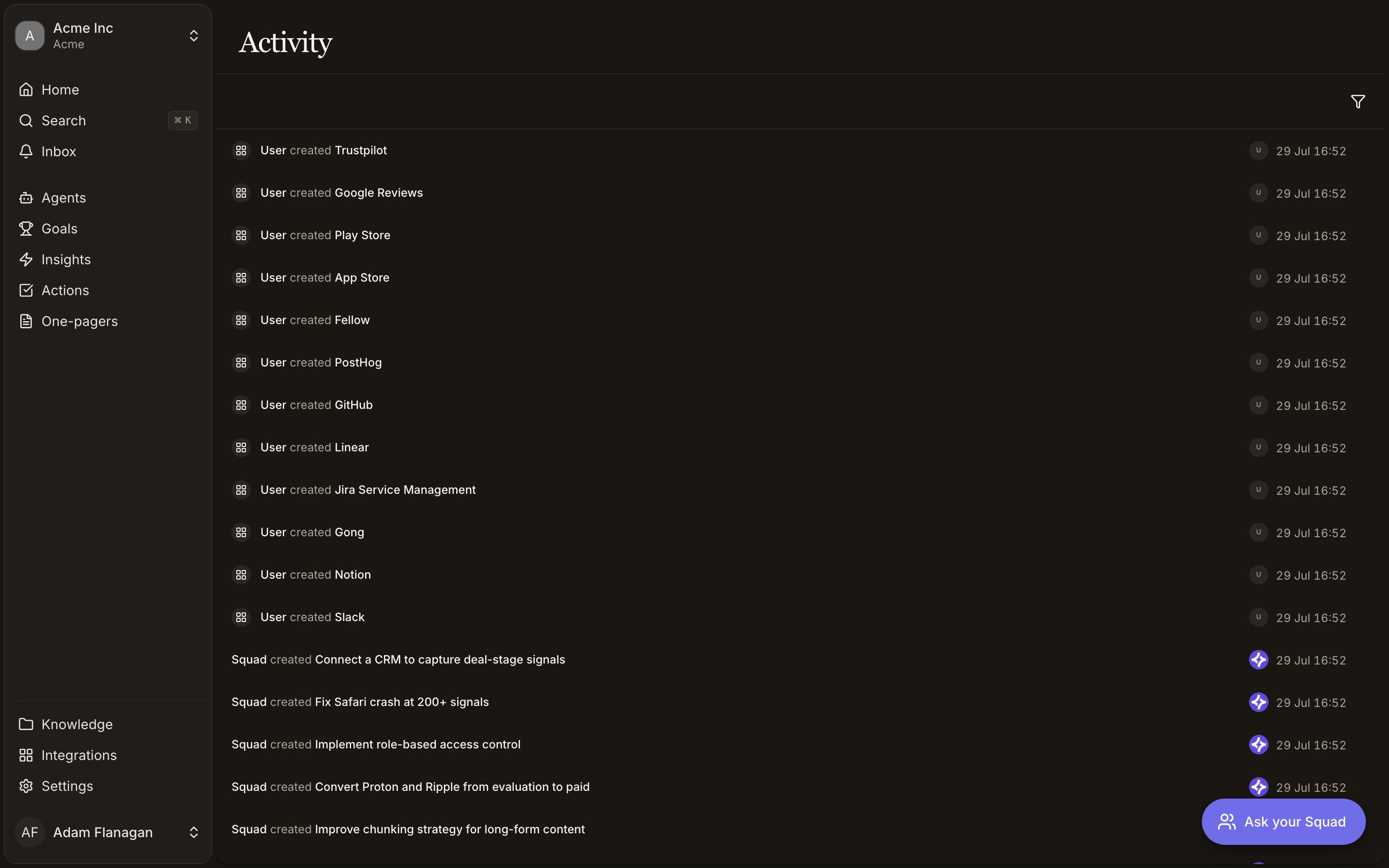
Each row is one event, written as a sentence. The actor comes first in bold, then what they did, then the thing they did it to.
Squad's own work is attributed to **Squad**. When a named agent made the change, the row ends with `via {agent name}`. Your teammates appear by name, or by email if their profile has no name set.
On the right of each row: the actor's avatar (a photo or initials for a person, the Squad mark for an agent), and the timestamp in `DD Mon HH:MM` local time, for example `07 Feb 14:03`.
Hover a row for the `⋯` menu. **Open** jumps to the entity where one can be resolved. **Copy event JSON** puts the raw event on your clipboard.
Click a row and it expands in place. The panel shows a **Changes** list of each field that moved, old value struck through and new value beside it, plus the signal text where the event was about a signal, and a link like **View goal →**.
Some events read as plain statements rather than sentences, mostly around agent runs and the pipeline. **Scheduled run started**, **Generated report**, **Manual run**, **Data signals received but none have a similar peer yet, waiting for more evidence**. These tell you what Squad did and, when nothing happened, why.
## Filtering
Filters live behind the funnel icon in the toolbar, not in tabs. Pick one and it appears as a removable chip below the toolbar. The icon turns purple while any filter is on.
| Filter | Narrows to |
| ---------- | ---------------------------------------------------------------------------------------------------------------------------------------------------------------------- |
| **Actor** | Who made the change. **Squad** covers everything the product did on its own. Every member of your organisation is listed by name below that. |
| **Entity** | What was changed: **Goals**, **Insights**, **Documents**, **Data Signals**, **Integrations**, or **Workspace**. |
| **Action** | The kind of change: **Created**, **Updated**, **Deleted**, **Status**, **Assigned**, **Moved**, **Approval**, **Synced**, **Bulk Created**, **Processed**, **Merged**. |
Selecting more than one actor widens the feed rather than narrowing it. Agent runs are recorded against the workspace, so **Workspace** under **Entity** is where you find them.
### Filtering by URL
Two filters can be set in the address bar, which is how the pre-filtered links from goal, insight, and one-pager pages work.
`?entityType=goal` shows goal events only. The values are the singular entity names: `goal`, `insight`, `document`, `signal`, `integration`, `workspace`.
`?actorType=type:agent` shows Squad's work only. The prefix matters. For a person, use `?actorType=user:`. Take one param per request; a second copy of the same param is ignored.
Filters you set with the funnel icon stay in the page rather than the URL, so build a filtered link by hand if you want to share one.
Runs you start yourself are recorded as your action, not Squad's, even though an agent did the work. Filtering by **Squad** hides them. Filter by **Workspace** under **Entity** to see every run regardless of who kicked it off.
## Loading and freshness
The feed loads thirty events at a time and pulls more as you scroll. When you reach the end it says **No more activity**. It refreshes itself roughly every ten seconds, so a page left open stays current.
An empty workspace shows **No activity yet** with **Activity will appear as your workspace evolves**. With a filter on and nothing matching, it shows **No activity matches your filters**.
## Cookbook
Open the goal, click **All activity** next to **History**, and read the feed top down. Expand any row to see the exact fields that moved and their previous values.
Open Activity, filter **Entity** to **Workspace**, and scan the agent run entries. Runs that found nothing say so explicitly, which is usually the answer to "why did I get no report".
Filter **Action** to **Assigned**, then **Actor** to the person you suspect. The row names both the old and new owner when you expand it.
Filter **Entity** to **Integrations** and look for **Synced** events. No recent sync means the connection needs attention on [Integrations](/integrations).
## Getting there
Activity has no sidebar entry. You reach it from one of the four places below, or by typing the URL.
The **Recent activity** card. Hover it and **See all** appears in its top right.
**All activity** sits at the bottom of the notification **Inbox** in the sidebar.
**All activity** next to the **History** section on any goal, insight, or one-pager. These arrive pre-filtered to that entity type.
`/{your-org}/{your-workspace}/activity`
## Reading a row
Each row is one event, written as a sentence. The actor comes first in bold, then what they did, then the thing they did it to.
Squad's own work is attributed to **Squad**. When a named agent made the change, the row ends with `via {agent name}`. Your teammates appear by name, or by email if their profile has no name set.
On the right of each row: the actor's avatar (a photo or initials for a person, the Squad mark for an agent), and the timestamp in `DD Mon HH:MM` local time, for example `07 Feb 14:03`.
Hover a row for the `⋯` menu. **Open** jumps to the entity where one can be resolved. **Copy event JSON** puts the raw event on your clipboard.
Click a row and it expands in place. The panel shows a **Changes** list of each field that moved, old value struck through and new value beside it, plus the signal text where the event was about a signal, and a link like **View goal →**.
Some events read as plain statements rather than sentences, mostly around agent runs and the pipeline. **Scheduled run started**, **Generated report**, **Manual run**, **Data signals received but none have a similar peer yet, waiting for more evidence**. These tell you what Squad did and, when nothing happened, why.
## Filtering
Filters live behind the funnel icon in the toolbar, not in tabs. Pick one and it appears as a removable chip below the toolbar. The icon turns purple while any filter is on.
| Filter | Narrows to |
| ---------- | ---------------------------------------------------------------------------------------------------------------------------------------------------------------------- |
| **Actor** | Who made the change. **Squad** covers everything the product did on its own. Every member of your organisation is listed by name below that. |
| **Entity** | What was changed: **Goals**, **Insights**, **Documents**, **Data Signals**, **Integrations**, or **Workspace**. |
| **Action** | The kind of change: **Created**, **Updated**, **Deleted**, **Status**, **Assigned**, **Moved**, **Approval**, **Synced**, **Bulk Created**, **Processed**, **Merged**. |
Selecting more than one actor widens the feed rather than narrowing it. Agent runs are recorded against the workspace, so **Workspace** under **Entity** is where you find them.
### Filtering by URL
Two filters can be set in the address bar, which is how the pre-filtered links from goal, insight, and one-pager pages work.
`?entityType=goal` shows goal events only. The values are the singular entity names: `goal`, `insight`, `document`, `signal`, `integration`, `workspace`.
`?actorType=type:agent` shows Squad's work only. The prefix matters. For a person, use `?actorType=user:`. Take one param per request; a second copy of the same param is ignored.
Filters you set with the funnel icon stay in the page rather than the URL, so build a filtered link by hand if you want to share one.
Runs you start yourself are recorded as your action, not Squad's, even though an agent did the work. Filtering by **Squad** hides them. Filter by **Workspace** under **Entity** to see every run regardless of who kicked it off.
## Loading and freshness
The feed loads thirty events at a time and pulls more as you scroll. When you reach the end it says **No more activity**. It refreshes itself roughly every ten seconds, so a page left open stays current.
An empty workspace shows **No activity yet** with **Activity will appear as your workspace evolves**. With a filter on and nothing matching, it shows **No activity matches your filters**.
## Cookbook
Open the goal, click **All activity** next to **History**, and read the feed top down. Expand any row to see the exact fields that moved and their previous values.
Open Activity, filter **Entity** to **Workspace**, and scan the agent run entries. Runs that found nothing say so explicitly, which is usually the answer to "why did I get no report".
Filter **Action** to **Assigned**, then **Actor** to the person you suspect. The row names both the old and new owner when you expand it.
Filter **Entity** to **Integrations** and look for **Synced** events. No recent sync means the connection needs attention on [Integrations](/integrations).