> ## Documentation Index
> Fetch the complete documentation index at: https://docs.meetsquad.ai/llms.txt
> Use this file to discover all available pages before exploring further.
# Agent templates
> Five ready-made agents written by Squad. Create one in a click, or open it prefilled and change anything first.
The **By Squad** tab on the Agents page holds five agents Squad already wrote: full instructions, a schedule, and outputs, ready to run. Start from one when you want the standing job without writing the brief.
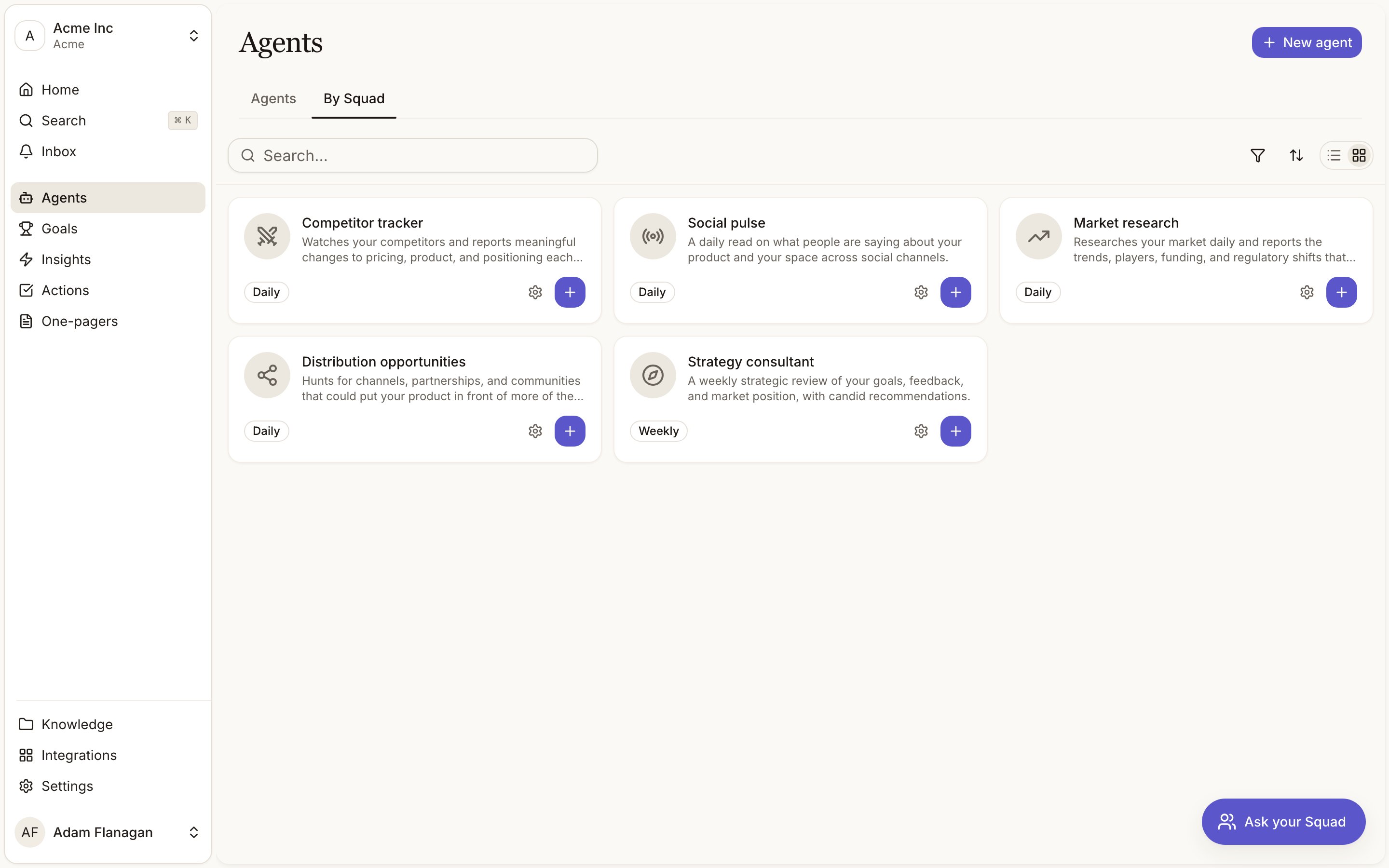
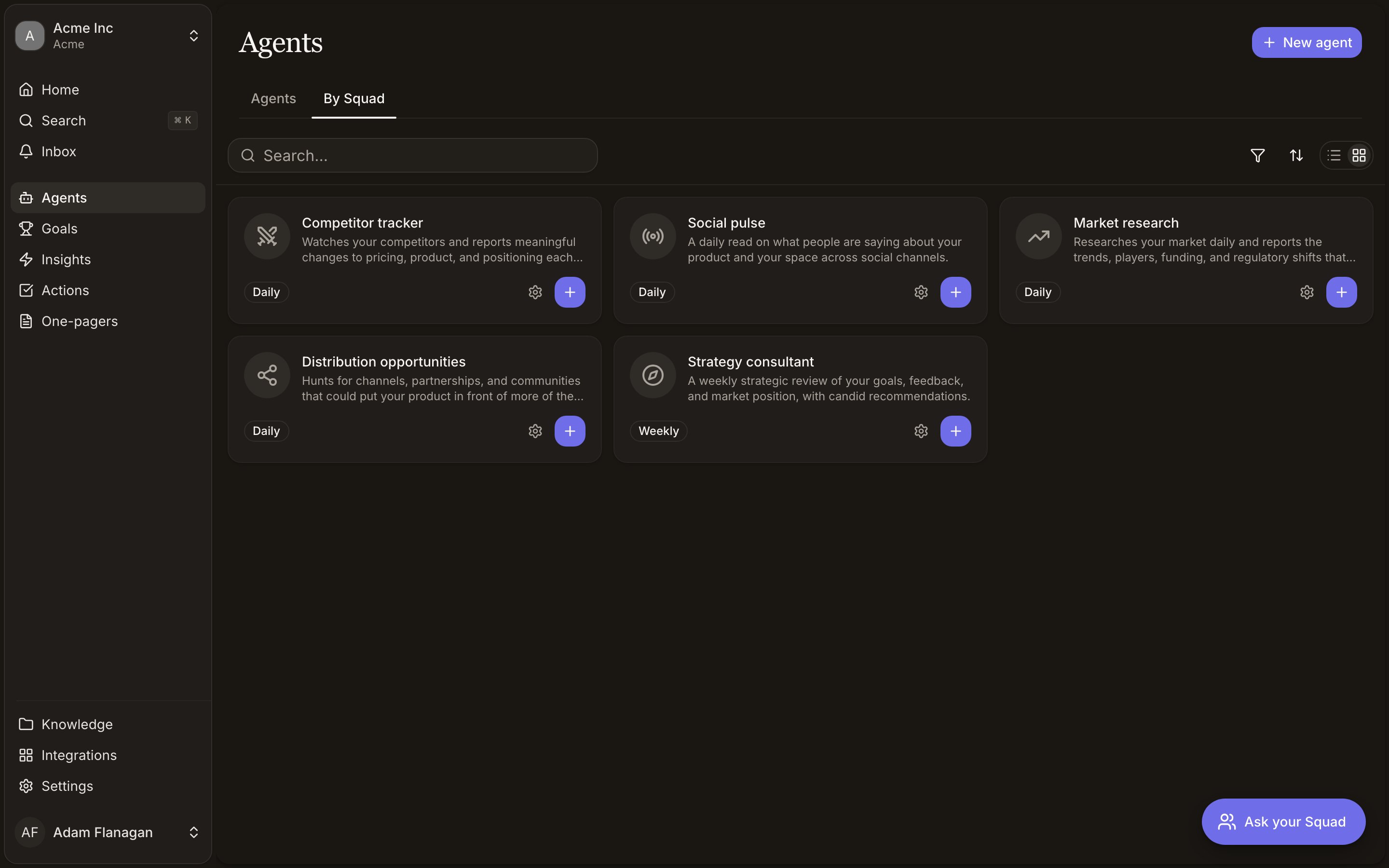 The gallery uses the same toolbar as the agents list: card grid by default, a toggle for compact rows, plus search, filter, and sort. Filter by **Trigger** or **Cadence**.
## The five templates
`competitor-tracker`. Watches your competitors and reports meaningful changes to pricing, product, and positioning each day. It keeps one index document of every competitor you track plus a profile per competitor, and records material changes with dates. Daily.
`social-pulse`. A daily read on what people are saying about your product and your space across social channels. It keeps one durable record of recurring themes, sentiment shifts, and the communities worth watching. Passing chatter stays in the daily report. Daily.
`market-research`. Researches your market daily and reports the trends, players, funding, and regulatory shifts that matter, with takeaways. It maintains a market map of segments, key players, and open questions. Daily.
`distribution-opportunities`. Hunts for channels, partnerships, and communities that could put your product in front of more of the right people. It keeps a playbook of every opportunity with reach, effort, the concrete first step, and current status. Daily.
`strategy-consultant`. A weekly strategic review of your goals, feedback, and market position, with candid recommendations. It maintains a working perspective file of durable themes, live hypotheses with evidence for and against, open questions, and a log of past advice and what happened to it. Weekly.
## What each one produces
All five generate a report, and all five report even on a quiet period, so a day with nothing to say still gives you a written "nothing moved" rather than silence. None of them write to your knowledge base through the **Gain knowledge** output. They keep their own working documents through their instructions instead.
Three of them also feed the signal pipeline. **Competitor tracker**, **Social pulse**, and **Market research** have **Discover insights** on, so what they read becomes signals that cluster into [insights](/insights). **Distribution opportunities** and **Strategy consultant** do not extract signals. Their value is the report.
No template ships with a delivery channel. Add Slack or email after creating, or before, through Configure.
## Two ways to start
Each template card and row carries two controls.
Opens the New agent form prefilled with the template's name, description, instructions, schedule, and outputs, plus the standard access defaults. Change anything, then create. This is the path to take if you want to see and set what the agent can reach before it runs.
Creates the agent immediately from the template as written, queues its first run, and drops you back on the Agents tab with the new agent already running. Template names are fixed, so creating the same one twice appends a number (`Social pulse 2`) rather than failing.
One-click **Create** writes no tools and access levels. Open an agent made this way and every row in **Tools and access** reads as off or None, and the connections list is empty. The agent still runs (it falls back to a built-in default that covers the web, your knowledge base, insights, and goals), but the page will not tell you that, and the moment you set any level on that page the fallback stops applying and only what you set counts. Use **Configure** if you want the access written down from the start.
## After you create one
A template agent is an ordinary agent. Rename it, rewrite its instructions, change its schedule, add triggers, tighten or widen its access, and switch outputs on and off. Nothing about it stays tied to the template.
The first thing worth doing is opening [Tools and access](/agent-tools-access) and setting the levels you actually want, especially if you used the one-click path.
The gallery uses the same toolbar as the agents list: card grid by default, a toggle for compact rows, plus search, filter, and sort. Filter by **Trigger** or **Cadence**.
## The five templates
`competitor-tracker`. Watches your competitors and reports meaningful changes to pricing, product, and positioning each day. It keeps one index document of every competitor you track plus a profile per competitor, and records material changes with dates. Daily.
`social-pulse`. A daily read on what people are saying about your product and your space across social channels. It keeps one durable record of recurring themes, sentiment shifts, and the communities worth watching. Passing chatter stays in the daily report. Daily.
`market-research`. Researches your market daily and reports the trends, players, funding, and regulatory shifts that matter, with takeaways. It maintains a market map of segments, key players, and open questions. Daily.
`distribution-opportunities`. Hunts for channels, partnerships, and communities that could put your product in front of more of the right people. It keeps a playbook of every opportunity with reach, effort, the concrete first step, and current status. Daily.
`strategy-consultant`. A weekly strategic review of your goals, feedback, and market position, with candid recommendations. It maintains a working perspective file of durable themes, live hypotheses with evidence for and against, open questions, and a log of past advice and what happened to it. Weekly.
## What each one produces
All five generate a report, and all five report even on a quiet period, so a day with nothing to say still gives you a written "nothing moved" rather than silence. None of them write to your knowledge base through the **Gain knowledge** output. They keep their own working documents through their instructions instead.
Three of them also feed the signal pipeline. **Competitor tracker**, **Social pulse**, and **Market research** have **Discover insights** on, so what they read becomes signals that cluster into [insights](/insights). **Distribution opportunities** and **Strategy consultant** do not extract signals. Their value is the report.
No template ships with a delivery channel. Add Slack or email after creating, or before, through Configure.
## Two ways to start
Each template card and row carries two controls.
Opens the New agent form prefilled with the template's name, description, instructions, schedule, and outputs, plus the standard access defaults. Change anything, then create. This is the path to take if you want to see and set what the agent can reach before it runs.
Creates the agent immediately from the template as written, queues its first run, and drops you back on the Agents tab with the new agent already running. Template names are fixed, so creating the same one twice appends a number (`Social pulse 2`) rather than failing.
One-click **Create** writes no tools and access levels. Open an agent made this way and every row in **Tools and access** reads as off or None, and the connections list is empty. The agent still runs (it falls back to a built-in default that covers the web, your knowledge base, insights, and goals), but the page will not tell you that, and the moment you set any level on that page the fallback stops applying and only what you set counts. Use **Configure** if you want the access written down from the start.
## After you create one
A template agent is an ordinary agent. Rename it, rewrite its instructions, change its schedule, add triggers, tighten or widen its access, and switch outputs on and off. Nothing about it stays tied to the template.
The first thing worth doing is opening [Tools and access](/agent-tools-access) and setting the levels you actually want, especially if you used the one-click path.