> ## Documentation Index
> Fetch the complete documentation index at: https://docs.meetsquad.ai/llms.txt
> Use this file to discover all available pages before exploring further.
# Chat assistant
> Ask Squad to do the work. The assistant runs real operations against your workspace, and what it changes is changed for everyone.
Ask the assistant to create a goal and a goal is created. It runs the operation against your
workspace and reports back what it did. Nothing you have to copy out of a reply and redo by hand.
 ## Opening the panel
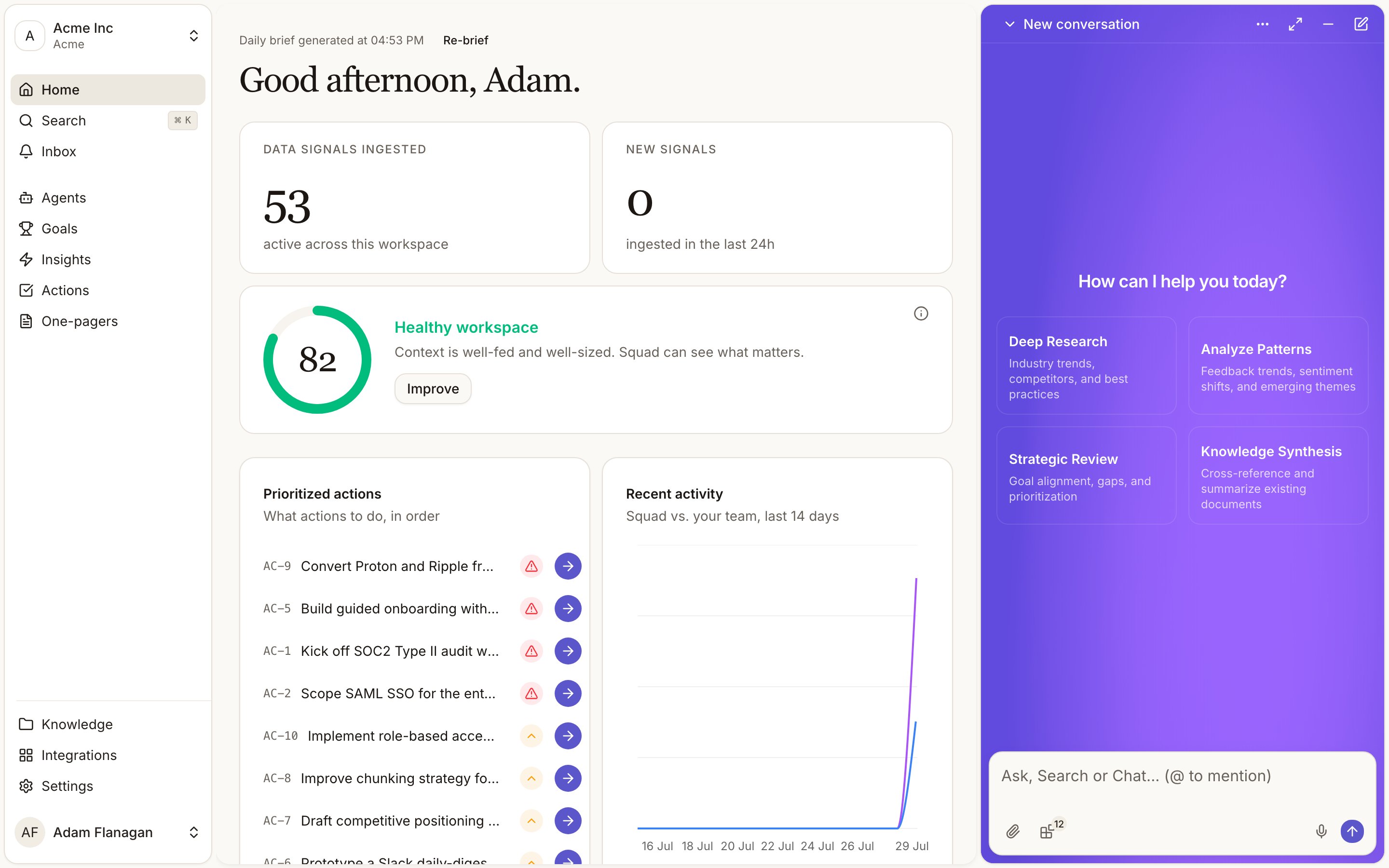
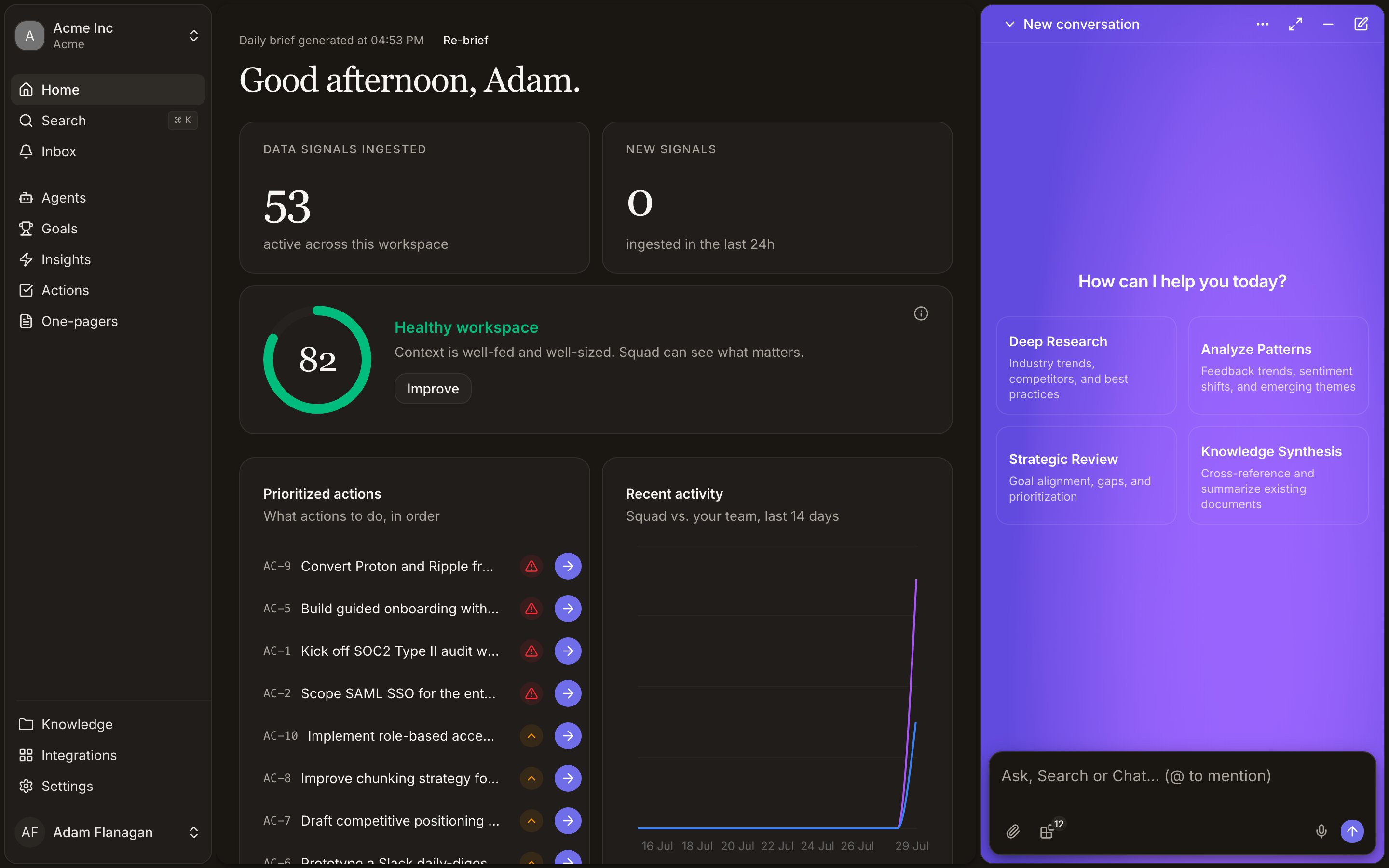
The panel starts minimised, as an **Ask your Squad** button in the bottom right corner. Click it to
open. On a phone the same button sits in the pill at the bottom of the screen.
Five modes are available, and whichever you pick is remembered between sessions.
| Mode | Behaviour |
| ---------------------------------------- | --------------------------------------------------------- |
| Minimised | The **Ask your Squad** button, out of the way |
| Floating | A panel you drag by its header and resize from the corner |
| Docked left | Pinned to the left edge, width draggable |
| Docked right | Pinned to the right edge, width draggable |
| Fullscreen | The whole window |
Switch between them from the `···` menu in the panel header. The expand icon toggles fullscreen and
back to docked right. The minus minimises. The pencil starts a new conversation. Docked right is
what you get the first time you open the panel, and it opens by itself on a brand new workspace so
[setup](/quickstart) can start without you finding it.
## What it does to your workspace
The assistant carries a tool for nearly every operation the app exposes. It reads and writes the
same records the UI does, scoped to the workspace you're in.
Create, read, update, delete, list. See [Goals](/goals).
Create, read, list, update, start, complete, snooze, dismiss, and link an action to the insight
it came from. See [Actions](/actions).
Create, read, list, and link an insight to a goal. See [Insights](/insights).
List, read, dismiss, create one by hand, find related signals, and ingest external feedback as
new signals. See [Data signals](/signals).
List, read, and write a theme label onto a cluster. See [Signal clusters](/signal-clusters).
Create, read, update, delete and tag documents, append blocks to an existing one, list the
available templates, create and rearrange folders, search the knowledge base by meaning, and
find documents related to one you name. It checks for a near-duplicate before it writes anything
new. See [Knowledge and documents](/knowledge-documents).
Read and update the workspace record itself, which is how the setup conversation saves your
product name and description. See [Workspace settings](/workspace-settings).
Search the web, read a page, and start a background research run that keeps writing documents
after the conversation moves on.
Search and read the built-in expert product-management guides, check whether your product
already covers a capability, and search or resume your past conversations.
Every active integration contributes its own read and write tools, so with Slack connected the
assistant can read and post in Slack from the chat. See [Integrations](/integrations).
One-pagers are the exception. The assistant does not draft them from chat. Generate a PRD or a
decision brief from an [action](/actions) or an [insight](/insights), and the drafting runs in the
background.
## Sub-agents
For work too large for a single reply, the assistant hands off to one of three sub-agents and
streams their progress into the conversation as their tools run.
Searches the web, reads pages, checks the expert guides, and writes documents from substantial
findings
Goal alignment, gap analysis, and prioritisation recommendations grounded in your goals and
documents
Cross-references several of your documents into one summary with citations
## Changes are real and shared
Everything the assistant does is a workspace mutation, not a draft. A goal it creates appears on the
Goals page for every member of the workspace, live, without a refresh. An action it completes
disappears from your dashboard and from theirs.
Each change is recorded in [Activity](/activity) with Squad as the actor, so you can see afterwards
what the assistant did and when. The **Squad** line on the dashboard's **Recent activity** chart is
that record plotted over fourteen days.
Deletions go through the same route. Ask the assistant to delete a goal or a document and it is
deleted for everyone. Name the thing you want removed precisely.
## Writing to it
The input reads **Ask, Search or Chat... (@ to mention)**.
**Mentions.** Type `@` to pull a specific record into the conversation. The
picker searches your documents, folders, goals and insights. A mentioned record is loaded into
context, so "summarise @Q3 pricing research against @Reduce churn" needs no further explanation.
**Attachments.** The paperclip takes JPEG, PNG, GIF, WebP and PDF files up
to 10MB each.
**Dictation.** The microphone transcribes speech into the input.
**Integrations.** The blocks icon lists your connected providers with a
switch each. Turn one off and the assistant loses that provider's tools for the rest of the
conversation, which is a quick way to keep it away from a noisy source.
An empty conversation offers four starting points: **Deep Research**, **Analyze Patterns**,
**Strategic Review** and **Knowledge Synthesis**. Clicking one fills the input so you can edit it
before sending. After a reply lands, follow-up suggestions appear above the input as chips.
## Conversations
Every conversation is saved and titled from its content. Open the title dropdown in the panel header
for the full history and click one to resume it, with the whole thread intact. Reload mid-answer and
the stream picks up where it left off.
Your workspace context, meaning the product name, mission, top goals, knowledge base structure and
connected integrations, is loaded into every conversation. You never have to re-explain your product.
## Getting more out of it
Be specific. "Rank the top five insights by how well they support our retention goal, then tell me
which action to start" gets a better answer than "what should we do?" Point at records with `@`
rather than describing them. Ask for follow-through, since the assistant can create the goal and the
action rather than recommending that you do it. Then check the result on the page it changed.
## Opening the panel
The panel starts minimised, as an **Ask your Squad** button in the bottom right corner. Click it to
open. On a phone the same button sits in the pill at the bottom of the screen.
Five modes are available, and whichever you pick is remembered between sessions.
| Mode | Behaviour |
| ---------------------------------------- | --------------------------------------------------------- |
| Minimised | The **Ask your Squad** button, out of the way |
| Floating | A panel you drag by its header and resize from the corner |
| Docked left | Pinned to the left edge, width draggable |
| Docked right | Pinned to the right edge, width draggable |
| Fullscreen | The whole window |
Switch between them from the `···` menu in the panel header. The expand icon toggles fullscreen and
back to docked right. The minus minimises. The pencil starts a new conversation. Docked right is
what you get the first time you open the panel, and it opens by itself on a brand new workspace so
[setup](/quickstart) can start without you finding it.
## What it does to your workspace
The assistant carries a tool for nearly every operation the app exposes. It reads and writes the
same records the UI does, scoped to the workspace you're in.
Create, read, update, delete, list. See [Goals](/goals).
Create, read, list, update, start, complete, snooze, dismiss, and link an action to the insight
it came from. See [Actions](/actions).
Create, read, list, and link an insight to a goal. See [Insights](/insights).
List, read, dismiss, create one by hand, find related signals, and ingest external feedback as
new signals. See [Data signals](/signals).
List, read, and write a theme label onto a cluster. See [Signal clusters](/signal-clusters).
Create, read, update, delete and tag documents, append blocks to an existing one, list the
available templates, create and rearrange folders, search the knowledge base by meaning, and
find documents related to one you name. It checks for a near-duplicate before it writes anything
new. See [Knowledge and documents](/knowledge-documents).
Read and update the workspace record itself, which is how the setup conversation saves your
product name and description. See [Workspace settings](/workspace-settings).
Search the web, read a page, and start a background research run that keeps writing documents
after the conversation moves on.
Search and read the built-in expert product-management guides, check whether your product
already covers a capability, and search or resume your past conversations.
Every active integration contributes its own read and write tools, so with Slack connected the
assistant can read and post in Slack from the chat. See [Integrations](/integrations).
One-pagers are the exception. The assistant does not draft them from chat. Generate a PRD or a
decision brief from an [action](/actions) or an [insight](/insights), and the drafting runs in the
background.
## Sub-agents
For work too large for a single reply, the assistant hands off to one of three sub-agents and
streams their progress into the conversation as their tools run.
Searches the web, reads pages, checks the expert guides, and writes documents from substantial
findings
Goal alignment, gap analysis, and prioritisation recommendations grounded in your goals and
documents
Cross-references several of your documents into one summary with citations
## Changes are real and shared
Everything the assistant does is a workspace mutation, not a draft. A goal it creates appears on the
Goals page for every member of the workspace, live, without a refresh. An action it completes
disappears from your dashboard and from theirs.
Each change is recorded in [Activity](/activity) with Squad as the actor, so you can see afterwards
what the assistant did and when. The **Squad** line on the dashboard's **Recent activity** chart is
that record plotted over fourteen days.
Deletions go through the same route. Ask the assistant to delete a goal or a document and it is
deleted for everyone. Name the thing you want removed precisely.
## Writing to it
The input reads **Ask, Search or Chat... (@ to mention)**.
**Mentions.** Type `@` to pull a specific record into the conversation. The
picker searches your documents, folders, goals and insights. A mentioned record is loaded into
context, so "summarise @Q3 pricing research against @Reduce churn" needs no further explanation.
**Attachments.** The paperclip takes JPEG, PNG, GIF, WebP and PDF files up
to 10MB each.
**Dictation.** The microphone transcribes speech into the input.
**Integrations.** The blocks icon lists your connected providers with a
switch each. Turn one off and the assistant loses that provider's tools for the rest of the
conversation, which is a quick way to keep it away from a noisy source.
An empty conversation offers four starting points: **Deep Research**, **Analyze Patterns**,
**Strategic Review** and **Knowledge Synthesis**. Clicking one fills the input so you can edit it
before sending. After a reply lands, follow-up suggestions appear above the input as chips.
## Conversations
Every conversation is saved and titled from its content. Open the title dropdown in the panel header
for the full history and click one to resume it, with the whole thread intact. Reload mid-answer and
the stream picks up where it left off.
Your workspace context, meaning the product name, mission, top goals, knowledge base structure and
connected integrations, is loaded into every conversation. You never have to re-explain your product.
## Getting more out of it
Be specific. "Rank the top five insights by how well they support our retention goal, then tell me
which action to start" gets a better answer than "what should we do?" Point at records with `@`
rather than describing them. Ask for follow-through, since the assistant can create the goal and the
action rather than recommending that you do it. Then check the result on the page it changed.