> ## Documentation Index
> Fetch the complete documentation index at: https://docs.meetsquad.ai/llms.txt
> Use this file to discover all available pages before exploring further.
# Getting around
> The sidebar, the command palette, reference chips, and how to reach the two pages that have no sidebar entry.
Nine destinations sit in the sidebar and everything else is a keystroke away. Two pages have no
sidebar entry at all, which is worth knowing before you go looking for them.
 ## The sidebar
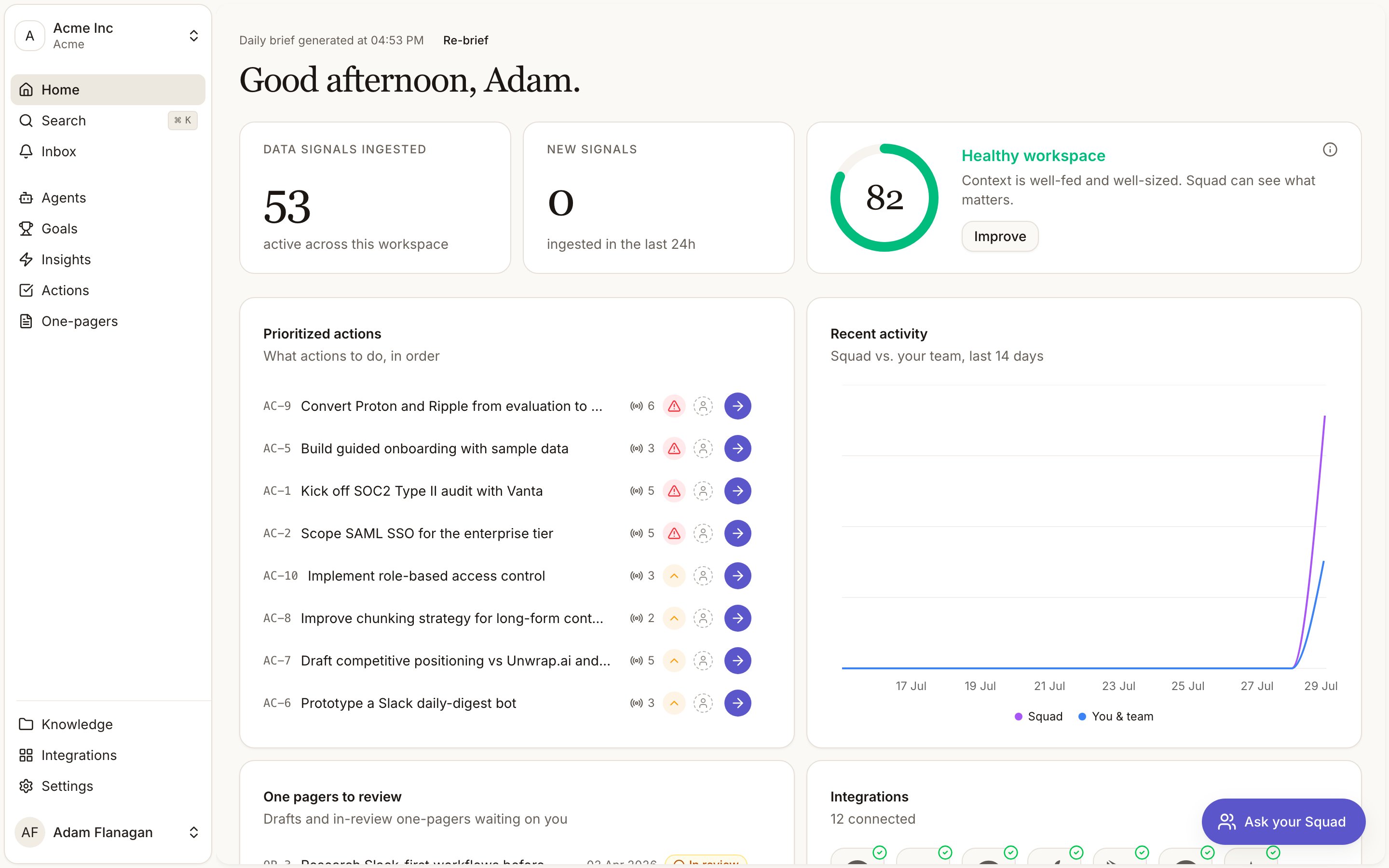
The workspace switcher sits at the top, showing the current workspace with your organisation
underneath. Below it are three quick actions: **Home**, **Search** (which opens the command
palette), and your notification **Inbox**.
The main list follows, in this order.
* **Agents.** Agents that watch your sources and write up what they find.
* **Goals.** The objectives you're working toward.
* **Insights.** The scored findings drawn from your evidence.
* **Actions.** Suggested and in-progress next steps.
* **One-pagers.** PRDs and decision briefs.
Three more are pinned to the bottom.
* **Knowledge.** Documents, folders and version history.
* **Integrations.** The services you've connected.
* **Settings.** Workspace name, logo, and preferences. See
[Workspace settings](/workspace-settings).
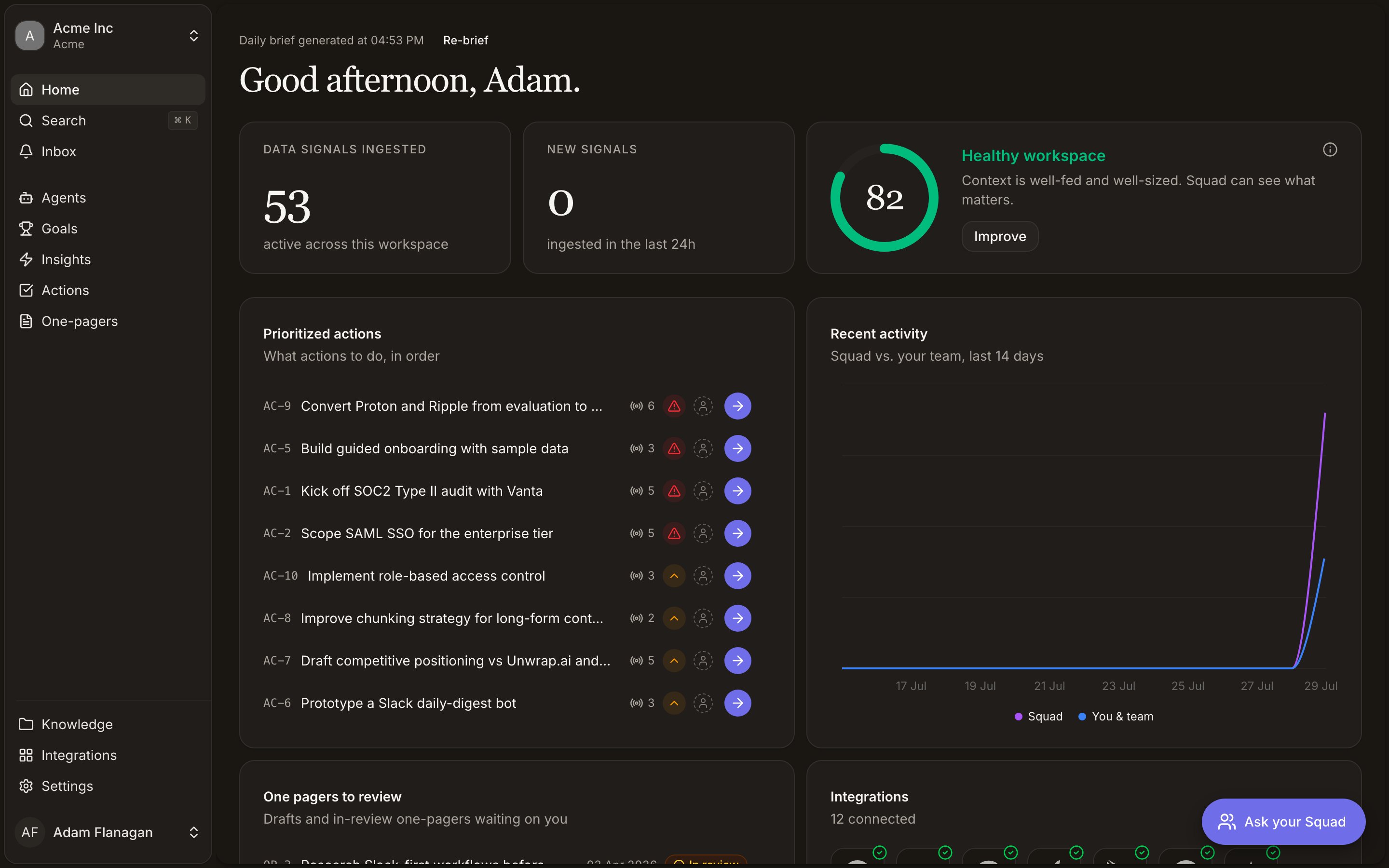
Your account sits below those. Click your avatar for the organisation switcher, the theme picker
(Light, Dark, System) and log out.
The current page is highlighted. **Insights** stays highlighted while you're on a signals page,
since signals and insights are two views of the same chain. Press **Cmd/Ctrl+E** to collapse the
sidebar to icons and again to expand it, or hover the panel and click the chevron near its right
edge.
**Home** is the [Dashboard](/dashboard).
## Pages with no sidebar entry
Two live pages are reachable only through links or the URL bar.
The record of who changed what. Reach it from **See all** on the dashboard's **Recent activity**
widget, from **All activity** at the foot of your notification inbox, or from **All activity**
next to the **History** section on an insight, goal or one-pager detail page (those arrive
pre-filtered to that entity type). See [Activity](/activity).
## The command palette
Press **Cmd/Ctrl+K**, or click **Search** in the sidebar. Start typing a command or a search term.
The palette opens on **General** (**Copy URL** puts a link to the current page on your clipboard,
**Switch Theme** leads to Light, Dark and System) followed by **Navigation**, which lists the same
nine destinations as the sidebar. Below that sit your **Documents** and **Folders**, matched on both
title and path.
Type more than a word or two and three live search groups appear: **Insights**, **Goals** and **Data
Signals**, each result showing its title and reference (`IN-12`, `GL-4`, `SI-88`). A **Workspaces**
group at the bottom switches workspace, with the current one marked **Current**.
Selecting any result navigates there and closes the palette. Escape dismisses it.
## Reference chips
Entities link to each other through reference chips: small clickable tags carrying an ID. Click one
to open the item. They show up in the daily brief, inside one-pagers, on action rows, in goals and
in agent messages.
Each type has its own prefix, so you can read a reference without context.
| Prefix | Entity |
| ------ | ------------------------------------- |
| `IN-` | Insight |
| `GL-` | Goal |
| `AC-` | Action |
| `OP-` | One-pager |
| `SI-` | Data signal |
| `CL-` | Signal cluster |
| `DC-` | Document |
Folders carry no prefix, so you reach those by name.
## Switching workspace and organisation
Click the workspace switcher at the top of the sidebar for a list of every workspace in the
organisation, each with its description, the current one ticked. **Create workspace** at the bottom
starts a new one, which begins with its own [setup conversation](/quickstart). The **Workspaces**
group in the command palette does the same job in fewer keystrokes.
Switching workspace changes your entire working context. Goals, insights, actions, one-pagers,
knowledge, integrations and settings all belong to one workspace and never leak between them.
Organisations are one level up. Switch between them from the account menu at the bottom of the
sidebar. Squad sends you to that organisation's default workspace.
## On mobile
The sidebar is replaced by a pill floating at the bottom of the screen with two buttons: a menu, and
**Ask your Squad** for the chat panel.
The menu opens a grid of **Home**, **Search**, **Inbox** and **Knowledge**, and below it the full
list: Agents, Goals, Insights, Actions, One-pagers, Knowledge, Integrations, and Settings under a
divider. Search there is the same command palette you get on desktop.
## The sidebar
The workspace switcher sits at the top, showing the current workspace with your organisation
underneath. Below it are three quick actions: **Home**, **Search** (which opens the command
palette), and your notification **Inbox**.
The main list follows, in this order.
* **Agents.** Agents that watch your sources and write up what they find.
* **Goals.** The objectives you're working toward.
* **Insights.** The scored findings drawn from your evidence.
* **Actions.** Suggested and in-progress next steps.
* **One-pagers.** PRDs and decision briefs.
Three more are pinned to the bottom.
* **Knowledge.** Documents, folders and version history.
* **Integrations.** The services you've connected.
* **Settings.** Workspace name, logo, and preferences. See
[Workspace settings](/workspace-settings).
Your account sits below those. Click your avatar for the organisation switcher, the theme picker
(Light, Dark, System) and log out.
The current page is highlighted. **Insights** stays highlighted while you're on a signals page,
since signals and insights are two views of the same chain. Press **Cmd/Ctrl+E** to collapse the
sidebar to icons and again to expand it, or hover the panel and click the chevron near its right
edge.
**Home** is the [Dashboard](/dashboard).
## Pages with no sidebar entry
Two live pages are reachable only through links or the URL bar.
The record of who changed what. Reach it from **See all** on the dashboard's **Recent activity**
widget, from **All activity** at the foot of your notification inbox, or from **All activity**
next to the **History** section on an insight, goal or one-pager detail page (those arrive
pre-filtered to that entity type). See [Activity](/activity).
## The command palette
Press **Cmd/Ctrl+K**, or click **Search** in the sidebar. Start typing a command or a search term.
The palette opens on **General** (**Copy URL** puts a link to the current page on your clipboard,
**Switch Theme** leads to Light, Dark and System) followed by **Navigation**, which lists the same
nine destinations as the sidebar. Below that sit your **Documents** and **Folders**, matched on both
title and path.
Type more than a word or two and three live search groups appear: **Insights**, **Goals** and **Data
Signals**, each result showing its title and reference (`IN-12`, `GL-4`, `SI-88`). A **Workspaces**
group at the bottom switches workspace, with the current one marked **Current**.
Selecting any result navigates there and closes the palette. Escape dismisses it.
## Reference chips
Entities link to each other through reference chips: small clickable tags carrying an ID. Click one
to open the item. They show up in the daily brief, inside one-pagers, on action rows, in goals and
in agent messages.
Each type has its own prefix, so you can read a reference without context.
| Prefix | Entity |
| ------ | ------------------------------------- |
| `IN-` | Insight |
| `GL-` | Goal |
| `AC-` | Action |
| `OP-` | One-pager |
| `SI-` | Data signal |
| `CL-` | Signal cluster |
| `DC-` | Document |
Folders carry no prefix, so you reach those by name.
## Switching workspace and organisation
Click the workspace switcher at the top of the sidebar for a list of every workspace in the
organisation, each with its description, the current one ticked. **Create workspace** at the bottom
starts a new one, which begins with its own [setup conversation](/quickstart). The **Workspaces**
group in the command palette does the same job in fewer keystrokes.
Switching workspace changes your entire working context. Goals, insights, actions, one-pagers,
knowledge, integrations and settings all belong to one workspace and never leak between them.
Organisations are one level up. Switch between them from the account menu at the bottom of the
sidebar. Squad sends you to that organisation's default workspace.
## On mobile
The sidebar is replaced by a pill floating at the bottom of the screen with two buttons: a menu, and
**Ask your Squad** for the chat panel.
The menu opens a grid of **Home**, **Search**, **Inbox** and **Knowledge**, and below it the full
list: Agents, Goals, Insights, Actions, One-pagers, Knowledge, Integrations, and Settings under a
divider. Search there is the same command palette you get on desktop.