> ## Documentation Index
> Fetch the complete documentation index at: https://docs.meetsquad.ai/llms.txt
> Use this file to discover all available pages before exploring further.
# Integrations
> The nine providers Squad connects to, what each one can trigger, read and write, and how to connect them.
 Connecting a provider gives Squad three things: events it can start an agent on, tools an agent can call while it runs, and in some cases content that becomes [signals](/signals). Not every provider gives all three, and each page below says plainly what its provider does and does not do.
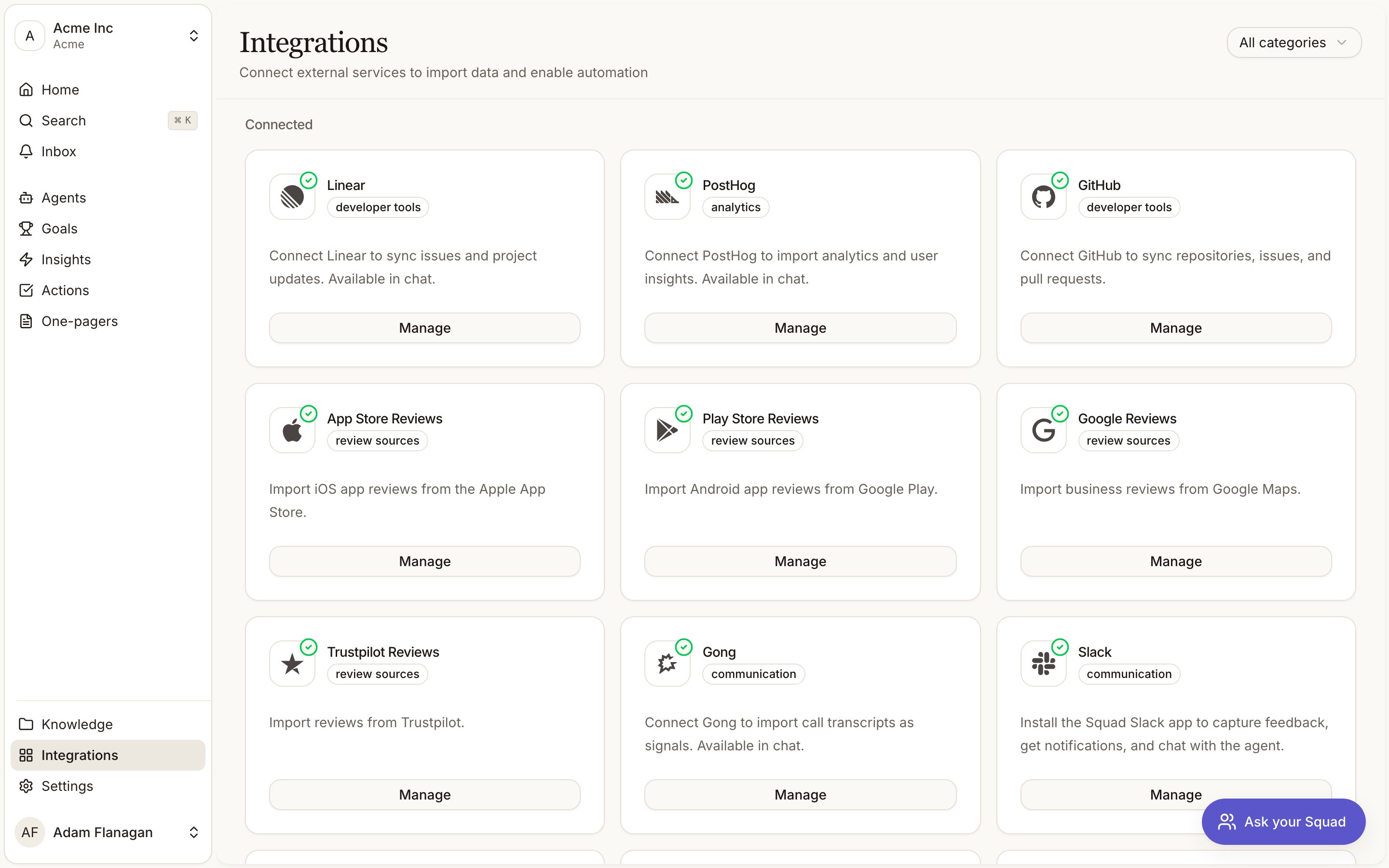
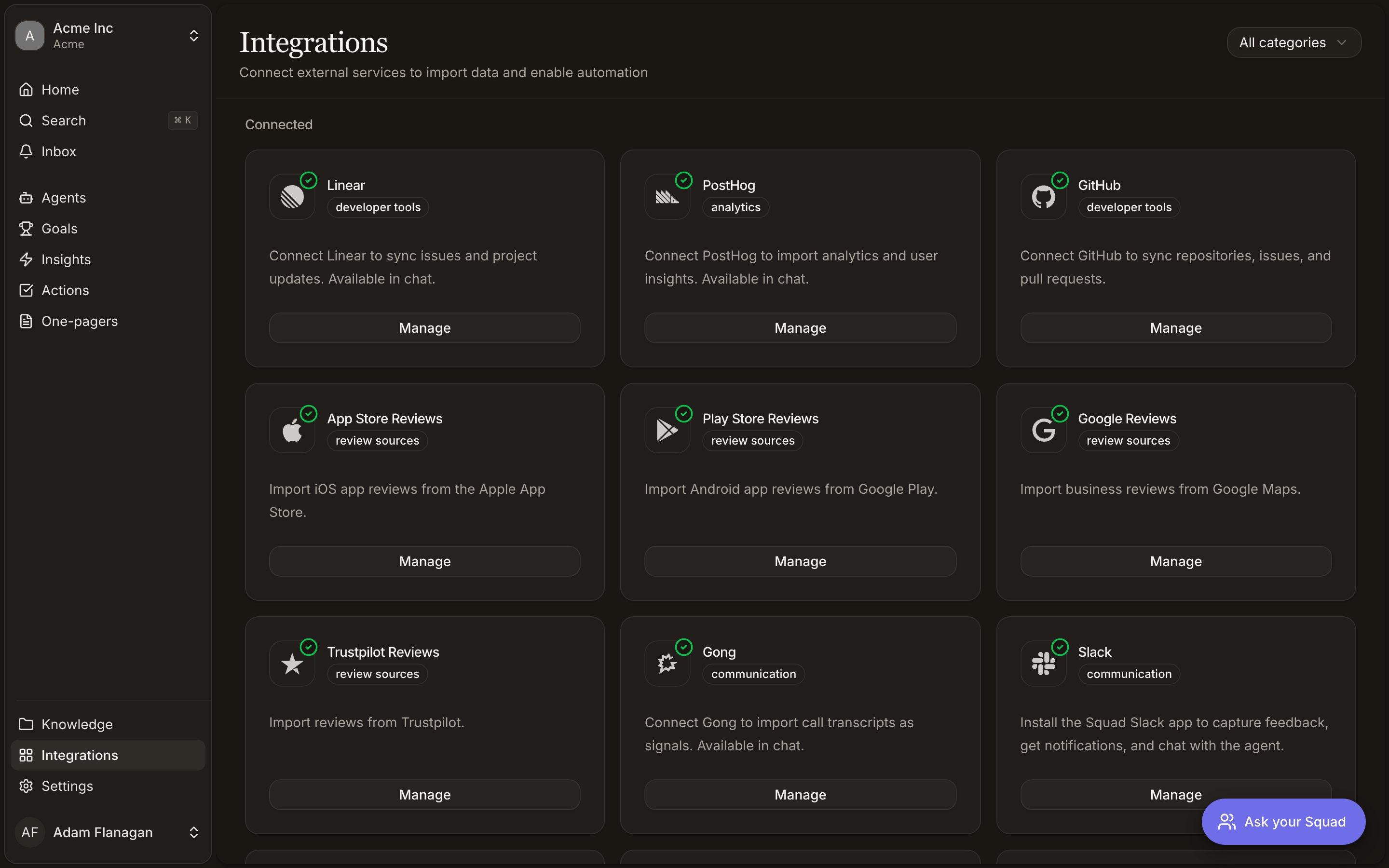 Open **Integrations** in the workspace nav. Providers you've connected sit under **Connected**, the rest under **Discover**. A connection belongs to one workspace, so two workspaces in the same organisation can connect different tools.
## The nine providers
Capture feedback from Slack, read channel history from an agent, and get Squad's output posted back into a channel.
Watch a Notion page for changes, and let an agent read the page it was triggered from.
Turn recorded sales calls into signals, with an agent that runs the moment a call lands.
Turn customer requests into signals and reply to them from an agent flow.
Start an agent when an issue or comment changes, read your issues, and file new ones from a flow.
Run an agent when an issue opens or a pull request merges, and open or comment on issues from a flow.
Query your product analytics from an agent, and run one when PostHog forwards an event.
Turn AI meeting notes and transcripts into signals, with an agent that runs when Fellow finishes a note.
App Store, Play Store, Google and Trustpilot reviews, imported daily as signals.
## Categories
The filter in the top right offers six categories: analytics, communication, database, developer tools, productivity, and review sources. Productivity is in the list but no provider uses it, so filtering by it always shows an empty grid.
| Provider | Category | How you connect |
| ------------------------------------------------------------------------- | --------------- | ------------------------- |
| [Linear](/integrations/linear) | Developer tools | OAuth |
| [PostHog](/integrations/posthog) | Analytics | API key form |
| [GitHub](/integrations/github) | Developer tools | GitHub App install |
| [App Store, Play Store, Google, Trustpilot](/integrations/review-sources) | Review sources | Nothing to authorise |
| [Gong](/integrations/gong) | Communication | OAuth, then a webhook key |
| [Slack](/integrations/slack) | Communication | OAuth |
| [Notion](/integrations/notion) | Database | OAuth |
| [Jira Service Management](/integrations/jira) | Developer tools | OAuth |
| [Fellow](/integrations/fellow) | Communication | API key form |
## The three ways to connect
Linear, Gong, Slack, Notion and Jira Service Management send you to the provider's consent screen. Approve there, and you land back on the integration's detail page in Squad with a green **Connected** badge.
GitHub's card works the same way but takes you to a GitHub App install screen instead, not an OAuth consent screen. That screen is where you choose the account and the repositories Squad may see.
PostHog and Fellow open a dialog instead of redirecting. The fields come from the provider itself, so each form asks for exactly what that provider needs (PostHog wants a region, project ID and personal API key; Fellow wants your workspace subdomain and an API key). Every form carries the setup steps and a link to the provider's own docs.
The four review sources run on Squad's credentials. Clicking **Connect** takes you straight to the detail page, where you add the app, business or domain you want tracked. The integration comes into existence when you add your first source.
## Setup required
A provider can be connected and still not working. When OAuth finishes but a step on the provider's side is outstanding, the integration sits in **Setup required**: an amber badge on the detail page, an amber border on the card, and a **Finish setup** button in place of **Manage**.
Gong is the provider that lands there today. Its OAuth grant doesn't give Squad a way to verify inbound webhooks, so the connection waits until you paste the verification public key from your Gong webhook rule. See [Gong](/integrations/gong).
## How triggers and tools reach your agents
An [agent](/agents) that starts from an integration event picks the trigger in the agent builder. The picker only lists providers that are connected and declare at least one trigger.
Slack never appears in that picker, and neither do the review sources. Slack declares no agent triggers by design, and the review sources declare no triggers and no agent tools, so an agent can never be started by a new review. See [Slack](/integrations/slack) and [Review sources](/integrations/review-sources).
Tools work in two tiers. The read tools of the provider your agent is triggered by are locked on, labelled **Comes with your trigger**, and can't be switched off. Everything else is a toggle: read tools from other connected providers, and write tools, which carry an **Outbound** badge because they change something in your system. See [Agent tools and access](/agent-tools-access).
The [chat assistant](/chat-assistant) is different. It gets both the read and write tools of every active integration with no configuration, because you are in the loop for every message.
## Connection health and disconnecting
The detail page header shows the status and identity: **Connected** in green, **Setup required** in amber, **Disconnected** in red when the connection failed or was revoked. Below that sit the connected account and the date you connected.
If a connection predates Squad's webhook routing, the detail page shows an amber banner. Its triggers never fire until you reconnect.
**Disconnect** lives in the Danger Zone at the bottom of the detail page. Disconnecting drops the provider's triggers and tools, and tears down any webhook Squad registered for you.
Gong is the exception. Its rule was created by you inside Gong, so turn it off in the Gong admin as well.
Open **Integrations** in the workspace nav. Providers you've connected sit under **Connected**, the rest under **Discover**. A connection belongs to one workspace, so two workspaces in the same organisation can connect different tools.
## The nine providers
Capture feedback from Slack, read channel history from an agent, and get Squad's output posted back into a channel.
Watch a Notion page for changes, and let an agent read the page it was triggered from.
Turn recorded sales calls into signals, with an agent that runs the moment a call lands.
Turn customer requests into signals and reply to them from an agent flow.
Start an agent when an issue or comment changes, read your issues, and file new ones from a flow.
Run an agent when an issue opens or a pull request merges, and open or comment on issues from a flow.
Query your product analytics from an agent, and run one when PostHog forwards an event.
Turn AI meeting notes and transcripts into signals, with an agent that runs when Fellow finishes a note.
App Store, Play Store, Google and Trustpilot reviews, imported daily as signals.
## Categories
The filter in the top right offers six categories: analytics, communication, database, developer tools, productivity, and review sources. Productivity is in the list but no provider uses it, so filtering by it always shows an empty grid.
| Provider | Category | How you connect |
| ------------------------------------------------------------------------- | --------------- | ------------------------- |
| [Linear](/integrations/linear) | Developer tools | OAuth |
| [PostHog](/integrations/posthog) | Analytics | API key form |
| [GitHub](/integrations/github) | Developer tools | GitHub App install |
| [App Store, Play Store, Google, Trustpilot](/integrations/review-sources) | Review sources | Nothing to authorise |
| [Gong](/integrations/gong) | Communication | OAuth, then a webhook key |
| [Slack](/integrations/slack) | Communication | OAuth |
| [Notion](/integrations/notion) | Database | OAuth |
| [Jira Service Management](/integrations/jira) | Developer tools | OAuth |
| [Fellow](/integrations/fellow) | Communication | API key form |
## The three ways to connect
Linear, Gong, Slack, Notion and Jira Service Management send you to the provider's consent screen. Approve there, and you land back on the integration's detail page in Squad with a green **Connected** badge.
GitHub's card works the same way but takes you to a GitHub App install screen instead, not an OAuth consent screen. That screen is where you choose the account and the repositories Squad may see.
PostHog and Fellow open a dialog instead of redirecting. The fields come from the provider itself, so each form asks for exactly what that provider needs (PostHog wants a region, project ID and personal API key; Fellow wants your workspace subdomain and an API key). Every form carries the setup steps and a link to the provider's own docs.
The four review sources run on Squad's credentials. Clicking **Connect** takes you straight to the detail page, where you add the app, business or domain you want tracked. The integration comes into existence when you add your first source.
## Setup required
A provider can be connected and still not working. When OAuth finishes but a step on the provider's side is outstanding, the integration sits in **Setup required**: an amber badge on the detail page, an amber border on the card, and a **Finish setup** button in place of **Manage**.
Gong is the provider that lands there today. Its OAuth grant doesn't give Squad a way to verify inbound webhooks, so the connection waits until you paste the verification public key from your Gong webhook rule. See [Gong](/integrations/gong).
## How triggers and tools reach your agents
An [agent](/agents) that starts from an integration event picks the trigger in the agent builder. The picker only lists providers that are connected and declare at least one trigger.
Slack never appears in that picker, and neither do the review sources. Slack declares no agent triggers by design, and the review sources declare no triggers and no agent tools, so an agent can never be started by a new review. See [Slack](/integrations/slack) and [Review sources](/integrations/review-sources).
Tools work in two tiers. The read tools of the provider your agent is triggered by are locked on, labelled **Comes with your trigger**, and can't be switched off. Everything else is a toggle: read tools from other connected providers, and write tools, which carry an **Outbound** badge because they change something in your system. See [Agent tools and access](/agent-tools-access).
The [chat assistant](/chat-assistant) is different. It gets both the read and write tools of every active integration with no configuration, because you are in the loop for every message.
## Connection health and disconnecting
The detail page header shows the status and identity: **Connected** in green, **Setup required** in amber, **Disconnected** in red when the connection failed or was revoked. Below that sit the connected account and the date you connected.
If a connection predates Squad's webhook routing, the detail page shows an amber banner. Its triggers never fire until you reconnect.
**Disconnect** lives in the Danger Zone at the bottom of the detail page. Disconnecting drops the provider's triggers and tools, and tears down any webhook Squad registered for you.
Gong is the exception. Its rule was created by you inside Gong, so turn it off in the Gong admin as well.