> ## Documentation Index
> Fetch the complete documentation index at: https://docs.meetsquad.ai/llms.txt
> Use this file to discover all available pages before exploring further.
# Notion
> Keep Squad up to date with your Notion workspace to better inform product decisions and strategy
**Category**: Knowledge Sources
## Overview
The Notion integration syncs your Notion workspace with Squad, transforming your product documentation, meeting notes, into a knowledge base. Squad analyses your Notion pages to surface patterns, validate assumptions, and keep your product strategy aligned with documented decisions.
## Benefits
**Centralise product knowledge:** Sync product docs, user research notes, and strategy documents from Notion to keep Squad's knowledge base current.
**Context-aware insights:** Squad's agents consult relevant Notion pages, ensuring every decision has your full context behind it.
**Single source of truth:** Changes in your Notion workspace are picked up on each sync, updating Squad's understanding of your product strategy and decisions.
## Setup guide
1. Go to **Workspace dropdown → Integrations** in Squad
2. Find Notion and click **Connect**
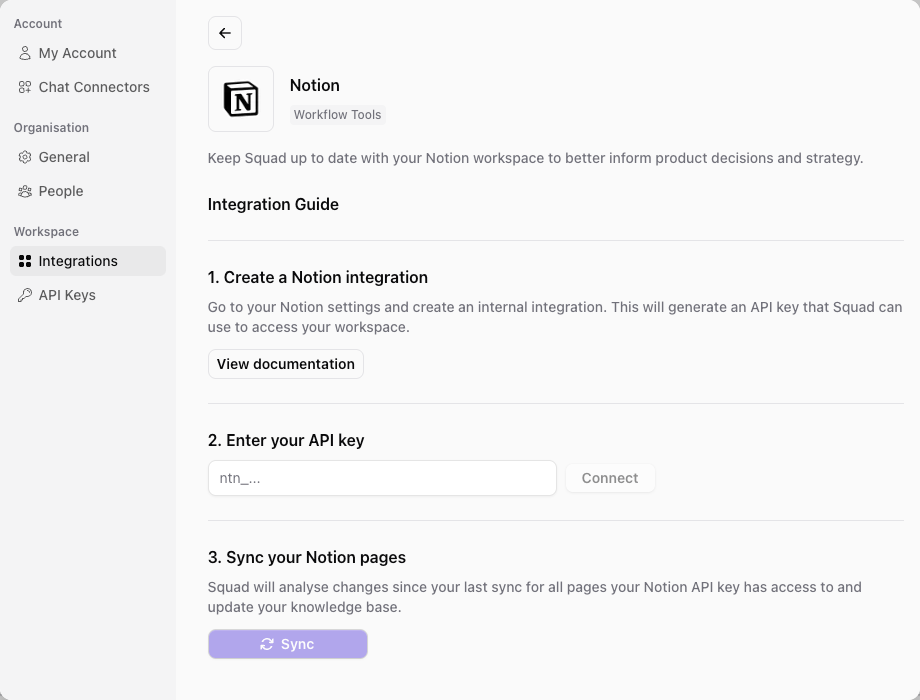 1. Go to your [Notion profile](https://www.notion.so/profile/integrations) and create an internal integration
2. This will generate an API key that Squad can use to access your workspace
3. Copy the API key and paste it into Squad
4. Click the **Connect** button
**Pro tip**: Grant your Notion integration access to specific workspaces or pages containing product-related content. This keeps Squad focused on relevant
information without syncing personal or unrelated pages.
See [Notion's documentation](https://developers.notion.com/docs/create-a-notion-integration) for detailed steps on creating an internal integration.
1. Go to your [Notion profile](https://www.notion.so/profile/integrations) and create an internal integration
2. This will generate an API key that Squad can use to access your workspace
3. Copy the API key and paste it into Squad
4. Click the **Connect** button
**Pro tip**: Grant your Notion integration access to specific workspaces or pages containing product-related content. This keeps Squad focused on relevant
information without syncing personal or unrelated pages.
See [Notion's documentation](https://developers.notion.com/docs/create-a-notion-integration) for detailed steps on creating an internal integration.
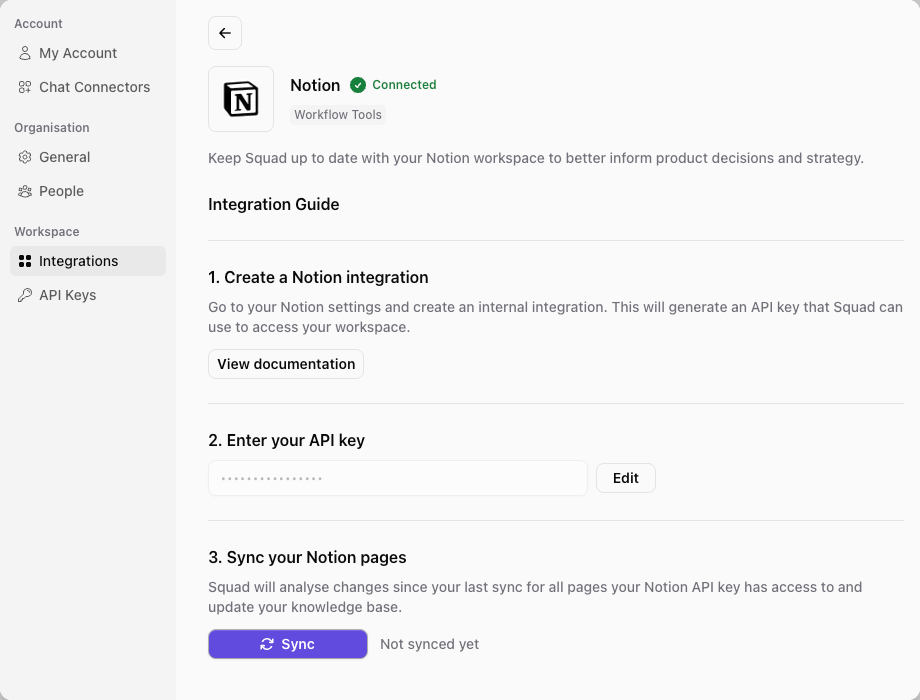 1. Click the **Sync** button to kick off a sync of your Notion workspace.
2. Squad will analyse changes since your last sync for all pages your Notion API key has access to
3. Watch the status of your Notion knowledge in the Workspace node on the **Strategy** canvas.
1. Click the **Sync** button to kick off a sync of your Notion workspace.
2. Squad will analyse changes since your last sync for all pages your Notion API key has access to
3. Watch the status of your Notion knowledge in the Workspace node on the **Strategy** canvas.
 ## What Squad syncs
* **Pages and databases**: All pages and database entries your API key can access
* **Content blocks**: Text, headings, lists, and embedded content
* **Page properties**: Titles, tags, dates, and custom properties
* **Comments**: Comments on pages and database entries
* **Last edited metadata**: Timestamps and editor information
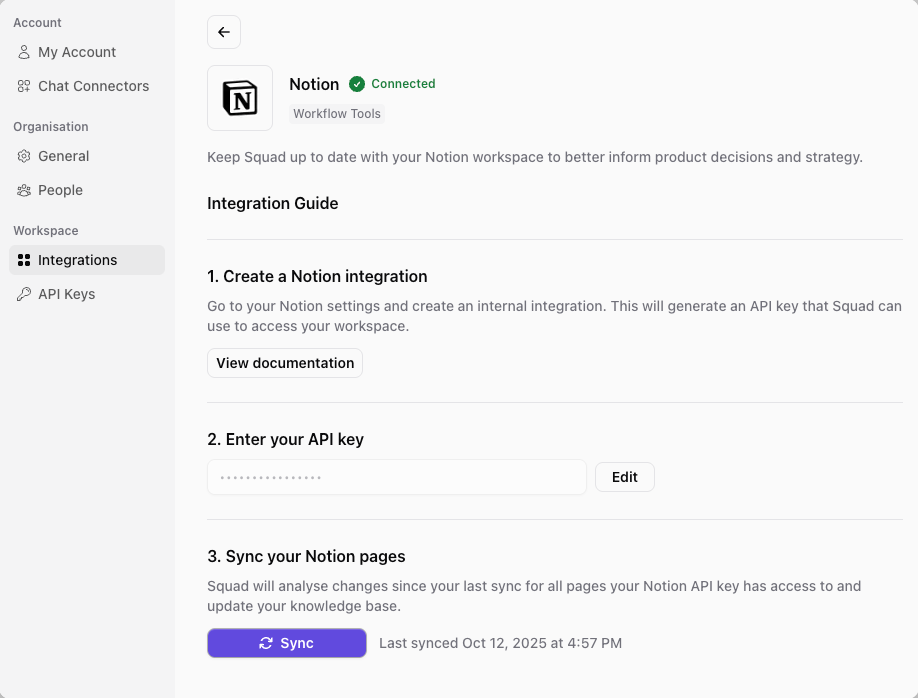
Squad syncs on-demand when you click the Sync button. Squad analyses changes since your last sync to keep your knowledge base current.
## Common use cases
1. **Product documentation sync**: Keep product requirements, specs, and technical documentation accessible to Squad's insight engine
2. **User research repository**: Sync interview notes, research findings, and user feedback documented in Notion
3. **Meeting notes integration**: Connect team decisions and action items from meeting notes to product opportunities
## Best practices
**High value pages**
✅ **Good**: Product roadmap pages, user research notes, customer feedback compilations
* Structured product information
* Rich context for decisions
❌ **Avoid**: Personal notes, HR documents, unrelated content
* Non-product content
* Creates noise and distracts from key insights
## Troubleshooting
**Sync not working**
* Verify your API key is valid and hasn't expired
* Check that your integration has access to the pages you want to sync
* Ensure your Notion workspace is accessible
**Missing pages**
* Confirm the integration has permission to access specific pages
* Check if pages are archived or deleted in Notion
* Verify workspace selection in integration settings
**Sync taking too long**
* Large workspaces may take time to sync initially
* Subsequent syncs are faster as they only process changes
* Consider limiting integration access to product-relevant pages
## What Squad syncs
* **Pages and databases**: All pages and database entries your API key can access
* **Content blocks**: Text, headings, lists, and embedded content
* **Page properties**: Titles, tags, dates, and custom properties
* **Comments**: Comments on pages and database entries
* **Last edited metadata**: Timestamps and editor information
Squad syncs on-demand when you click the Sync button. Squad analyses changes since your last sync to keep your knowledge base current.
## Common use cases
1. **Product documentation sync**: Keep product requirements, specs, and technical documentation accessible to Squad's insight engine
2. **User research repository**: Sync interview notes, research findings, and user feedback documented in Notion
3. **Meeting notes integration**: Connect team decisions and action items from meeting notes to product opportunities
## Best practices
**High value pages**
✅ **Good**: Product roadmap pages, user research notes, customer feedback compilations
* Structured product information
* Rich context for decisions
❌ **Avoid**: Personal notes, HR documents, unrelated content
* Non-product content
* Creates noise and distracts from key insights
## Troubleshooting
**Sync not working**
* Verify your API key is valid and hasn't expired
* Check that your integration has access to the pages you want to sync
* Ensure your Notion workspace is accessible
**Missing pages**
* Confirm the integration has permission to access specific pages
* Check if pages are archived or deleted in Notion
* Verify workspace selection in integration settings
**Sync taking too long**
* Large workspaces may take time to sync initially
* Subsequent syncs are faster as they only process changes
* Consider limiting integration access to product-relevant pages