> ## Documentation Index
> Fetch the complete documentation index at: https://docs.meetsquad.ai/llms.txt
> Use this file to discover all available pages before exploring further.
# Slack
> Capture insights and manage your roadmap without leaving Slack
**Category**: Insight Sources & Workflow Tools
## Overview
The Squad Slack integration turns any Slack message or thread into actionable product insights. Capture feedback, create opportunities, and get strategy updates—all without leaving Slack.
## Benefits
**Never miss valuable feedback:** Squad automatically detects and categorizes product feedback from Slack conversations, ensuring great ideas don't get lost in threads.
**Workflow integration:** Create opportunities, check roadmap status, and get updates about your strategy directly in Slack.
**Team-wide visibility:** Keep everyone aligned with automated updates about strategy changes, new opportunities, and shipped solutions.
## Setup guide
1. Go to **Workspace dropdown → Integrations** in Squad
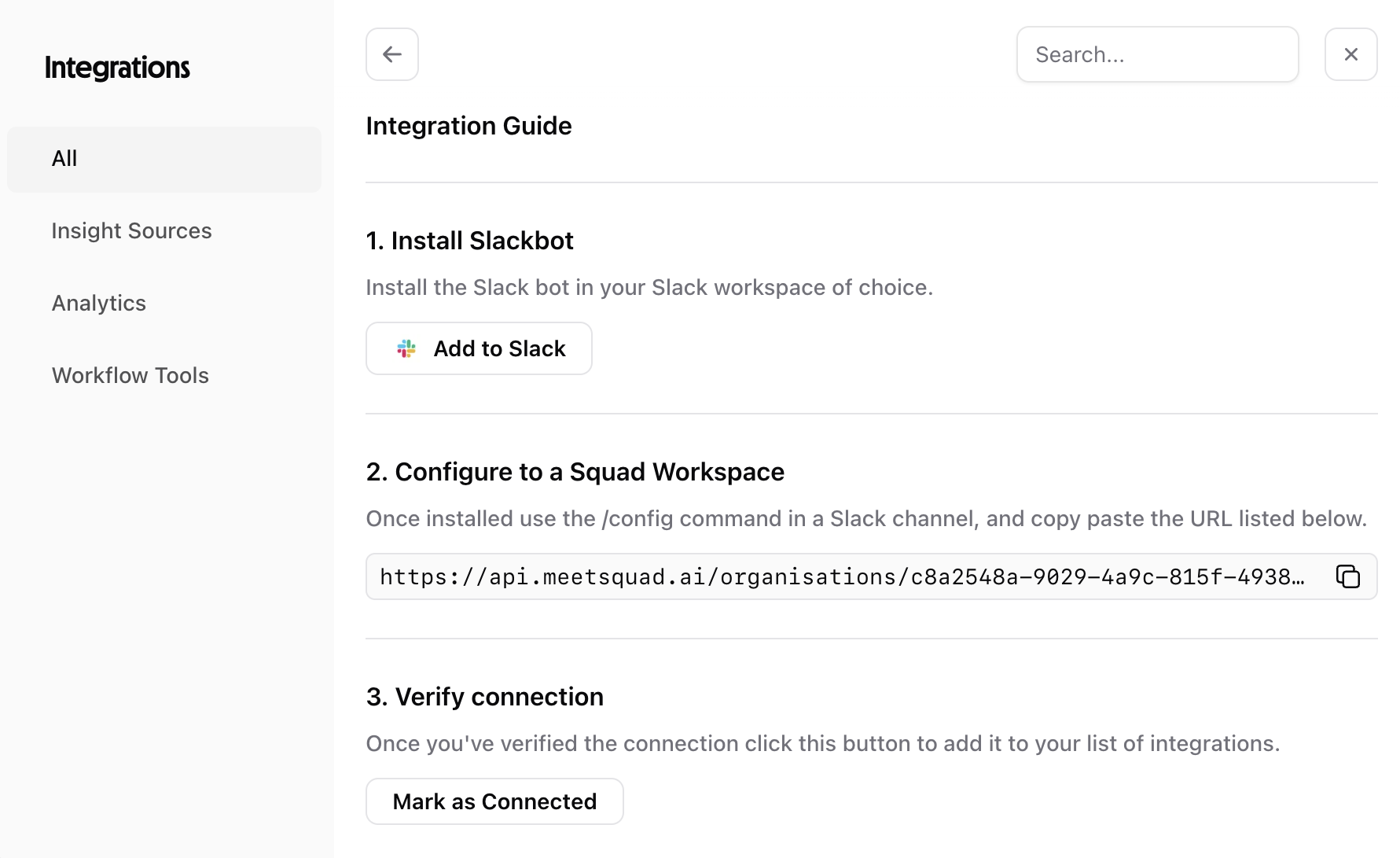 2. Find Slack and click **Connect**
3. Click [**Add to Slack**](https://2zdmay1lga.execute-api.eu-west-2.amazonaws.com/slack/install) and select your Slack workspace
4. Authorize Squad to access your workspace
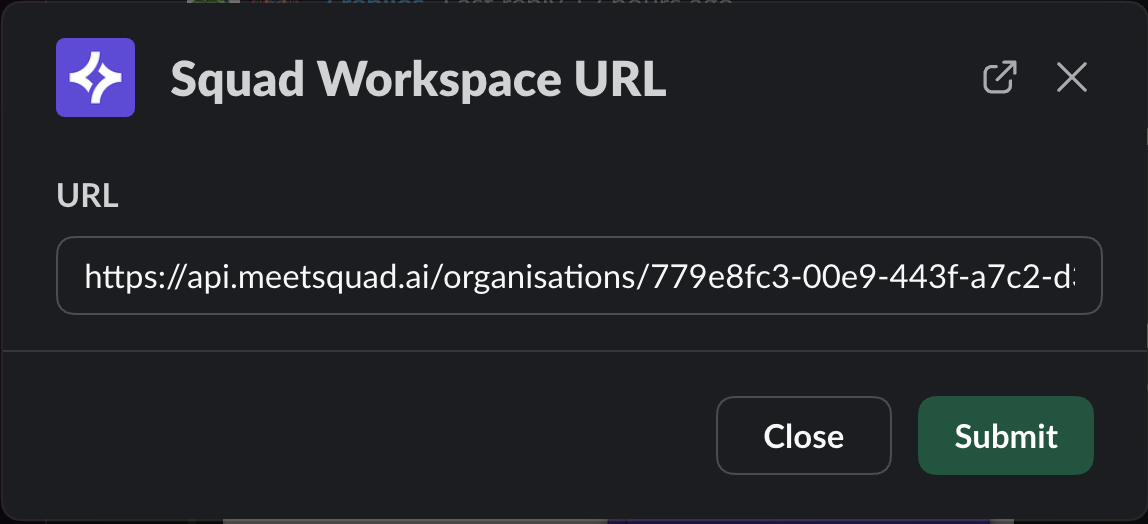
Once installed use the **/config** command in a Slack channel, and copy paste the your Squad workspace URL listed in the intergations dialog.
2. Find Slack and click **Connect**
3. Click [**Add to Slack**](https://2zdmay1lga.execute-api.eu-west-2.amazonaws.com/slack/install) and select your Slack workspace
4. Authorize Squad to access your workspace
Once installed use the **/config** command in a Slack channel, and copy paste the your Squad workspace URL listed in the intergations dialog.
 Squad automatically enables these slash commands:
* `/send-feedback` - Capture feedback with context
* `/config` - Update to a new Squad workspace
Use Squad to monitor specific channels, for example:
* `#product-feedback`
* `#customer-insights`
* `#bug-reports`
Once you're up and running, mark Slack as connected.
## Command examples
```
/send-feedback The checkout process is too complicated for mobile users
```
Creates an insight linked to the current channel context.
## Common use cases
1. **Sales feedback loop**: Sales team shares customer quotes in #sales-wins, Squad automatically extracts product insights
2. **Support triage**: Support team tags urgent issues with 📝, creating opportunities with customer context
3. **Sprint updates**: Engineering posts progress in #sprint-updates, Squad updates solution status automatically
**Pro tip**: Create a dedicated #squad-insights channel where the bot posts weekly summaries of captured feedback and trending themes.
## Troubleshooting
**Bot not responding**
* Check if bot is active in Slack workspace settings
* Verify Squad has permission to read messages
**Command not working**
* Make sure the /config URL matches what is displayed in Squad integrations guide
* Reinstall the Slack app to refresh commands
Squad automatically enables these slash commands:
* `/send-feedback` - Capture feedback with context
* `/config` - Update to a new Squad workspace
Use Squad to monitor specific channels, for example:
* `#product-feedback`
* `#customer-insights`
* `#bug-reports`
Once you're up and running, mark Slack as connected.
## Command examples
```
/send-feedback The checkout process is too complicated for mobile users
```
Creates an insight linked to the current channel context.
## Common use cases
1. **Sales feedback loop**: Sales team shares customer quotes in #sales-wins, Squad automatically extracts product insights
2. **Support triage**: Support team tags urgent issues with 📝, creating opportunities with customer context
3. **Sprint updates**: Engineering posts progress in #sprint-updates, Squad updates solution status automatically
**Pro tip**: Create a dedicated #squad-insights channel where the bot posts weekly summaries of captured feedback and trending themes.
## Troubleshooting
**Bot not responding**
* Check if bot is active in Slack workspace settings
* Verify Squad has permission to read messages
**Command not working**
* Make sure the /config URL matches what is displayed in Squad integrations guide
* Reinstall the Slack app to refresh commands