> ## Documentation Index
> Fetch the complete documentation index at: https://docs.meetsquad.ai/llms.txt
> Use this file to discover all available pages before exploring further.
# Typeform
> Transform survey responses into validated product opportunities
**Category**: Insight Sources
## Overview
The Typeform integration brings structured user research directly into Squad's discovery engine. Squad analyzes survey responses to identify patterns, validate assumptions, and quantify user needs with statistical confidence.
## Benefits
**Validate with confidence:** See exactly how many users experience each problem, with demographic breakdowns and statistical significance.
**Connect qual and quant:** Squad links open-ended responses to rating questions, showing not just what users want but how much it matters to them.
**Automated insight extraction:** AI analyzes free-text responses to surface themes you might miss in manual review.
## Setup guide
1. Go to **Workspace dropdown → Integrations** in Squad
2. Find Typeform and click **Connect**
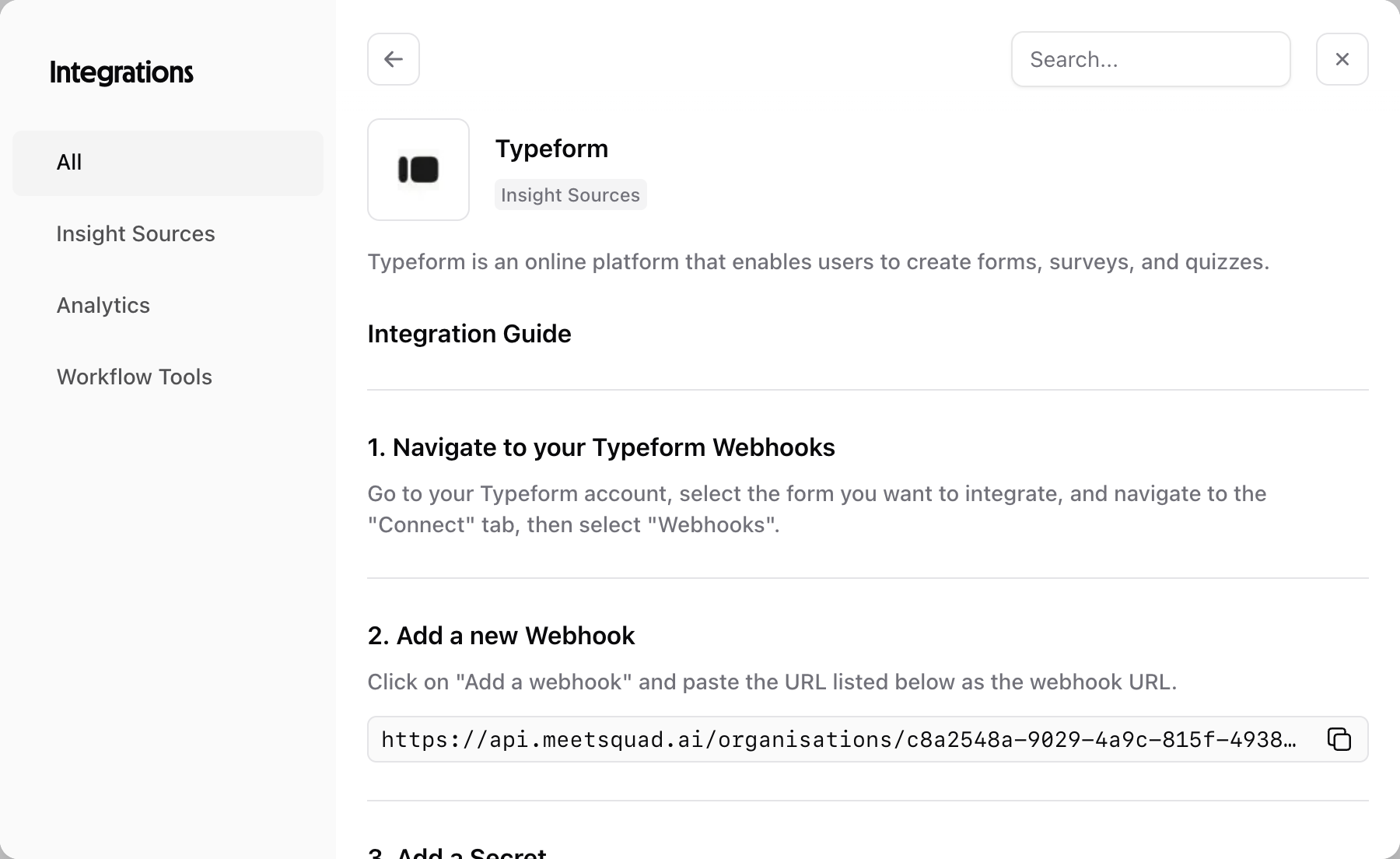 3. Log in to your Typeform account
4. Select the form you want to integrate
5. Navigate to the "Connect" tab, then select "Webhooks"
1. Click on `Add a webhook` and paste the URL listed in Squad as the webhook URL
2. Enter the secret key provided in Squad in the Typeform "Secret" field
3. Make sure to toggle the webhook to "Enabled" and save your changes
And that's it! Monitor your Squad [Insights](/features/insights) page for new insights and actionable opportunities from your Typeform responses.
## What Squad syncs
* **Survey responses**: All completed and partial responses
* **Question types**: Multiple choice, ratings, scales, and open text
* **Respondent data**: Timestamps, completion rates, and metadata
* **Hidden fields**: UTM parameters, user IDs, and custom data
* **File uploads**: Images and documents shared by respondents
Squad syncs new responses in real-time via webhooks
## Survey analysis features
**Response clustering** similar open-text responses:
```
"The checkout takes too many steps"
"Too many screens to place order"
"Why is buying so complicated?"
→ Opportunity: "Simplify checkout flow" (47 mentions)
```
\*\*Correlation analysis \*\*discovers relationships between responses:
* Users who rate checkout poorly also mention "payment options"
* Low NPS scores correlate with "delivery time" complaints
* Feature requests cluster by user segment
**Trend detection**
* Response patterns over time
* Sentiment shifts after releases
* Emerging themes week-over-week
## Common use cases
1. **Feature prioritization surveys**: Rank feature requests by how many users need them and how critical they are
2. **Problem validation**: Confirm assumptions about user pain points with quantitative data
3. **Persona research**: Segment feedback by user type to build better solutions
**Pro tip**: Include a "How critical is this problem for you?" rating question after each open-ended problem description. Squad will use this to calculate impact scores automatically.
## Best practices for surveys
**Questions that generate insights**
✅ **Good**: "What's the most frustrating part of ordering food on our app?"
* Surfaces specific problems
* Open-ended but focused
❌ **Avoid**: "How can we improve?"
* Too broad
* Generates vague responses
**Useful question combinations**
1. **Problem + Impact**
* "Describe a recent problem..." (open text)
* "How much did this impact you?" (1-5 scale)
2. **Feature + Frequency**
* "Which features would you like?" (multiple choice)
* "How often would you use this?" (frequency scale)
## Troubleshooting
**No responses syncing**
* Check if webhook is active in Typeform settings
* Verify form is published and receiving responses
* Ensure form is selected in Squad integration settings
**Missing questions**
* Some question types (e.g., decorative) aren't imported
* Hidden fields must be properly configured
* Logic jumps may affect response structure
**Incorrect analysis**
* Very short responses may not categorize well
* Ensure language settings match survey language
* Check question mapping configuration
3. Log in to your Typeform account
4. Select the form you want to integrate
5. Navigate to the "Connect" tab, then select "Webhooks"
1. Click on `Add a webhook` and paste the URL listed in Squad as the webhook URL
2. Enter the secret key provided in Squad in the Typeform "Secret" field
3. Make sure to toggle the webhook to "Enabled" and save your changes
And that's it! Monitor your Squad [Insights](/features/insights) page for new insights and actionable opportunities from your Typeform responses.
## What Squad syncs
* **Survey responses**: All completed and partial responses
* **Question types**: Multiple choice, ratings, scales, and open text
* **Respondent data**: Timestamps, completion rates, and metadata
* **Hidden fields**: UTM parameters, user IDs, and custom data
* **File uploads**: Images and documents shared by respondents
Squad syncs new responses in real-time via webhooks
## Survey analysis features
**Response clustering** similar open-text responses:
```
"The checkout takes too many steps"
"Too many screens to place order"
"Why is buying so complicated?"
→ Opportunity: "Simplify checkout flow" (47 mentions)
```
\*\*Correlation analysis \*\*discovers relationships between responses:
* Users who rate checkout poorly also mention "payment options"
* Low NPS scores correlate with "delivery time" complaints
* Feature requests cluster by user segment
**Trend detection**
* Response patterns over time
* Sentiment shifts after releases
* Emerging themes week-over-week
## Common use cases
1. **Feature prioritization surveys**: Rank feature requests by how many users need them and how critical they are
2. **Problem validation**: Confirm assumptions about user pain points with quantitative data
3. **Persona research**: Segment feedback by user type to build better solutions
**Pro tip**: Include a "How critical is this problem for you?" rating question after each open-ended problem description. Squad will use this to calculate impact scores automatically.
## Best practices for surveys
**Questions that generate insights**
✅ **Good**: "What's the most frustrating part of ordering food on our app?"
* Surfaces specific problems
* Open-ended but focused
❌ **Avoid**: "How can we improve?"
* Too broad
* Generates vague responses
**Useful question combinations**
1. **Problem + Impact**
* "Describe a recent problem..." (open text)
* "How much did this impact you?" (1-5 scale)
2. **Feature + Frequency**
* "Which features would you like?" (multiple choice)
* "How often would you use this?" (frequency scale)
## Troubleshooting
**No responses syncing**
* Check if webhook is active in Typeform settings
* Verify form is published and receiving responses
* Ensure form is selected in Squad integration settings
**Missing questions**
* Some question types (e.g., decorative) aren't imported
* Hidden fields must be properly configured
* Logic jumps may affect response structure
**Incorrect analysis**
* Very short responses may not categorize well
* Ensure language settings match survey language
* Check question mapping configuration