> ## Documentation Index
> Fetch the complete documentation index at: https://docs.meetsquad.ai/llms.txt
> Use this file to discover all available pages before exploring further.
# Zapier
> Connect Squad to 5,000+ apps and automate your product workflow
**Category**: Insight Sources & Workflow Tools
## Overview
The Zapier integration lets you connect Squad to thousands of apps, automatically pulling feedback from any source and pushing updates to your team's tools. Create and manage Zaps directly within Squad — no need to switch between platforms.
## Benefits
**Unlimited data sources:** Connect any tool your team uses to capture feedback, from customer support platforms to CRMs to communication tools.
**Automated workflows:** Set up triggers to create opportunities, update roadmaps, or notify teams when specific conditions are met.
**No-code automation:** Build powerful integrations without writing code, using Zapier's visual workflow builder embedded right in Squad.
## Setup guide
1. Go to **Workspace dropdown → Integrations** in Squad
2. Find Zapier and click **Connect**
3. Sign in to your Zapier account or create one
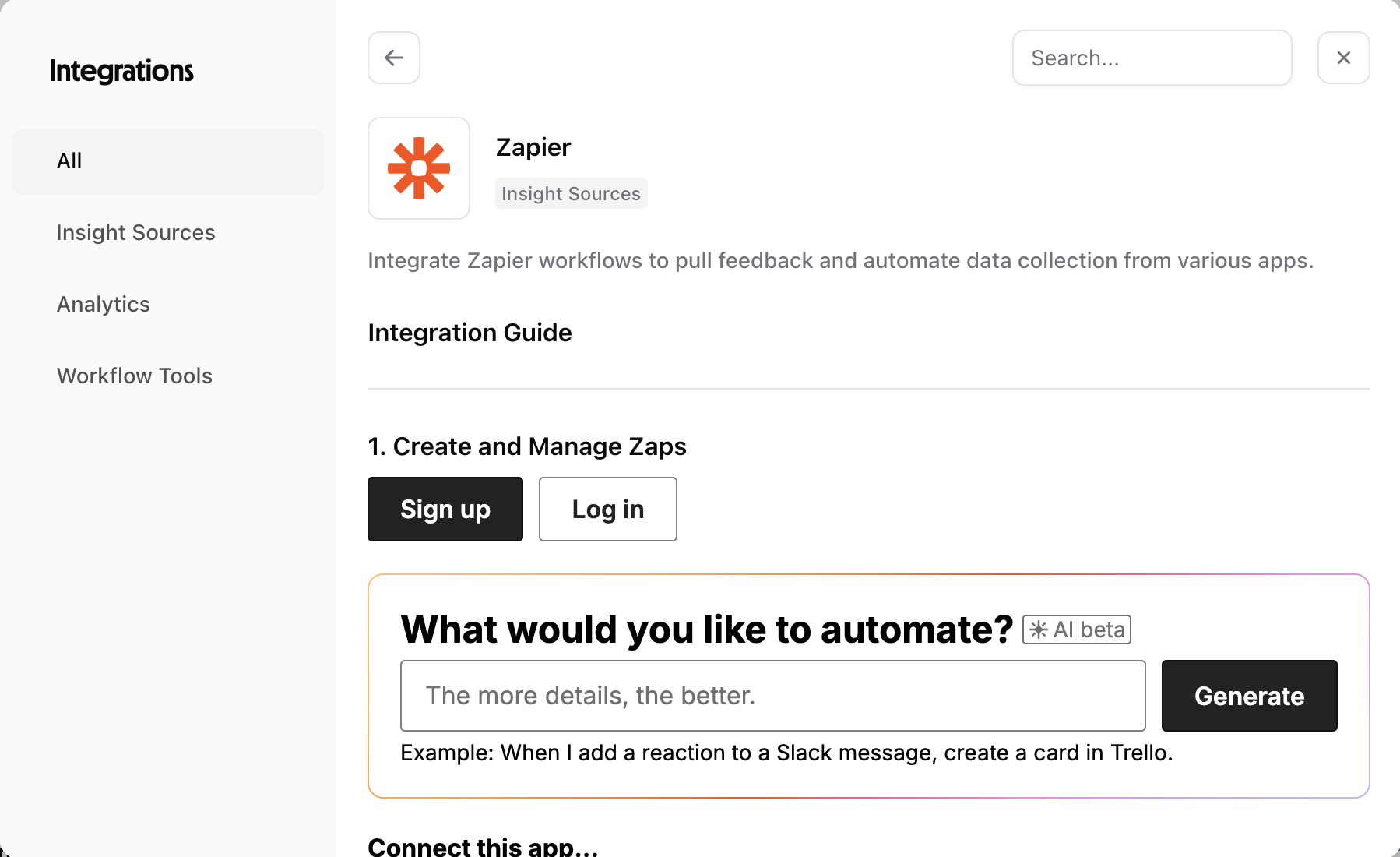 Use Squad's embedded Zapier UI to build workflows or select one of the Squad ready-made presets:
* Click **Create and Manage Zaps**
* Describe what you want to automate
* Example: "When I add a reaction to a Slack message, create a card in Trello"
Use Squad's embedded Zapier UI to build workflows or select one of the Squad ready-made presets:
* Click **Create and Manage Zaps**
* Describe what you want to automate
* Example: "When I add a reaction to a Slack message, create a card in Trello"
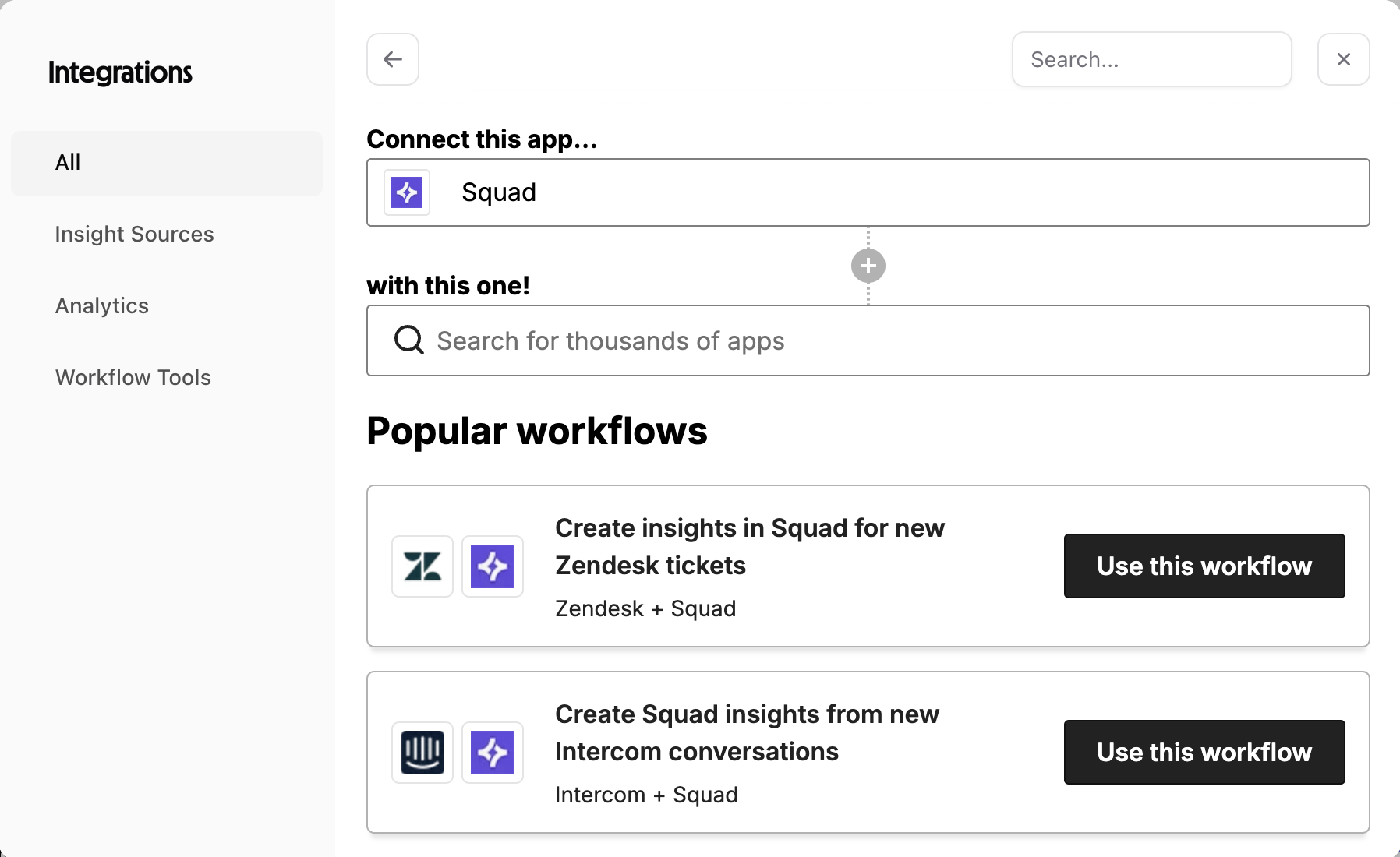 Select which app starts your workflow:
* Search from 5,000+ available apps
* Common choices: Zendesk, Intercom, HubSpot, Gmail
* Configure trigger conditions
Configure what happens in Squad:
* **Create Insight**: Add feedback to Squad
* **Create Opportunity**: Generate new opportunities
* **Update Status**: Change solution progress
## What Squad syncs
* **Any trigger data**: Support tickets, form responses, emails, messages
* **Custom fields**: Map any data from source apps to Squad insights
* **File attachments**: Screenshots, documents, and media
* **Metadata**: Timestamps, user info, tags, and categories
* Create new insights or opportunities
* Update solution status
* Add comments to existing items
* Trigger notifications
## Popular workflows
Squad recommends these pre-built Zaps you can use immediately:
**Support ticket insights**
**Zendesk + Squad**
```
Trigger: New Zendesk ticket tagged "product-feedback"
Action: Create insight in Squad with ticket details
```
Automatically capture product feedback from support conversations.
### Customer conversation tracking
**Intercom + Squad**
```
Trigger: New Intercom conversation with "feature request" tag
Action: Create Squad insight with user context
```
Turn customer chats into validated opportunities.
### Sales feedback loop
**HubSpot + Squad**
```
Trigger: Deal lost with reason "missing feature"
Action: Create opportunity in Squad with deal context
```
Track which missing features cost you deals.
### Form response analysis
**Google Forms + Squad**
```
Trigger: New form response submitted
Action: Create insight categorized by form questions
```
Structure user research responses automatically.
**Pro tip**: Use Zapier's filters to only send high-value feedback to Squad. For example, only sync support tickets from enterprise customers or with specific tags.
## Building custom Zaps
### Trigger examples
* **Email**: When starred emails mention your product
* **CRM**: When deals are lost due to product gaps
* **Survey**: When NPS scores are below threshold
* **Calendar**: After user interview meetings end
### Squad actions
1. **Create Insight**
* Title: Map from trigger data
* Description: Full context from source
* Category: Auto-tag based on source
* Priority: Set by trigger conditions
2. **Create Opportunity**
* Link to goal automatically
* Include evidence from trigger
* Set impact score based on data
3. **Update Roadmap**
* Change solution status
* Add progress notes
* Notify assigned team
## Troubleshooting
**Zap not triggering**
* Check trigger app permissions
* Verify filter conditions aren't too restrictive
* Test with sample data in Zapier
**Missing data in Squad**
* Ensure all required fields are mapped
* Check if data exists in trigger app
* Review Zap history for errors
**Duplicate insights**
* Enable duplicate detection in settings
* Add unique identifier to insights
* Use Zapier's built-in deduplication
**Getting started**: Begin with one of our popular workflows, then customize it for your specific needs. The Zendesk → Squad workflow is a great starting point for most teams.
Select which app starts your workflow:
* Search from 5,000+ available apps
* Common choices: Zendesk, Intercom, HubSpot, Gmail
* Configure trigger conditions
Configure what happens in Squad:
* **Create Insight**: Add feedback to Squad
* **Create Opportunity**: Generate new opportunities
* **Update Status**: Change solution progress
## What Squad syncs
* **Any trigger data**: Support tickets, form responses, emails, messages
* **Custom fields**: Map any data from source apps to Squad insights
* **File attachments**: Screenshots, documents, and media
* **Metadata**: Timestamps, user info, tags, and categories
* Create new insights or opportunities
* Update solution status
* Add comments to existing items
* Trigger notifications
## Popular workflows
Squad recommends these pre-built Zaps you can use immediately:
**Support ticket insights**
**Zendesk + Squad**
```
Trigger: New Zendesk ticket tagged "product-feedback"
Action: Create insight in Squad with ticket details
```
Automatically capture product feedback from support conversations.
### Customer conversation tracking
**Intercom + Squad**
```
Trigger: New Intercom conversation with "feature request" tag
Action: Create Squad insight with user context
```
Turn customer chats into validated opportunities.
### Sales feedback loop
**HubSpot + Squad**
```
Trigger: Deal lost with reason "missing feature"
Action: Create opportunity in Squad with deal context
```
Track which missing features cost you deals.
### Form response analysis
**Google Forms + Squad**
```
Trigger: New form response submitted
Action: Create insight categorized by form questions
```
Structure user research responses automatically.
**Pro tip**: Use Zapier's filters to only send high-value feedback to Squad. For example, only sync support tickets from enterprise customers or with specific tags.
## Building custom Zaps
### Trigger examples
* **Email**: When starred emails mention your product
* **CRM**: When deals are lost due to product gaps
* **Survey**: When NPS scores are below threshold
* **Calendar**: After user interview meetings end
### Squad actions
1. **Create Insight**
* Title: Map from trigger data
* Description: Full context from source
* Category: Auto-tag based on source
* Priority: Set by trigger conditions
2. **Create Opportunity**
* Link to goal automatically
* Include evidence from trigger
* Set impact score based on data
3. **Update Roadmap**
* Change solution status
* Add progress notes
* Notify assigned team
## Troubleshooting
**Zap not triggering**
* Check trigger app permissions
* Verify filter conditions aren't too restrictive
* Test with sample data in Zapier
**Missing data in Squad**
* Ensure all required fields are mapped
* Check if data exists in trigger app
* Review Zap history for errors
**Duplicate insights**
* Enable duplicate detection in settings
* Add unique identifier to insights
* Use Zapier's built-in deduplication
**Getting started**: Begin with one of our popular workflows, then customize it for your specific needs. The Zendesk → Squad workflow is a great starting point for most teams.