> ## Documentation Index
> Fetch the complete documentation index at: https://docs.meetsquad.ai/llms.txt
> Use this file to discover all available pages before exploring further.
# Knowledge & documents
> The document library your workspace and your agents both write to. Folders, the editor, tags, source attribution, and version history.
Knowledge is your workspace's document library, and the context Squad reads before it answers anything. You write in it. Agents write in it. One tree of folders and documents, and both sides can edit the same page.
 ## The Knowledge page
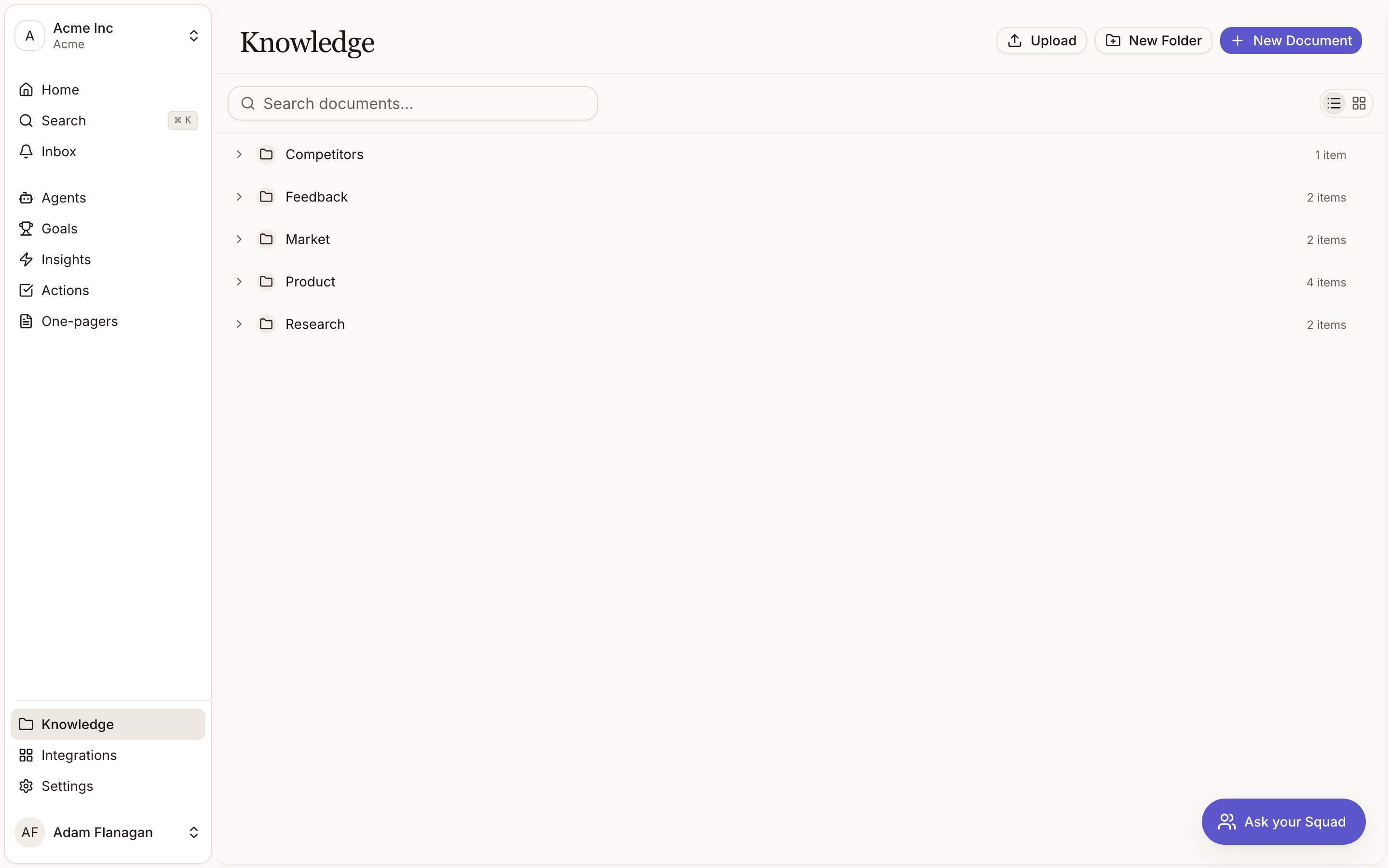
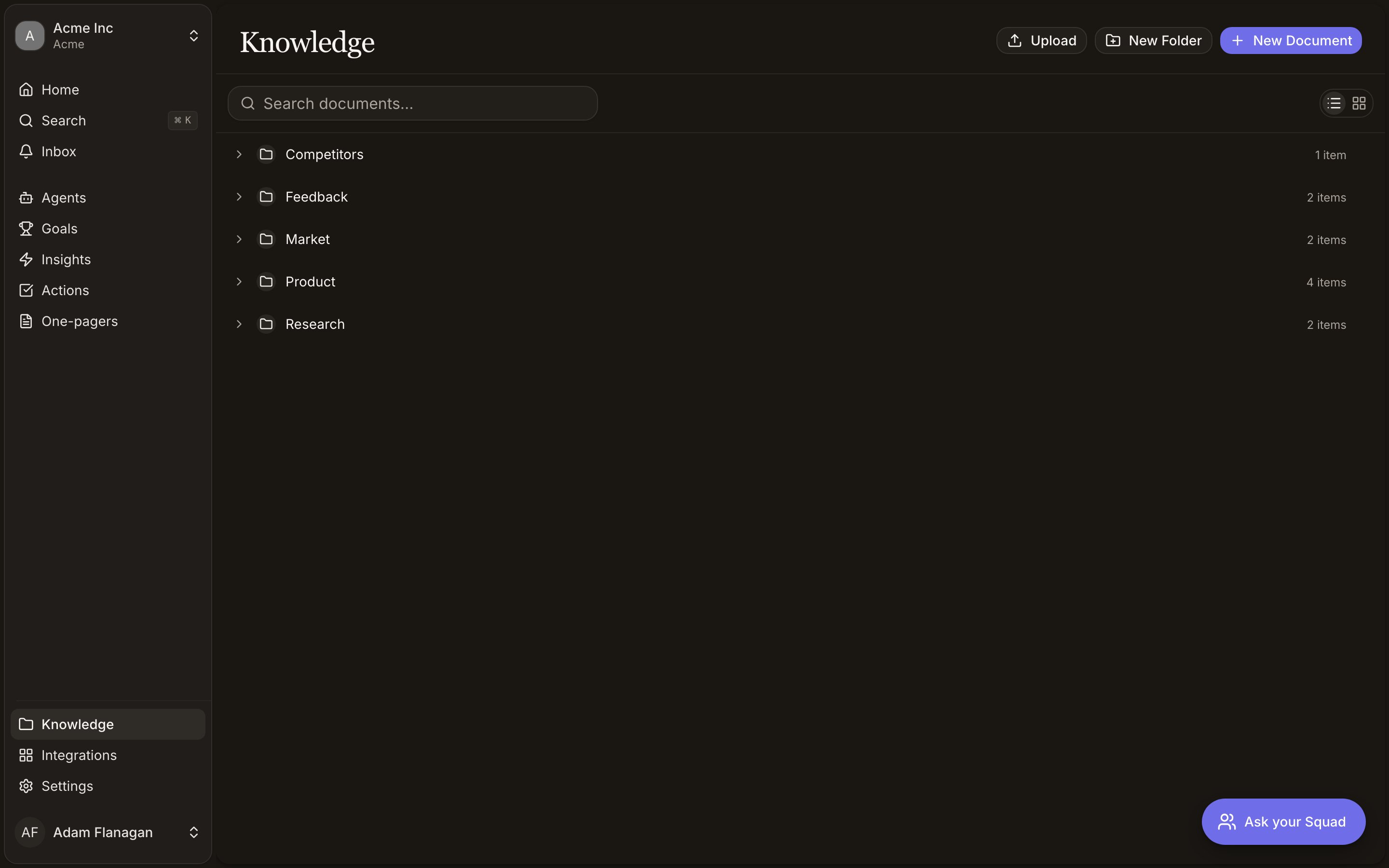
Open **Knowledge** from the bottom of the sidebar. You get the whole tree, every folder and document, on one page. Three buttons sit in the top right and always act on the folder you're currently inside:
Imports files from your computer as documents.
Creates a subfolder and drops you straight into renaming it.
Opens the template picker.
**Search documents...** at the top filters as you type. It matches document titles and folder names, not the text inside a document. To search by meaning, ask Squad in chat ("find our docs on onboarding friction").
A brand-new workspace shows **No documents yet** and a **Create your first document** button.
### List view and card view
The toggle in the toolbar switches between a compact tree (**List view**) and a grid of tiles (**Card view**). Squad remembers which one you picked.
In list view, clicking a folder expands it inline under its parent, and the set of expanded folders survives navigation. In card view, clicking a folder tile opens that folder in place, with a breadcrumb trail under the toolbar to step back up. Either way you stay on the Knowledge page with the same header, search box, and toggle.
Clicking a document opens the editor. Cmd/Ctrl-click opens it without losing your place. Documents you haven't opened yet carry a small blue dot and a bolder title.
### Moving, selecting, and deleting
Drag a document or folder onto another folder to move it. Drag onto the empty area to move it back up to the level you're viewing. Squad blocks moves that would put a folder inside itself.
Shift-click to select a range. The toolbar then shows **Delete 4** (or whatever the count is), and a confirmation dialog appears before anything goes. Selecting a folder selects everything inside it, and deleting a folder deletes its contents.
Right-click any item for its menu. On a folder you get **New Document**, **New Folder**, **Upload file**, **Rename**, **Tags**, **Delete**. On a document you get **Open**, **Copy as Markdown**, **Download as .md**, **Tags**, **Copy URL**, **Delete**. The `⋯` button on a row or card tile carries the same items, minus **Upload file**.
### Uploading files
**Upload** accepts `.md`, `.txt`, `.docx`, and `.pdf`, up to 20 MB per file. You can also drag files from your desktop straight onto a folder row. Each file becomes a document in that folder. Anything unsupported is skipped with a toast telling you what was left out. Uploaded documents start with no tags.
## Creating a document
**New Document** opens a picker rather than creating a blank page. **Blank document** gives you an empty page titled *Untitled*. Below that, **Templates** lists every document in the workspace tagged **Template**. Picking one copies its content into a new document named `{original title} (copy)`.
There are no built-in templates. If the list is empty you'll see *No templates yet. Tag any document as a template to see it here.* Write the document you want to reuse, tag it **Template**, and it shows up in the picker.
## The editor
Documents use a block editor. Type markdown and it converts as you go, or use the formatting menu. Set the title in the large field at the top (it shows *Untitled* until you fill it in) and pick an icon next to it from the Lucide icon set, searchable from the picker.
There is no save button. Edits save about a second after you stop typing.
Type `@` anywhere in the body to link to another document, folder, goal, insight, or signal by name.
Two people (or a person and an agent) editing the same document at the same time will overwrite each other. When someone else saves, your view reloads with their version and any uncommitted typing of yours is lost. Version history keeps the earlier states, but avoid co-editing a page live.
### The side panel
The right-hand panel shows **Info** (**Created**, **Updated**, and editable **Tags**), then **Referenced by**, which lists the one-pagers and other entities that link to this document. Below that are four buttons:
Hands the document to Squad in chat.
Opens the document's version history.
Puts the whole document on your clipboard.
Saves it as a file.
A badge at the bottom shows whether you, an agent, or the system last touched the page.
### Review knowledge
**Review knowledge** takes a version snapshot, opens the chat, and asks Squad to improve the document in place. It reads the page, reads related workspace documents for context, researches the web, then rewrites to your intent with better structure, fresh data, filled gaps and citations. The edits arrive in the open editor as it works.
The snapshot comes first, so you can undo the whole rewrite from **View history**.
## Tags
Six fixed tags. **Product**, **Competitor**, **Feedback**, **Market**, **Research**, **Template**. There are no free-form tags. Tags show as coloured chips in the tree and in the Info panel.
Set them from the **Tags** submenu on a document's menu, or from the **Tags** row in the Info panel. **Template** is the only one with a side effect. It puts the document in the template picker.
Folders can carry tags too, and folder tags flow down to every document inside. An inherited tag appears on the document with a folder icon and the note *from folder*, and you can't remove it from the document. Remove it from the folder instead.
Documents you create or upload start untagged. Documents an agent creates are tagged by the agent based on what it wrote.
## Source attribution
When content arrives from somewhere outside Squad (a Slack thread, a GitHub file, a page an agent fetched), Squad records where each block came from and shows it in the right-hand gutter of the editor.
Blocks with a source get a coloured left border and a small source icon. Green means the block still matches what was imported. Amber means you've edited it since. Click the icon for a popover naming the source, the import date, and a link out where a link exists.
What the popover shows depends on the provider. Channel and author for Slack, repository, issue number, author, and state for GitHub, project, ID, and state for Linear, page title for Notion, event name for PostHog. Where the original has a web address you get **Open in Slack**, **View on GitHub**, **Open in Linear**, or a similar link. Where it doesn't, the popover shows the details without a link.
If a block has content from more than one source, the popover shows a tab per source with the count at the top.
## Version history
Squad keeps earlier states of a document so you can roll one back. Open it with **View history** in the side panel, or **History** in the document's `⋯` menu. The page is titled **Version History** and has a breadcrumb back to the document.
You never save a version by hand. Squad takes a snapshot at four moments:
1. When you leave a document you have been editing.
2. Before **Review knowledge** runs, so the rewrite never overwrites your only copy.
3. When an agent updates the document.
4. When you restore an older version, which snapshots the state you're moving away from.
Snapshots that would be identical to the previous one are skipped, so the list has no duplicates.
Versions are listed newest first, with a badge reading **You**, **Agent**, or **System**, a relative timestamp, and a version number like `v4`. Click one to expand it, check the title it had at that point, and click **Restore**. The document reverts and you land back on it. Restoring is itself recorded, so you can go forward again.
The twenty most recent versions are shown, and Squad keeps up to fifty per document. A document that has never been edited and left shows *No versions yet.*
## Folders
Folders nest as deep as you want. Rename them from the right-click menu, drag them to reorganise, and delete them along with their contents.
One folder is managed for you. **Agent Reports** is where agent reports land. It appears in the tree like any other folder and you can read everything in it, but it can't be renamed, moved, or deleted.
## What happens after you write
Saving a document queues it for re-embedding, which makes it findable by meaning in chat and links it to related entities. It can also fire agent triggers. An agent set to run when knowledge is created or updated picks the document up from there. See [Agents](/agents) and [Tools and access](/agent-tools-access).
Content from your connected tools arrives through [Integrations](/integrations), and agents that read web pages write what they find here too.
## Cookbook
Write it once, tag it **Template**, then start every future copy from **New Document** and pick it out of the **Templates** list.
Switch to **List view**, drag documents onto folders, and use **New Folder** for anything missing. Tag the folder rather than the documents inside it; the tag flows down.
Open **View history**, find the version with the **You** badge from just before the agent ran, expand it, and click **Restore**.
In a document written from a connected tool, click the icon in the right gutter next to the paragraph you're questioning. The popover names the source and links to the original where one exists. An amber border means someone has edited that block since it was imported.
Open it and click **Review knowledge**. Squad snapshots it, researches, and rewrites with citations. Compare against the snapshot in **View history** and restore if you prefer what you had.
Open the folder it belongs in, click **Upload**, and pick the `.md`, `.txt`, `.docx`, or `.pdf`. Tag it afterwards so Squad knows what kind of document it is.
## The Knowledge page
Open **Knowledge** from the bottom of the sidebar. You get the whole tree, every folder and document, on one page. Three buttons sit in the top right and always act on the folder you're currently inside:
Imports files from your computer as documents.
Creates a subfolder and drops you straight into renaming it.
Opens the template picker.
**Search documents...** at the top filters as you type. It matches document titles and folder names, not the text inside a document. To search by meaning, ask Squad in chat ("find our docs on onboarding friction").
A brand-new workspace shows **No documents yet** and a **Create your first document** button.
### List view and card view
The toggle in the toolbar switches between a compact tree (**List view**) and a grid of tiles (**Card view**). Squad remembers which one you picked.
In list view, clicking a folder expands it inline under its parent, and the set of expanded folders survives navigation. In card view, clicking a folder tile opens that folder in place, with a breadcrumb trail under the toolbar to step back up. Either way you stay on the Knowledge page with the same header, search box, and toggle.
Clicking a document opens the editor. Cmd/Ctrl-click opens it without losing your place. Documents you haven't opened yet carry a small blue dot and a bolder title.
### Moving, selecting, and deleting
Drag a document or folder onto another folder to move it. Drag onto the empty area to move it back up to the level you're viewing. Squad blocks moves that would put a folder inside itself.
Shift-click to select a range. The toolbar then shows **Delete 4** (or whatever the count is), and a confirmation dialog appears before anything goes. Selecting a folder selects everything inside it, and deleting a folder deletes its contents.
Right-click any item for its menu. On a folder you get **New Document**, **New Folder**, **Upload file**, **Rename**, **Tags**, **Delete**. On a document you get **Open**, **Copy as Markdown**, **Download as .md**, **Tags**, **Copy URL**, **Delete**. The `⋯` button on a row or card tile carries the same items, minus **Upload file**.
### Uploading files
**Upload** accepts `.md`, `.txt`, `.docx`, and `.pdf`, up to 20 MB per file. You can also drag files from your desktop straight onto a folder row. Each file becomes a document in that folder. Anything unsupported is skipped with a toast telling you what was left out. Uploaded documents start with no tags.
## Creating a document
**New Document** opens a picker rather than creating a blank page. **Blank document** gives you an empty page titled *Untitled*. Below that, **Templates** lists every document in the workspace tagged **Template**. Picking one copies its content into a new document named `{original title} (copy)`.
There are no built-in templates. If the list is empty you'll see *No templates yet. Tag any document as a template to see it here.* Write the document you want to reuse, tag it **Template**, and it shows up in the picker.
## The editor
Documents use a block editor. Type markdown and it converts as you go, or use the formatting menu. Set the title in the large field at the top (it shows *Untitled* until you fill it in) and pick an icon next to it from the Lucide icon set, searchable from the picker.
There is no save button. Edits save about a second after you stop typing.
Type `@` anywhere in the body to link to another document, folder, goal, insight, or signal by name.
Two people (or a person and an agent) editing the same document at the same time will overwrite each other. When someone else saves, your view reloads with their version and any uncommitted typing of yours is lost. Version history keeps the earlier states, but avoid co-editing a page live.
### The side panel
The right-hand panel shows **Info** (**Created**, **Updated**, and editable **Tags**), then **Referenced by**, which lists the one-pagers and other entities that link to this document. Below that are four buttons:
Hands the document to Squad in chat.
Opens the document's version history.
Puts the whole document on your clipboard.
Saves it as a file.
A badge at the bottom shows whether you, an agent, or the system last touched the page.
### Review knowledge
**Review knowledge** takes a version snapshot, opens the chat, and asks Squad to improve the document in place. It reads the page, reads related workspace documents for context, researches the web, then rewrites to your intent with better structure, fresh data, filled gaps and citations. The edits arrive in the open editor as it works.
The snapshot comes first, so you can undo the whole rewrite from **View history**.
## Tags
Six fixed tags. **Product**, **Competitor**, **Feedback**, **Market**, **Research**, **Template**. There are no free-form tags. Tags show as coloured chips in the tree and in the Info panel.
Set them from the **Tags** submenu on a document's menu, or from the **Tags** row in the Info panel. **Template** is the only one with a side effect. It puts the document in the template picker.
Folders can carry tags too, and folder tags flow down to every document inside. An inherited tag appears on the document with a folder icon and the note *from folder*, and you can't remove it from the document. Remove it from the folder instead.
Documents you create or upload start untagged. Documents an agent creates are tagged by the agent based on what it wrote.
## Source attribution
When content arrives from somewhere outside Squad (a Slack thread, a GitHub file, a page an agent fetched), Squad records where each block came from and shows it in the right-hand gutter of the editor.
Blocks with a source get a coloured left border and a small source icon. Green means the block still matches what was imported. Amber means you've edited it since. Click the icon for a popover naming the source, the import date, and a link out where a link exists.
What the popover shows depends on the provider. Channel and author for Slack, repository, issue number, author, and state for GitHub, project, ID, and state for Linear, page title for Notion, event name for PostHog. Where the original has a web address you get **Open in Slack**, **View on GitHub**, **Open in Linear**, or a similar link. Where it doesn't, the popover shows the details without a link.
If a block has content from more than one source, the popover shows a tab per source with the count at the top.
## Version history
Squad keeps earlier states of a document so you can roll one back. Open it with **View history** in the side panel, or **History** in the document's `⋯` menu. The page is titled **Version History** and has a breadcrumb back to the document.
You never save a version by hand. Squad takes a snapshot at four moments:
1. When you leave a document you have been editing.
2. Before **Review knowledge** runs, so the rewrite never overwrites your only copy.
3. When an agent updates the document.
4. When you restore an older version, which snapshots the state you're moving away from.
Snapshots that would be identical to the previous one are skipped, so the list has no duplicates.
Versions are listed newest first, with a badge reading **You**, **Agent**, or **System**, a relative timestamp, and a version number like `v4`. Click one to expand it, check the title it had at that point, and click **Restore**. The document reverts and you land back on it. Restoring is itself recorded, so you can go forward again.
The twenty most recent versions are shown, and Squad keeps up to fifty per document. A document that has never been edited and left shows *No versions yet.*
## Folders
Folders nest as deep as you want. Rename them from the right-click menu, drag them to reorganise, and delete them along with their contents.
One folder is managed for you. **Agent Reports** is where agent reports land. It appears in the tree like any other folder and you can read everything in it, but it can't be renamed, moved, or deleted.
## What happens after you write
Saving a document queues it for re-embedding, which makes it findable by meaning in chat and links it to related entities. It can also fire agent triggers. An agent set to run when knowledge is created or updated picks the document up from there. See [Agents](/agents) and [Tools and access](/agent-tools-access).
Content from your connected tools arrives through [Integrations](/integrations), and agents that read web pages write what they find here too.
## Cookbook
Write it once, tag it **Template**, then start every future copy from **New Document** and pick it out of the **Templates** list.
Switch to **List view**, drag documents onto folders, and use **New Folder** for anything missing. Tag the folder rather than the documents inside it; the tag flows down.
Open **View history**, find the version with the **You** badge from just before the agent ran, expand it, and click **Restore**.
In a document written from a connected tool, click the icon in the right gutter next to the paragraph you're questioning. The popover names the source and links to the original where one exists. An amber border means someone has edited that block since it was imported.
Open it and click **Review knowledge**. Squad snapshots it, researches, and rewrites with citations. Compare against the snapshot in **View history** and restore if you prefer what you had.
Open the folder it belongs in, click **Upload**, and pick the `.md`, `.txt`, `.docx`, or `.pdf`. Tag it afterwards so Squad knows what kind of document it is.