> ## Documentation Index
> Fetch the complete documentation index at: https://docs.meetsquad.ai/llms.txt
> Use this file to discover all available pages before exploring further.
# Notifications
> Two surfaces: the switches that decide what Squad tells you, and the sidebar inbox where it lands.
Notifications have two separate surfaces, and they are easy to confuse.
What Squad tells you about. They live on the **Notifications** tab of Settings.
Where those notifications land. A popover on the sidebar, opened from **Inbox** under the bell icon.
The inbox is a popover, not a page. It has no route of its own, so there is no URL you can bookmark or share for it.
 ## Choosing what you hear about
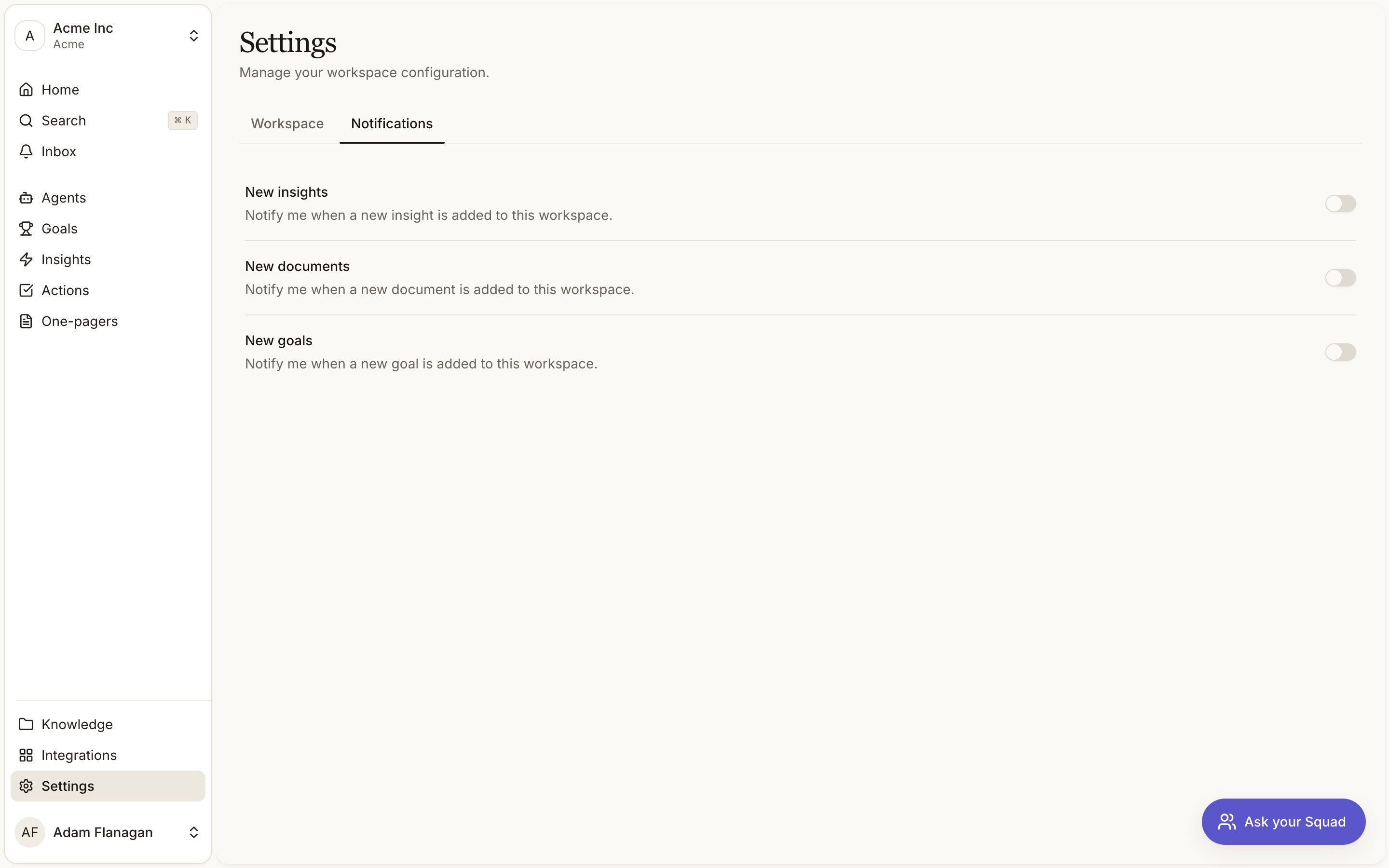
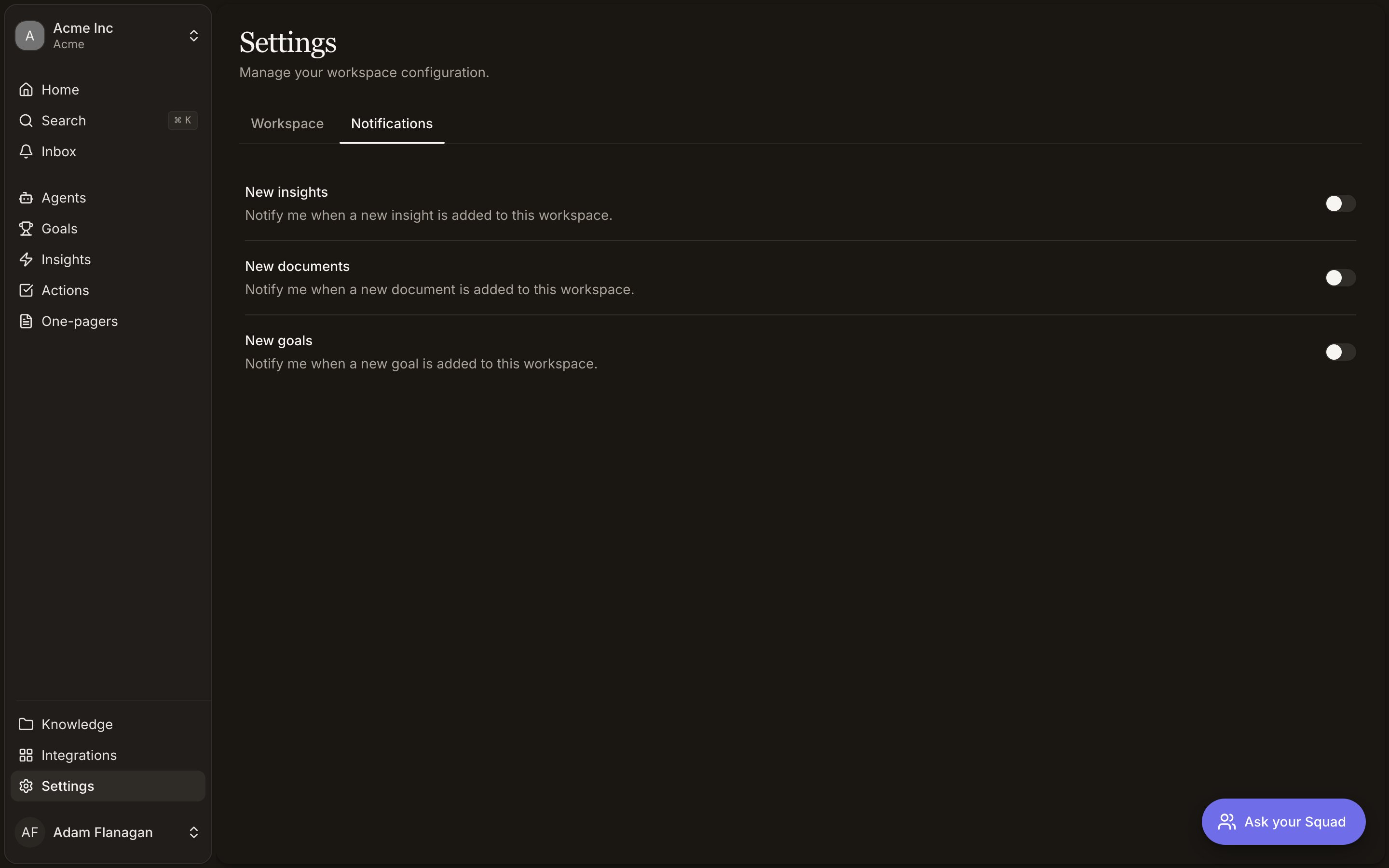
Open **Settings** in the sidebar and pick the **Notifications** tab. Three switches:
* **New insights.** *Notify me when a new insight is added to this workspace.*
* **New documents.** *Notify me when a new document is added to this workspace.*
* **New goals.** *Notify me when a new goal is added to this workspace.*
Toggle one and it applies immediately, with a **Notification enabled** or **Notification disabled** toast. Your settings are yours: turning off **New insights** does not affect anyone else on the team. They are also per workspace, so you can follow one workspace closely and stay quiet on another.
Everything is delivered in the app. There is no email or Slack option on these switches, no digest frequency, and no master mute.
Insight notifications fire for genuinely new insights only. An insight that gets refined or re-scored later does not notify you again.
Agent report delivery by email is set per agent, on the agent itself, and is unaffected by these switches. See [Agents](/agents).
## The inbox
**Inbox** sits near the top of the sidebar with a bell icon. A number appears on it when you have unread notifications, and reads `9+` past nine. Click it and the inbox opens beside the sidebar.
The list is flat, newest first. Unread rows are tinted, bold, and carry a small dot on the right. Ten load at a time, with **Load more** at the bottom when there are more. **Mark all read** appears in the header while anything is unread, and clears the notifications currently loaded in the list.
Clicking a notification marks it read and takes you to what it is about. A new document opens that document. A new goal opens that goal. A new insight opens the [Insights](/insights) list rather than the individual insight.
**All activity** at the bottom of the popover opens the full [Activity](/activity) feed, which is the complete change log rather than the subset you subscribed to.
With nothing waiting, the inbox shows **No notifications yet**.
New notifications also appear as a toast in the corner while you have Squad open. Clicking the toast does the same thing as clicking the row.
## Notifications you get regardless
Two kinds arrive whatever your switches say.
Once a day at 09:00 UTC, workspaces past onboarding get a summary counting the new insights and signals from the day. Days with nothing new are skipped rather than sent empty.
## Cookbook
Open **Settings**, go to **Notifications**, and turn off **New insights**. High-volume feedback sources can generate a lot of them. Leave **New goals** on so you still hear about strategy changes, and check [Insights](/insights) on your own schedule.
Open the **Inbox**, work down the list clicking through the ones that matter, then hit **Mark all read**. For the fuller picture of what changed while you were out, including everything you never subscribed to, click **All activity**.
The switches are per workspace. Switch workspace, open **Settings**, and set the three toggles differently there.
## Choosing what you hear about
Open **Settings** in the sidebar and pick the **Notifications** tab. Three switches:
* **New insights.** *Notify me when a new insight is added to this workspace.*
* **New documents.** *Notify me when a new document is added to this workspace.*
* **New goals.** *Notify me when a new goal is added to this workspace.*
Toggle one and it applies immediately, with a **Notification enabled** or **Notification disabled** toast. Your settings are yours: turning off **New insights** does not affect anyone else on the team. They are also per workspace, so you can follow one workspace closely and stay quiet on another.
Everything is delivered in the app. There is no email or Slack option on these switches, no digest frequency, and no master mute.
Insight notifications fire for genuinely new insights only. An insight that gets refined or re-scored later does not notify you again.
Agent report delivery by email is set per agent, on the agent itself, and is unaffected by these switches. See [Agents](/agents).
## The inbox
**Inbox** sits near the top of the sidebar with a bell icon. A number appears on it when you have unread notifications, and reads `9+` past nine. Click it and the inbox opens beside the sidebar.
The list is flat, newest first. Unread rows are tinted, bold, and carry a small dot on the right. Ten load at a time, with **Load more** at the bottom when there are more. **Mark all read** appears in the header while anything is unread, and clears the notifications currently loaded in the list.
Clicking a notification marks it read and takes you to what it is about. A new document opens that document. A new goal opens that goal. A new insight opens the [Insights](/insights) list rather than the individual insight.
**All activity** at the bottom of the popover opens the full [Activity](/activity) feed, which is the complete change log rather than the subset you subscribed to.
With nothing waiting, the inbox shows **No notifications yet**.
New notifications also appear as a toast in the corner while you have Squad open. Clicking the toast does the same thing as clicking the row.
## Notifications you get regardless
Two kinds arrive whatever your switches say.
Once a day at 09:00 UTC, workspaces past onboarding get a summary counting the new insights and signals from the day. Days with nothing new are skipped rather than sent empty.
## Cookbook
Open **Settings**, go to **Notifications**, and turn off **New insights**. High-volume feedback sources can generate a lot of them. Leave **New goals** on so you still hear about strategy changes, and check [Insights](/insights) on your own schedule.
Open the **Inbox**, work down the list clicking through the ones that matter, then hit **Mark all read**. For the fuller picture of what changed while you were out, including everything you never subscribed to, click **All activity**.
The switches are per workspace. Switch workspace, open **Settings**, and set the three toggles differently there.