> ## Documentation Index
> Fetch the complete documentation index at: https://docs.meetsquad.ai/llms.txt
> Use this file to discover all available pages before exploring further.
# Quickstart
> Welcome to this step-by-step guide on how to create a full delivery roadmap with Squad in just a few minutes.
**Prerequisites**: You'll need a Squad account to follow this guide. [Sign up for free](https://app.meetsquad.ai) if you haven't already.
## About Squad
Squad is an AI product agent that transforms how teams plan, prioritize, and deliver products. By combining AI product insights with structured strategy mapping, Squad helps users build features that have the most impact on their business goals.
### Navigating the app
The Squad sidebar is organized into clear sections:
| Section | Items | Purpose |
| ------------- | -------------------------------- | -------------------------------------- |
| **Top level** | Dashboard, Search (⌘K), New Chat | Quick access to home, search, and chat |
| **Context** | Knowledge, Integrations | Manage the data and context Squad uses |
| **Agents** | Insights, Strategy, Roadmap | AI-powered product planning features |
See Squad in action with a 2-minute overview
Dive into Squad and develop a new product
## Setup your workspace
To get started, head over to [meetsquad.ai](https://meetsquad.ai/) and create an account.
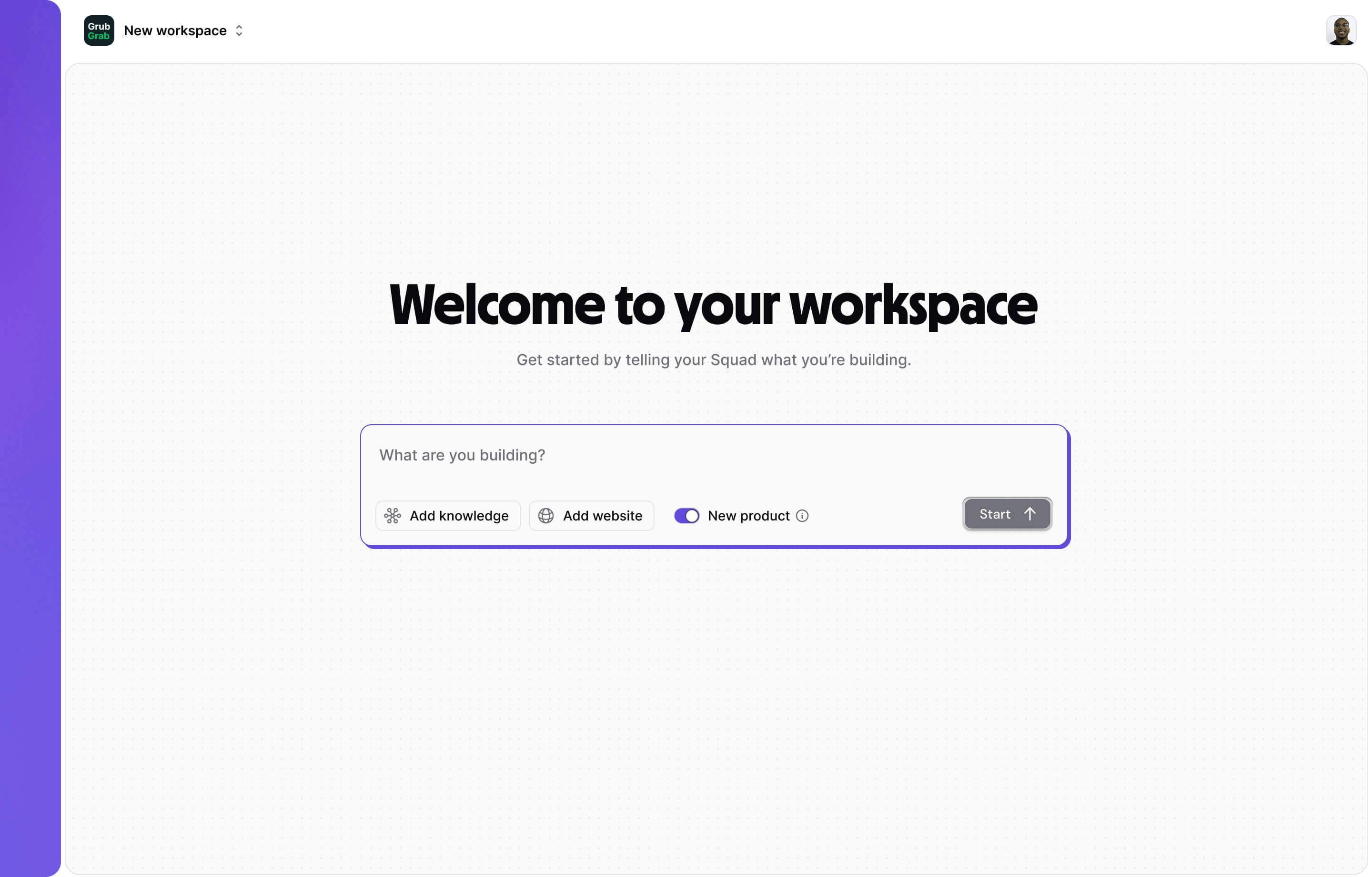
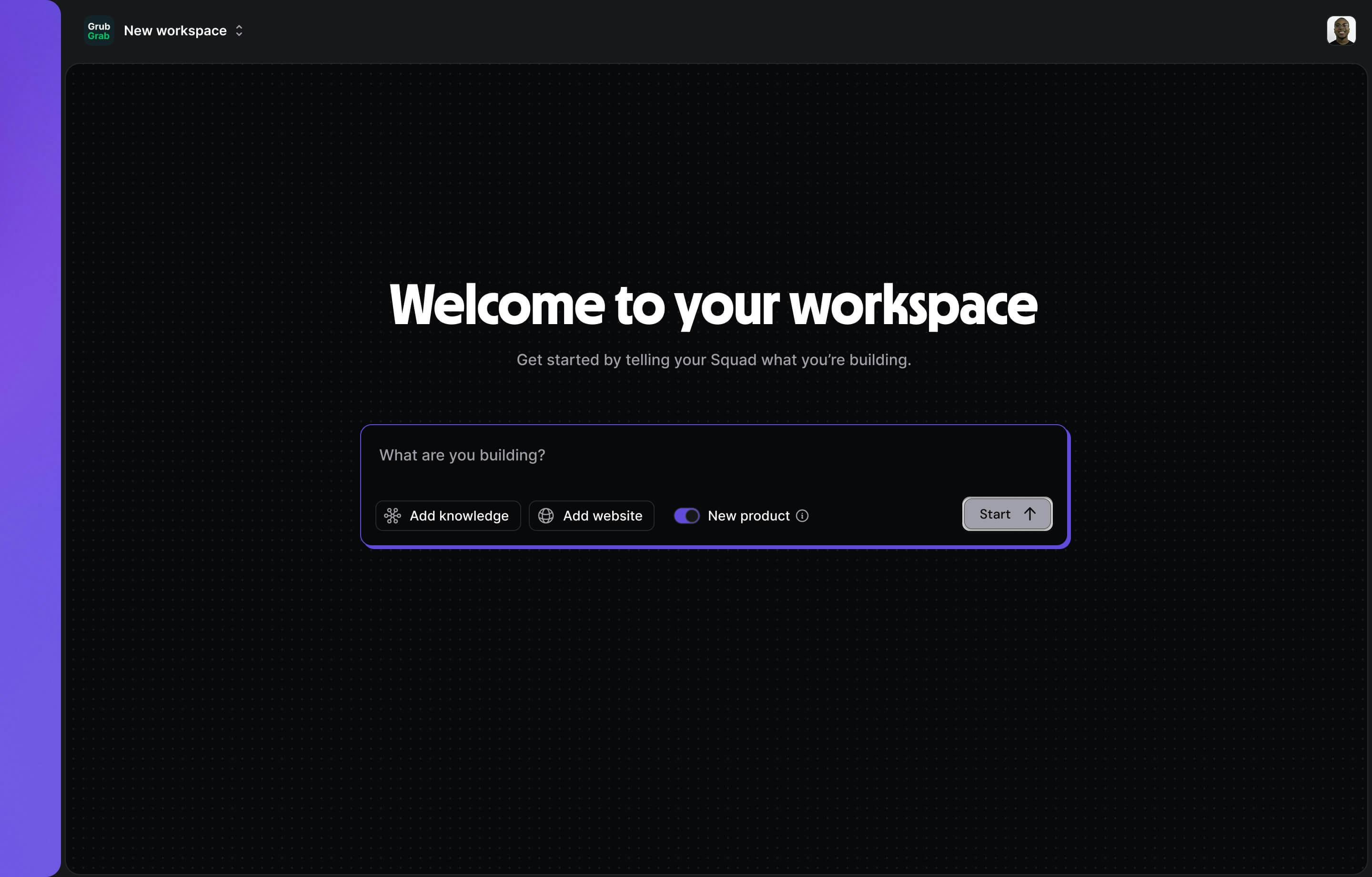 After signing in, tell Squad what you're building. Add any files or your business website to give Squad knowledge and context to help it give a more accurate response. Click Start once you're ready.
```text Good Prompt theme={null}
"GrubGrab is a food delivery platform that connects hungry customers
with local restaurants. We're focused on being 30% faster and 20%
cheaper than Uber Eats by optimizing driver routes and reducing
platform fees. Our target customers are price-conscious urban
professionals who order food 3+ times per week. We currently operate
in 15 US cities with plans to expand to 50 by end of year."
Why this works:
✓ Clear product description
✓ Specific differentiators (speed, price)
✓ Target audience defined
✓ Current scope and growth plans
✓ Measurable competitive advantages
```
```text Poor Prompt theme={null}
"Food delivery app"
Why this doesn't work:
✗ Too vague - no context
✗ No differentiation
✗ No target audience
✗ No business model
✗ Squad AI can't generate meaningful insights
```
Your Squad will write you a mission statement, create goals, surface opportunities, and start building solutions for you. You can see the steps Squad is taking in the [chat window](/features/chat) and on the [strategy map](/features/strategy).
Once Squad has finished setting up, navigate to the [Roadmap](/features/roadmap) and see what Squad thinks you should build next!
After signing in, tell Squad what you're building. Add any files or your business website to give Squad knowledge and context to help it give a more accurate response. Click Start once you're ready.
```text Good Prompt theme={null}
"GrubGrab is a food delivery platform that connects hungry customers
with local restaurants. We're focused on being 30% faster and 20%
cheaper than Uber Eats by optimizing driver routes and reducing
platform fees. Our target customers are price-conscious urban
professionals who order food 3+ times per week. We currently operate
in 15 US cities with plans to expand to 50 by end of year."
Why this works:
✓ Clear product description
✓ Specific differentiators (speed, price)
✓ Target audience defined
✓ Current scope and growth plans
✓ Measurable competitive advantages
```
```text Poor Prompt theme={null}
"Food delivery app"
Why this doesn't work:
✗ Too vague - no context
✗ No differentiation
✗ No target audience
✗ No business model
✗ Squad AI can't generate meaningful insights
```
Your Squad will write you a mission statement, create goals, surface opportunities, and start building solutions for you. You can see the steps Squad is taking in the [chat window](/features/chat) and on the [strategy map](/features/strategy).
Once Squad has finished setting up, navigate to the [Roadmap](/features/roadmap) and see what Squad thinks you should build next!
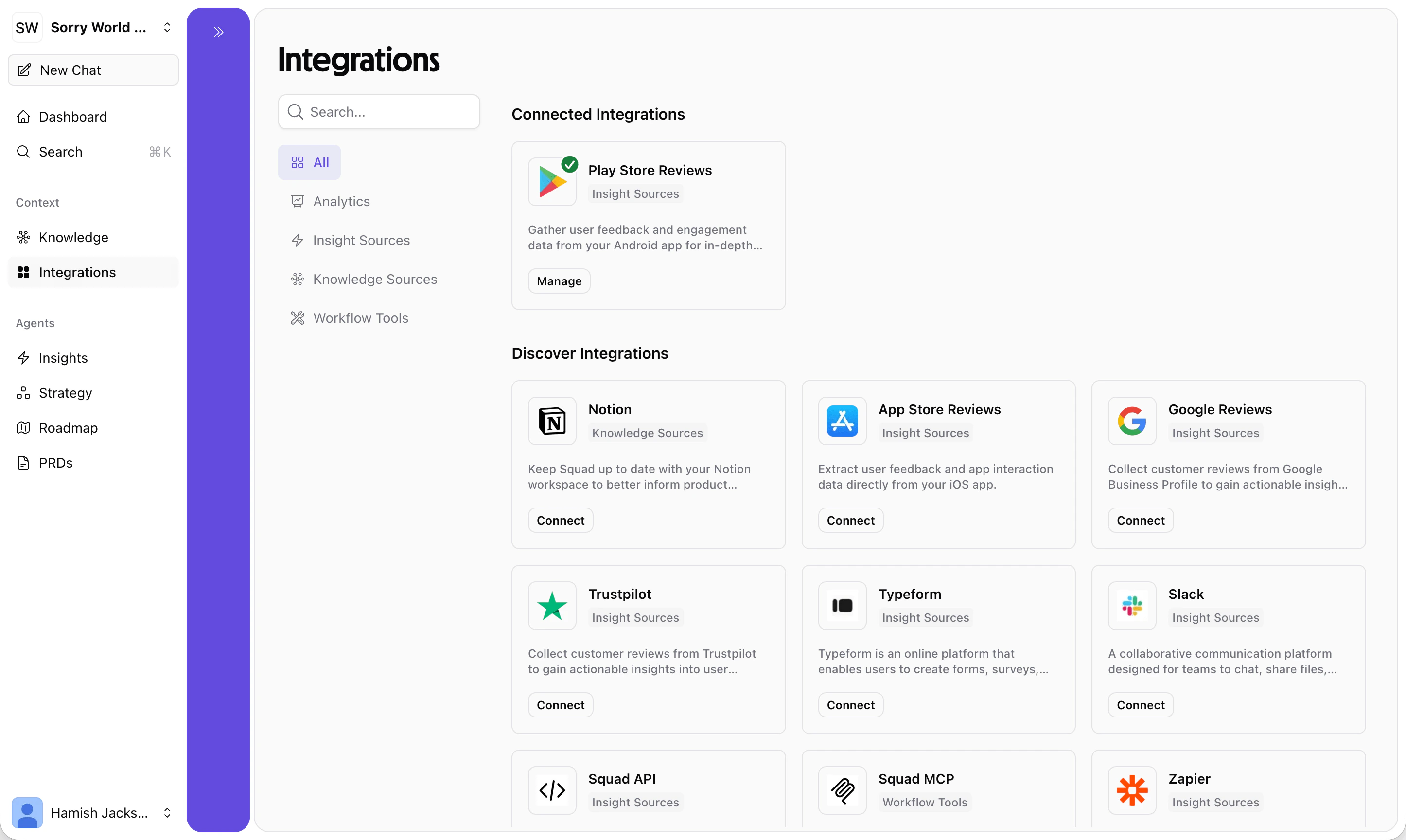
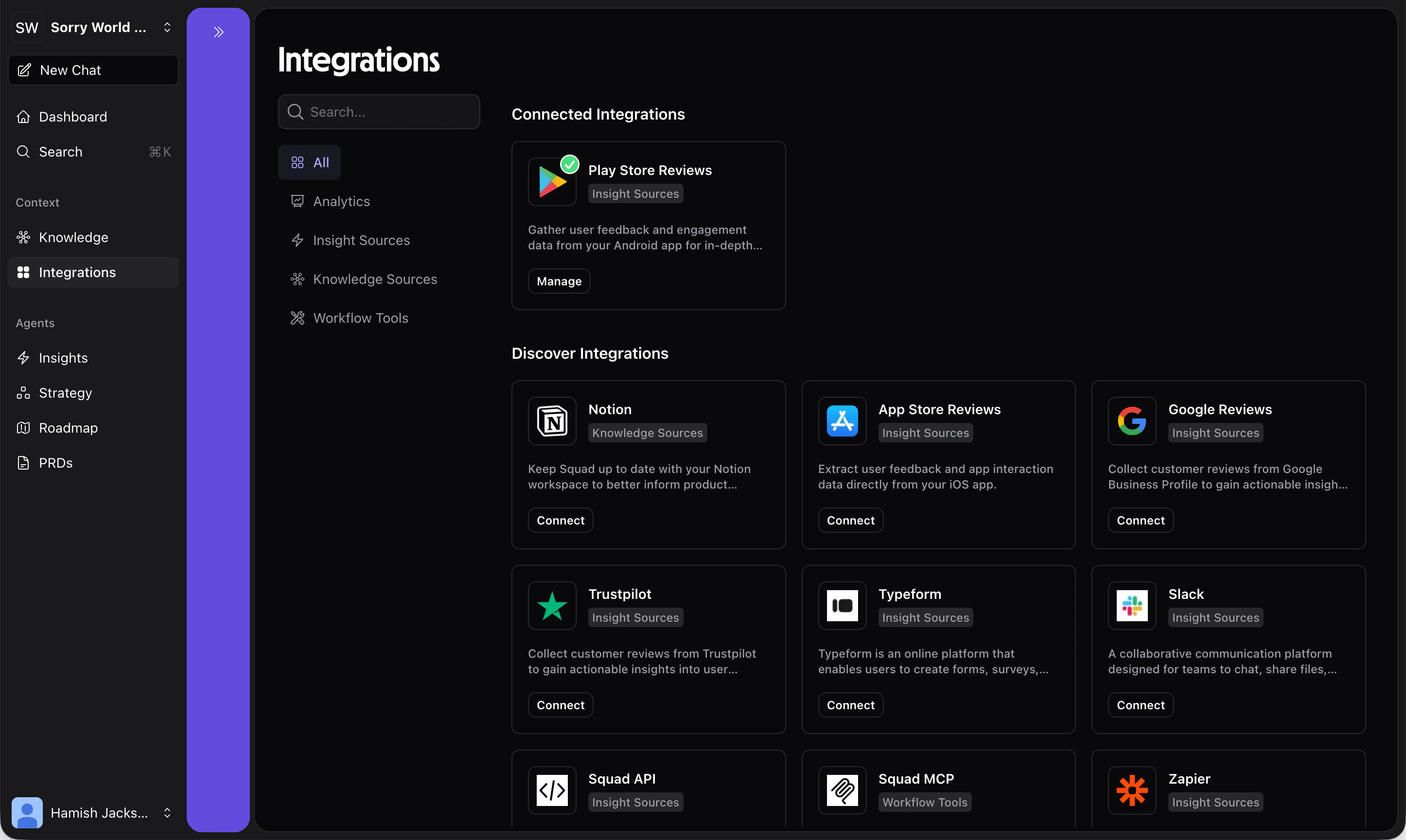 To make Squad more accurate, you can integrate it into your existing workflow. Connect your preferred insight sources for better product discovery, or workflow tools to start implementing the solutions on your roadmap.
* Zapier
* App store reviews
* Play store reviews
* Slack
* TypeForm
* Google Analytics
* Amplitude
* More coming soon!
* Notion
* Cursor
* Lovable
* Windsurf
* Jira
* Linear
# Iterate on your strategy
### 1. Review your mission statement
Start with your mission statement—your product's north star, a clear statement of why your product exists. Keep your mission concise and focused on the long-term value you create for users.
```text Good Mission Statement theme={null}
"Make food delivery faster and more affordable than cooking at home"
This mission is:
✓ Clear and specific
✓ User-focused
✓ Differentiating (faster + affordable)
✓ Measurable implicitly
```
```text Poor Mission Statement theme={null}
"Be the best food delivery app"
This mission is:
✗ Vague (what does "best" mean?)
✗ Not user-focused
✗ Not differentiating
✗ Impossible to measure
```
### 2. Set measurable goals
Goals are specific outcomes that advance your mission. They should be:
* **Specific**: Clear and unambiguous
* **Measurable**: Tied to a metric
* **Time-bound**: Have a target date
```text Good Goals theme={null}
"Increase average order value from $28 to $35 by end of Q2"
Why this works:
✓ Specific metric (average order value)
✓ Clear baseline ($28) and target ($35)
✓ Time-bound (end of Q2)
✓ Directly impacts revenue
✓ Progress is easily trackable
"Reduce delivery time from restaurant to customer from 38 minutes
to 25 minutes by March 31st"
Why this works:
✓ Aligns with mission (faster delivery)
✓ Measurable improvement (13 min reduction)
✓ Specific deadline
✓ Core differentiator vs competitors
```
```text Poor Goals theme={null}
"Improve customer satisfaction"
Why this doesn't work:
✗ No specific metric
✗ No target number
✗ No timeline
✗ Too broad - satisfaction about what?
✗ Can't track progress
"Beat Uber Eats"
Why this doesn't work:
✗ Vague - beat them at what?
✗ Not measurable
✗ No timeline
✗ Not actionable
✗ Competitive focus instead of customer focus
```
### 3. Discover opportunities
Opportunities are unaddressed user needs that, if solved, will help achieve your goal. Squad's AI helps surface these from your data.
Click **"+ Discover Insights"** from the [Insights](/features/insights) or [Strategy](/features/strategy) page to see your options, or use an integration to automatically discover opportunities from your existing tools and data.
Squad's Discovery Agent analyzes:
* Customer feedback and support tickets
* Product analytics and user behavior
* App store reviews and NPS comments
* User research and survey data
It then clusters insights, surfaces the highest-impact opportunities, and associates them to the most the relevant goals.
You can also manually create known Opportunities and associate any goals or insights with them.
### 4. Generate solutions
For each opportunity, Squad can propose multiple recommended solutions. Select an opportunity and click **"Generate Solutions"** to see AI-powered suggestions.
Select one or more of the recommended solutions to build and Squad will generate a one page document (PRD) and the recommended tasks for you to take to your designers, engineers, or AI tools such as Cursor or Lovable.
Each solution comes with a pre-drafted one-pager including scope, success metrics, and implementation considerations.
### 4. Share, iterate, or break down your solution into tasks
Once you've selected a solution and created you one-pager, you can export it to your tools of choice by using an integration or simply copy/pasting it into your tool.
For example, if you have an established team, simply copy it into a Linear or Jira issue ready for your engineer. If you're building something yourself, copy it directly into an AI IDE such as Cursor and start building it straight away.
For bigger solutions, Squad can break it down further into actionable tasks:
```mermaid theme={null}
graph TD
A[Solution: One-Tap Checkout] --> B[Design Tasks]
A --> C[Development Tasks]
A --> D[QA Tasks]
B --> E[Create checkout UI mockups]
B --> F[Design payment flow]
C --> G[Integrate Apple Pay API]
C --> H[Build one-tap UI component]
D --> I[Test payment flows]
D --> J[Verify conversion tracking]
```
These tasks can be used to orchestrate other AI agents or to communicate what you need individual team members to do in order to implement the solution.
Squad's solutions follow a tried and tested document format that works well with other AI agents and a broad array of team members. However, they can always be edited into whatever format you prefer. Simply click into the sidepanel and edit away.
And that's it! Enjoy creating impactful strategies with Squad.
## What's next?
Master product strategy with Squad
See what we've been building
Connect Squad to your entire product stack
Build custom integrations with Squad's API
**Need help?** See our [support](https://meetsquad.ai/support) page or watch tutorials on [Youtube](https://www.youtube.com/@meetsquadai).
To make Squad more accurate, you can integrate it into your existing workflow. Connect your preferred insight sources for better product discovery, or workflow tools to start implementing the solutions on your roadmap.
* Zapier
* App store reviews
* Play store reviews
* Slack
* TypeForm
* Google Analytics
* Amplitude
* More coming soon!
* Notion
* Cursor
* Lovable
* Windsurf
* Jira
* Linear
# Iterate on your strategy
### 1. Review your mission statement
Start with your mission statement—your product's north star, a clear statement of why your product exists. Keep your mission concise and focused on the long-term value you create for users.
```text Good Mission Statement theme={null}
"Make food delivery faster and more affordable than cooking at home"
This mission is:
✓ Clear and specific
✓ User-focused
✓ Differentiating (faster + affordable)
✓ Measurable implicitly
```
```text Poor Mission Statement theme={null}
"Be the best food delivery app"
This mission is:
✗ Vague (what does "best" mean?)
✗ Not user-focused
✗ Not differentiating
✗ Impossible to measure
```
### 2. Set measurable goals
Goals are specific outcomes that advance your mission. They should be:
* **Specific**: Clear and unambiguous
* **Measurable**: Tied to a metric
* **Time-bound**: Have a target date
```text Good Goals theme={null}
"Increase average order value from $28 to $35 by end of Q2"
Why this works:
✓ Specific metric (average order value)
✓ Clear baseline ($28) and target ($35)
✓ Time-bound (end of Q2)
✓ Directly impacts revenue
✓ Progress is easily trackable
"Reduce delivery time from restaurant to customer from 38 minutes
to 25 minutes by March 31st"
Why this works:
✓ Aligns with mission (faster delivery)
✓ Measurable improvement (13 min reduction)
✓ Specific deadline
✓ Core differentiator vs competitors
```
```text Poor Goals theme={null}
"Improve customer satisfaction"
Why this doesn't work:
✗ No specific metric
✗ No target number
✗ No timeline
✗ Too broad - satisfaction about what?
✗ Can't track progress
"Beat Uber Eats"
Why this doesn't work:
✗ Vague - beat them at what?
✗ Not measurable
✗ No timeline
✗ Not actionable
✗ Competitive focus instead of customer focus
```
### 3. Discover opportunities
Opportunities are unaddressed user needs that, if solved, will help achieve your goal. Squad's AI helps surface these from your data.
Click **"+ Discover Insights"** from the [Insights](/features/insights) or [Strategy](/features/strategy) page to see your options, or use an integration to automatically discover opportunities from your existing tools and data.
Squad's Discovery Agent analyzes:
* Customer feedback and support tickets
* Product analytics and user behavior
* App store reviews and NPS comments
* User research and survey data
It then clusters insights, surfaces the highest-impact opportunities, and associates them to the most the relevant goals.
You can also manually create known Opportunities and associate any goals or insights with them.
### 4. Generate solutions
For each opportunity, Squad can propose multiple recommended solutions. Select an opportunity and click **"Generate Solutions"** to see AI-powered suggestions.
Select one or more of the recommended solutions to build and Squad will generate a one page document (PRD) and the recommended tasks for you to take to your designers, engineers, or AI tools such as Cursor or Lovable.
Each solution comes with a pre-drafted one-pager including scope, success metrics, and implementation considerations.
### 4. Share, iterate, or break down your solution into tasks
Once you've selected a solution and created you one-pager, you can export it to your tools of choice by using an integration or simply copy/pasting it into your tool.
For example, if you have an established team, simply copy it into a Linear or Jira issue ready for your engineer. If you're building something yourself, copy it directly into an AI IDE such as Cursor and start building it straight away.
For bigger solutions, Squad can break it down further into actionable tasks:
```mermaid theme={null}
graph TD
A[Solution: One-Tap Checkout] --> B[Design Tasks]
A --> C[Development Tasks]
A --> D[QA Tasks]
B --> E[Create checkout UI mockups]
B --> F[Design payment flow]
C --> G[Integrate Apple Pay API]
C --> H[Build one-tap UI component]
D --> I[Test payment flows]
D --> J[Verify conversion tracking]
```
These tasks can be used to orchestrate other AI agents or to communicate what you need individual team members to do in order to implement the solution.
Squad's solutions follow a tried and tested document format that works well with other AI agents and a broad array of team members. However, they can always be edited into whatever format you prefer. Simply click into the sidepanel and edit away.
And that's it! Enjoy creating impactful strategies with Squad.
## What's next?
Master product strategy with Squad
See what we've been building
Connect Squad to your entire product stack
Build custom integrations with Squad's API
**Need help?** See our [support](https://meetsquad.ai/support) page or watch tutorials on [Youtube](https://www.youtube.com/@meetsquadai).