

What an action carries
Every action has an ID like
AC-12. You’ll see it on cards, in search, and at the top of the
detail page.
Where actions appear
Actions show up in three places. Start, complete, or reprioritise one anywhere and every surface updates on its own:Dashboard
The Prioritized Actions widget lists your highest-priority open actions across the
workspace.
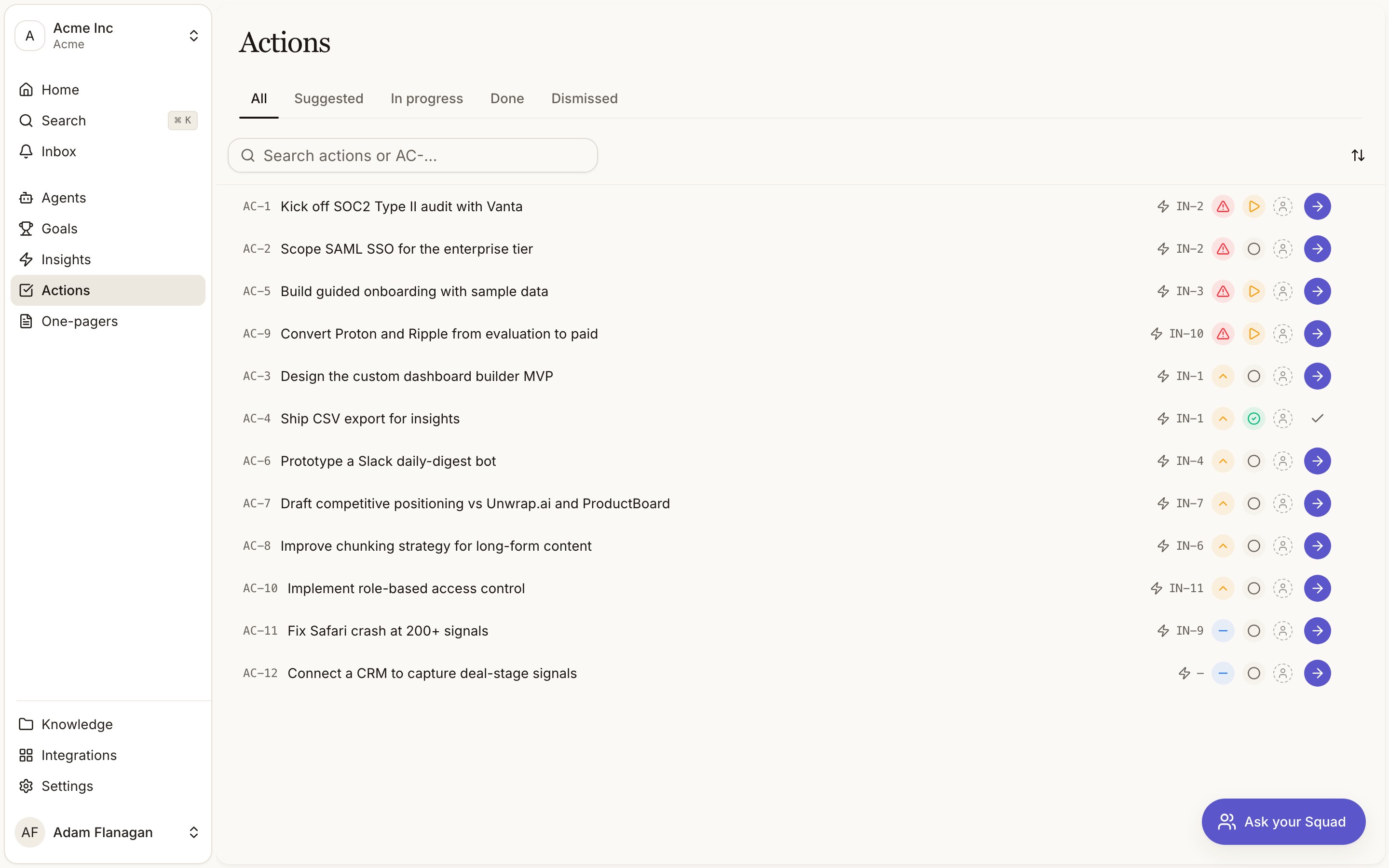
Actions page
The full list, reached from Actions in the sidebar.
Insight detail
Under Squad recommends, the actions relevant to that insight. The same
AC- action can
appear under several insights when it addresses the same need.The Actions page
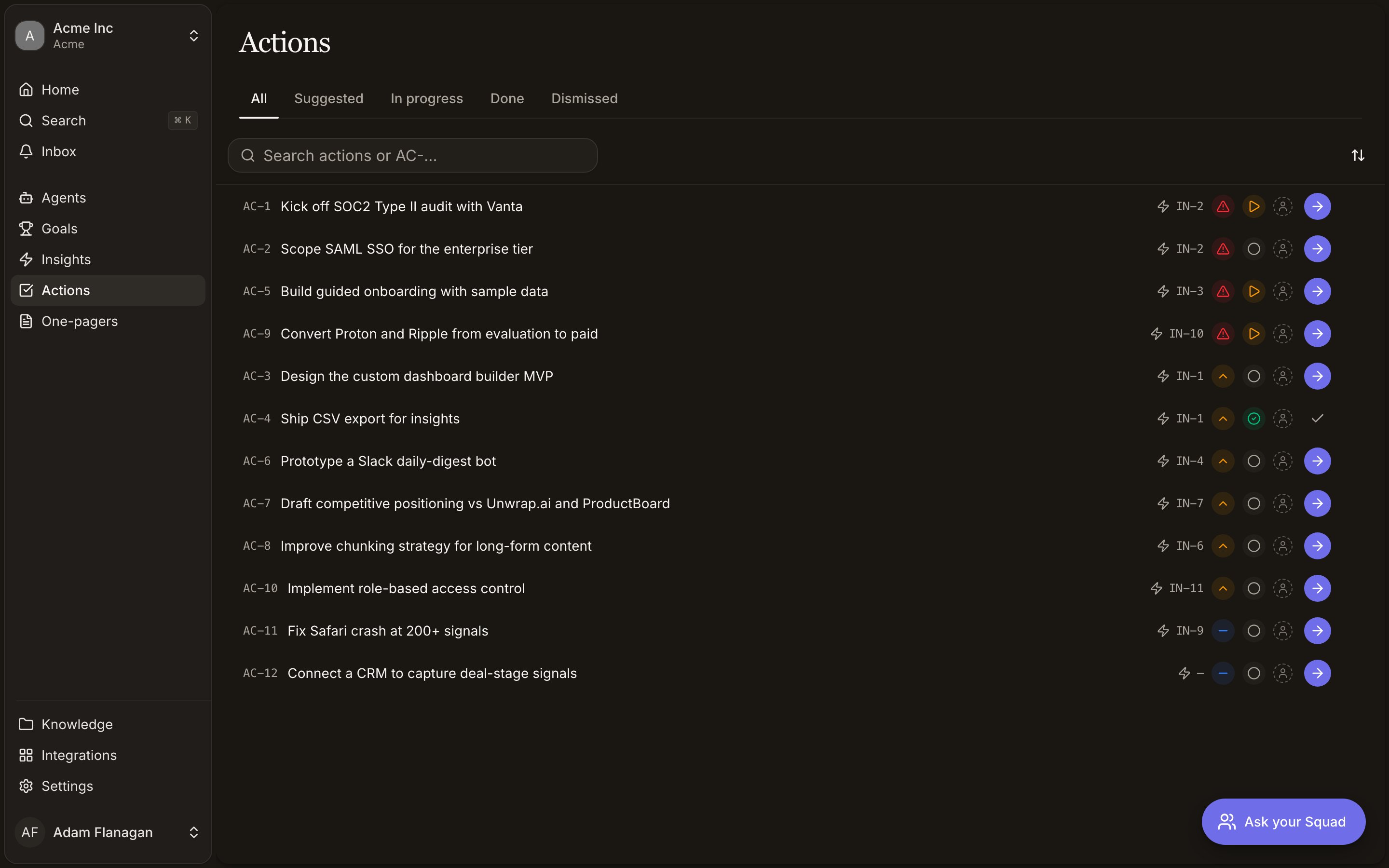
Tabs split the list into All, Suggested, In progress, Done, and Dismissed. Rows are sorted by priority (P0 → P1 → P2). Each row shows theAC- ID, title,
the primary source insight (IN-) plus a +N count for additional linked insights, a priority
chip, a status chip, and the owner’s avatar. Use the
search box (Search actions or AC-…) to filter by title or ID.
You can act on a row without opening it:
- Change Priority or Status inline from the chips.
- Assign an Owner from the avatar cell.
- The arrow button on the right is Start with Squad (or Continue with Squad once the action is in progress). It only appears while there’s something to work.
- The ⋯ menu holds the rest: Mark done, Snooze 3 days, Dismiss,
Generate PRD / Generate decision brief, jump to the linked insight or brief, and
Copy the
AC-ID.
The action detail page
OpeningAC-12 gives you the Description, Why it matters, and a Notes editor you
can type into freely. A right-hand Info panel lets you change
Status, Priority, Effort, Category, and Owner, and shows what the action is
Linked to. Use the link picker to add more insights or attach a brief; removing one
insight leaves the action linked to the others.
With the Linear integration connected, the panel also carries a Linear
row. Click Link, paste an issue URL or an identifier like ENG-123, or search your issues and
pick one. The pill that appears shows the identifier, the state Linear last reported, and a click
through to the ticket, with its own remove button to unlink. One issue links to one Squad action or
brief, and the state shown is as of the last event Linear sent rather than a live read.
Two buttons sit below the panel:
- Start with Squad (or Continue with Squad if the action is already in progress).
- Create brief, which opens a menu to Generate PRD or Generate decision brief. This is hidden once the action has already produced a brief.
⋯ menu in the top corner mirrors the row menu.
Statuses and the lifecycle
An action moves through four states:Suggested
Suggested
Freshly proposed by Squad, waiting on you.
In progress
In progress
You’ve started it (or set it yourself).
Done
Done
Completed. It drops off the dashboard and the open lists, and the dashboard’s Actions
completed count ticks up.
Dismissed
Dismissed
Set aside as not worth doing.
Suggested → In progress → Done, with Dismissed available at any point.
Generating a brief is a command on the action, not a status.
Starting, finishing, and dismissing
- Start with Squad opens the chat, seeds it with the action’s prompt (with the action referenced), and sends it. The action moves to In progress. Every action can be started. If it has no author-written prompt, Squad builds one from its title, description, and rationale.
- Mark done completes the action.
- Snooze 3 days hides it for three days.
- Dismiss removes an action that isn’t worth doing. On an insight, dismissed actions collapse under a Show dismissed toggle so you can still see what was passed over.
Owners and assignment
Every action can have one owner. Click the avatar (on a row) or the Owner field (on the detail page) to open the member list, then pick someone, or choose Unassign to clear it. Unassigned actions show a dashed placeholder avatar. The owner’s face follows the action everywhere it appears.Turning an action into a brief
When an action’s real job is a written artefact (a spec, a recommendation), Squad can draft it. Choose Generate PRD (product requirements) or Generate decision brief (a build/defer/research recommendation) from the row menu, the detail page, or the Squad recommends list. Squad drafts from the action plus all of its linked insights, deduplicating their evidence and using the 15 strongest signals across the set. It drafts in the background: the action shows a Building… badge, then a greenBR- badge linking to the finished draft. If drafting fails,
you’ll see a Failed badge. Each action produces at most one brief. Once it has, the
generate options disappear and the menu offers Open brief instead. See
Briefs for what happens next.
Squad recommends (on insights)
On an insight’s detail page, the Squad recommends panel lists the actions tied to that insight, sorted by priority, each with itsAC- ID and priority chip. If an insight has no
actions yet, you can trigger Squad to rank and propose some. The panel shows a working state
while it thinks, then fills in as actions arrive. Dismissed suggestions hide behind a
Show dismissed toggle.
Before saving a recommendation, Squad checks open actions across the whole workspace. If a
suggestion is semantically the same as an existing Suggested or In progress action,
Squad links that existing AC- record to the current insight instead of creating or rewriting
an action. Its title, description, rationale, owner, priority, notes, status, prompt, and snooze
remain unchanged. Recently dismissed matches are suppressed for 30 days; completed actions do
not block a fresh recommendation. Squad can prepare recommendations for several insights at
once, but queues the final check and save per workspace so two insights cannot create the same
action at the same time.
Cookbook
From insight to done. Open a high-scoring insight, read its Squad recommends list, and pick the action that matters. Hit Start with Squad to hand it to the chat with full context. Work it through, then come back and Mark done. The action leaves your open lists. Clear the deck each morning. Open the dashboard and scan Prioritized Actions top to bottom. Assign an Owner to the ones that belong to a teammate, Start the P0 you’ll tackle first, and Dismiss anything that’s no longer worth doing. Draft a spec from an action. On an action whose job is to write something up, choose Generate PRD (or Generate decision brief). Watch for the Building… badge, then click the greenBR- badge when it turns up to open and edit the draft. From there it’s a
brief with full version history.