

IN- reference, a score, the signals behind it, and the goals it bears on.

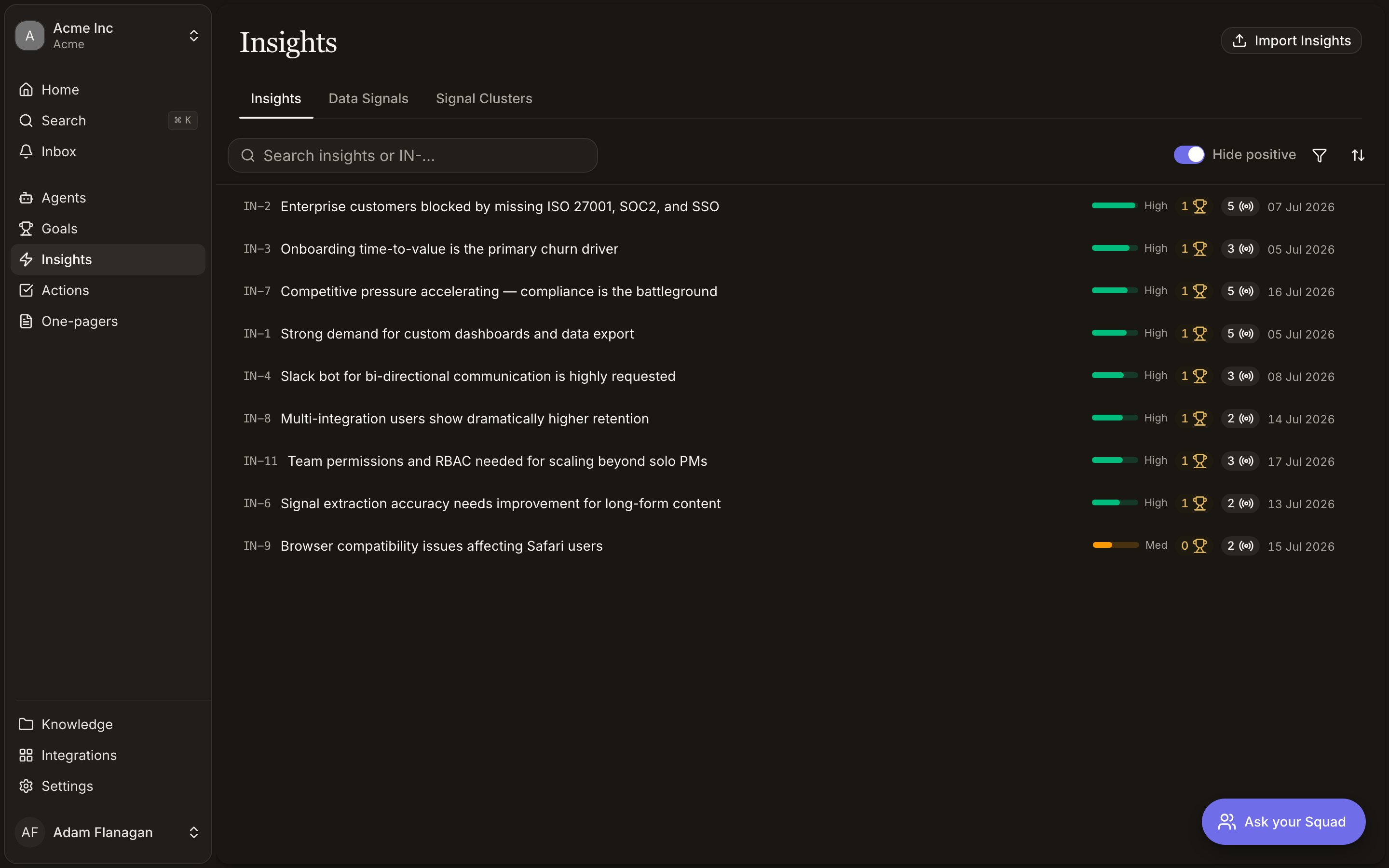
The list hides positive insights by default
The Hide positive toggle at the top of the Insights list is on when you first arrive. It filters out everything categorised as a positive signal, so the list is shorter than the number of insights the workspace actually holds. Turn the toggle off to see them. You’re usually here to find what’s broken. When the filter leaves the list looking empty, the empty state says “Positive insights are hidden.”The Insights list
Sorted by score, highest first. Each row shows theIN- reference and title, the score bar, the
number of linked goals, the number of supporting signals, and the creation date.
Hover the score bar to see the split between Strength and Momentum.
Search with Search insights or IN-…. Filter by Score, Goals, or Data Signals, each
with presets and a “greater than or equal to” default. Sort and filter state lives in the URL.
Right-click a row for Open, Copy ID, Copy URL, Copy content as JSON, and Delete.
Import Insights in the top right brings in insights you already hold elsewhere. You can also
drag files onto the page to have Squad read them.
How the score works
The score is a number between 0 and 1 with two components.Strength: how well evidenced is this?
Strength: how well evidenced is this?
It combines the volume of supporting signals, statistical confidence in that volume, how many
distinct customers those signals came from, and how many different kinds of source corroborate
it. Evidence concentrated in one loud customer scores lower than the same volume spread across
many. A young insight is pulled toward the workspace baseline rather than crushed to zero.
Momentum: is this alive?
Momentum: is this alive?
Recent signals count for more than old ones, a burst of arrivals lifts it, and the last four
weeks of arrivals are read as accelerating, steady, or decelerating.
Scores move when new evidence reaches the insight. They don’t decay on their own, so an insight that
stopped receiving signals keeps its last score. Read the score alongside the date and the signal
count.
Category and status
Category is yours to change from the detail page. The options are Pain Point, Feature Request, Positive Signal, Trend, and Risk. Recategorising an insight as Positive Signal hides it from the default list view. Status is read-only, a freshness indicator Squad manages. Four values.- Active
- Stale
- Archived
- Resolved
Inside an insight
The page opens with the title and description. Representative data signals. Up to three quote cards showing the actual customer words behind the conclusion. View all opens the full table when there are more. Squad recommends. The purple panel on the right holding the ranked actions for this insight. If there are none yet, you can ask Squad to propose some from here. See Actions. Info. Category, status, the score breakdown, and counts of linked goals and supporting signals. Goals. The goals this insight bears on, with Link goals (or Manage links once there are some) to change them. See Relationships. Referenced by. Any brief or knowledge document whose body cites this insight. History. Every change to the insight, with a link through to full workspace activity.Reading a score honestly
High score, two signals, recent
Momentum with thin evidence. Worth watching, not worth a roadmap slot.
High score, 40 signals, four source types
A case you can take into a planning meeting.