

BR- reference, a status, and a live evidence trail back to the signals,
insights, goals, and documents it draws on.
The two types
PRD
A product requirements draft covering problem, users, requirements and scope. Use it when you
have decided what to build and need a spec you can refine and circulate.
Decision brief
Use it when the call is still open. It lays out the cited case for and against, records how many
signals support versus counter the idea, and leads with Build, Defer, or Research.
It’s the format behind the dashboard’s Briefs to review.
Generating one
Every route runs the same drafting pass. Squad reads the source evidence, drafts the body in the background, and cites what it used.- From the library
- From an action
- From chat
- From Slack
Click Create brief. Start from a template creates an editable document straight away
from one of four structures: Decision Brief, PRD, Leadership Memo, or One Pager.
Under Or generate with Squad, search for the insight the document should be built from,
choose PRD or Decision brief, and click Generate. Squad drops you on the new page while it
drafts.
The lifecycle
Five statuses, shown as a badge you can click to change (except while building):Building
Building
Squad is drafting. The body is locked.
Draft
Draft
The body is editable. This is where you rework Squad’s first pass.
In review
In review
Submitted for someone to look at. This is the state the dashboard’s Briefs to review panel
watches for.
Finalised
Finalised
Settled and read-only until you move it back to draft. On a decision brief this same state reads
Decided.
Failed
Failed
Drafting didn’t produce a usable body.
Deciding a decision brief
A decision brief is finished when you make the call, not when the body is written. On a brief, the terminal state reads Mark decided rather than “Mark as finalised”. It opens a dialog where you confirm or change the recommendation (Build, Defer, or Research) and commit. The brief moves to Decided and its badge locks to your final call. Until then the recommendation shows as Pending. Decide from the status badge, the action menu, or straight from the dashboard’s Calls to make. The row leaves that list once the call is made. The Info panel shows the evidence balance the draft was built on (“N for, N against”) and the confidence at drafting time.Tracking the build
The Info panel carries a Linear row once the Linear integration is connected. Click Link, paste an issue URL or an identifier likeENG-123, or search your issues
and pick one. The row then shows a pill with the identifier, the state Linear last reported, and a
click through to the ticket. The pill’s own remove button unlinks it.
One issue links to one Squad brief or action. Squad says so if the one you picked is already
taken, and the state on the badge is as of the last event Linear sent rather than a live read.
Evidence and citations
The sidebar Evidence panel groups everything the document draws on into Goals, Insights, Signals, and Documents. Each entry is a chip that opens that entity, so you can go from a claim in the brief to theSI- quote behind it in one click.
The trail is derived from the body itself. Reference an entity in the text and Squad links it as
evidence. Remove the reference and the link goes with it. The panel updates live as you edit. A body
that references nothing shows “No evidence linked yet.”
Showing the evidence
A brief can carry visuals, not just prose. Squad adds them while it drafts when the shape of a trend, the size of a number or the order of events is the point being made. You can add your own in any brief that’s in Draft. Type/ on an empty line and pick from the Visuals group:
Charts, stat tiles and meters are built from your workspace’s own numbers. Pick the data
(Signal volume by source, Activity trend, or Context Health history), pick a window, pick
the series, and Squad fills the visual from what the query returned. There’s no free-text number
field, so a chart in a brief always traces back to something the workspace actually recorded.
The same rule binds the drafting agent, and harder. A visual it draws must name the data it came
from, and every point has to match a row that data returned. If it doesn’t, the draft fails and
Squad rewrites it rather than shipping a chart nobody can check. A brief with nothing worth showing
gets prose and no visuals, which is a correct answer. Squad will add at most six.
Set a visual’s width to half or third and consecutive ones sit side by side, so a brief can
open like a dashboard and still read like a document.
A visual is a snapshot, taken when the brief was written. It doesn’t refresh. That’s deliberate:
a brief argues a case as of its evidence date, and a chart that moved afterwards would quietly
change the argument you signed off.
Reviewing and editing
Open a brief from the library or from any linked reference. In Draft, the body is a full editor. Edit the title inline, rework the draft, add or remove references. History shows every change and a badge marks who last touched it, you or Squad. Use the action menu to Copy as markdown or Download .md to take it outside Squad, or Push to Linear to turn the brief into an issue with a sub-issue per action it produced. All three appear once there’s a body to export. Delete removes the brief.The library
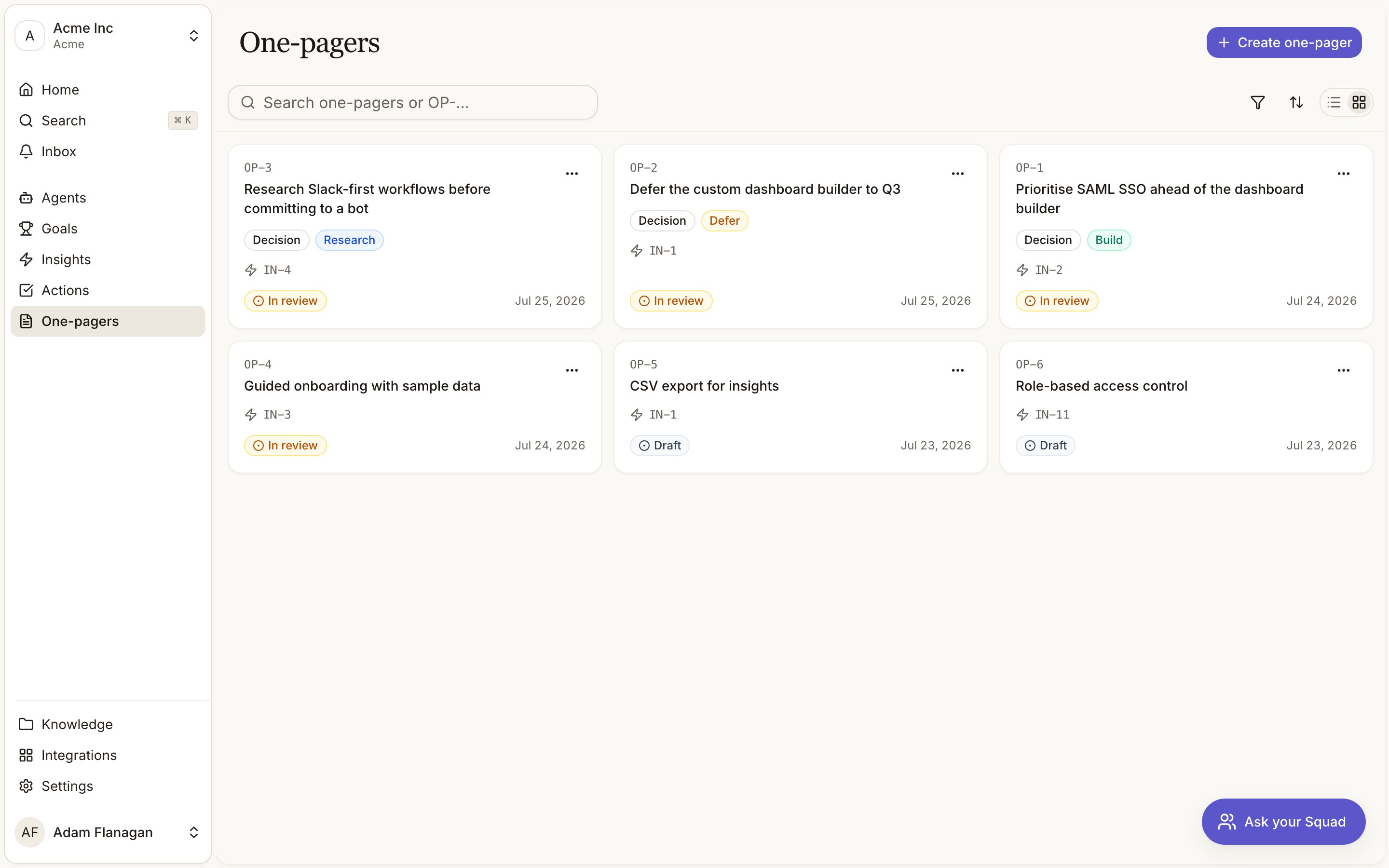
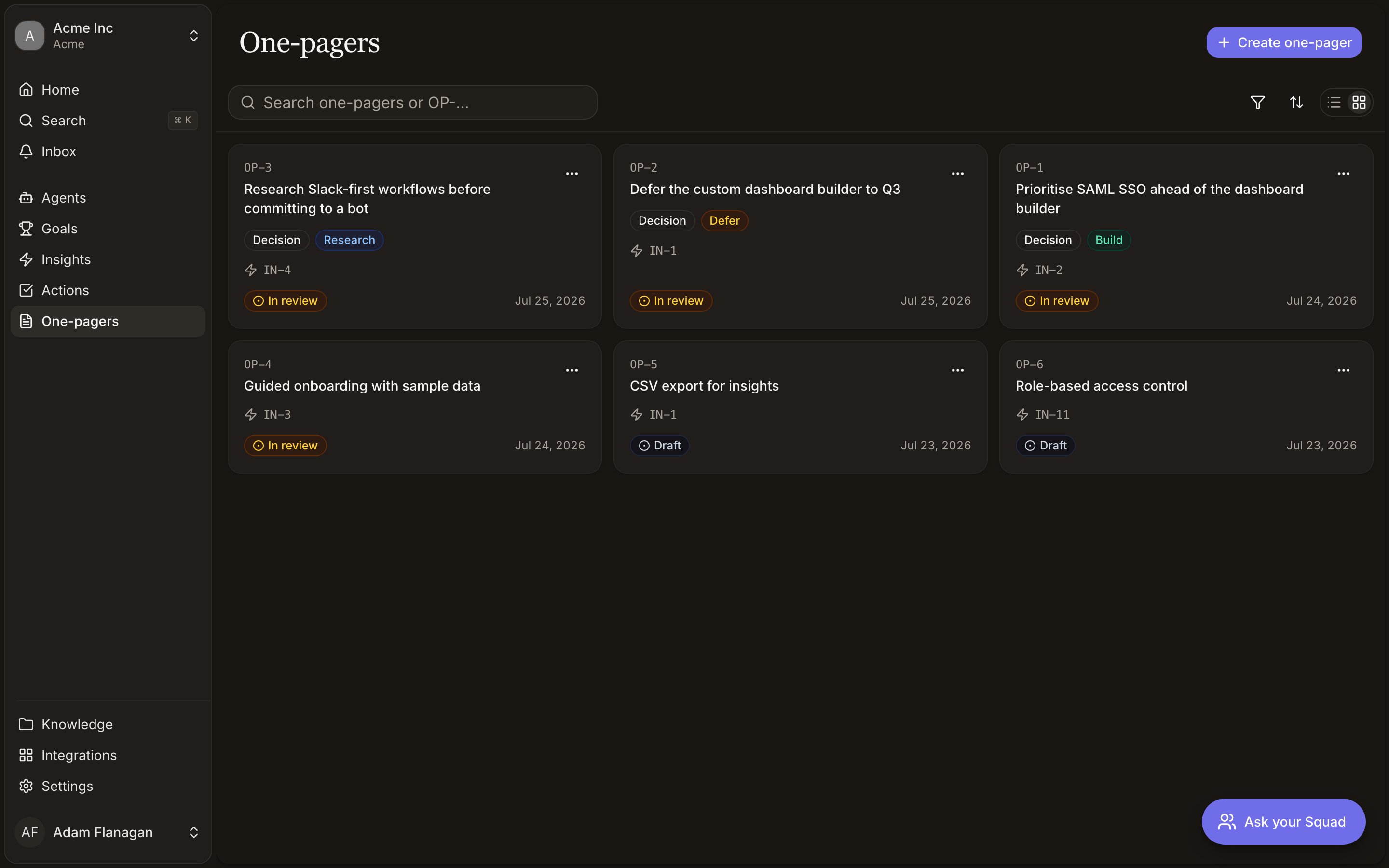
The Briefs page lists everything in the workspace, most recently updated first. It opens as a card grid, with a list view available. Both show theBR- reference, the title (or “Drafting…”
while building), a clickable status badge, and when it last changed. Decision briefs also show
their Decision badge and current recommendation. To see the evidence a brief came from, open
it and read the Evidence panel.
Search with Search briefs or BR-… and use the Status filter to pull up everything In
review, or every Decided brief. Search and filters look inside folders and return the
briefs themselves, so nothing hides behind a folder that doesn’t match. Documents created or
updated anywhere appear here without a refresh.
Folders
Once a workspace has thirty briefs, “most recently updated” stops being an organising principle. Folders fix that. Click New folder and Squad creates one where you are and drops you straight into naming it. Folders nest as deep as you want. In the card grid, folders gather above the briefs as filled tiles, each with the number of briefs it holds. Brief cards stay white and bordered. One glance tells you which is which. Click a folder to open it. In the card grid it opens in place, with a breadcrumb trail under the toolbar to step back up. In list view it expands inline instead. Either way you stay on the Briefs page with the same header, search box, and view toggle. Drag a brief onto a folder to file it there. Drag it onto the empty area to move it back to the level you’re viewing. Folders move the same way, and Squad blocks a move that would put a folder inside itself. Right-click a folder, or use the⋯ button on its card, for New folder, Rename, and
Delete. Deleting a folder deletes every brief inside it, so the confirmation says so.
Open a brief and its breadcrumbs name the folders it sits in, each one a link back to that
folder’s contents. The back arrow returns you to the folder rather than the top of the library.
Two smaller behaviours worth knowing. Create brief files the new brief in the folder you have
open, so generating from inside Q3 pricing lands it there rather than at the top level. And
folders here are separate from the ones in Knowledge: a folder you make on
this page holds briefs and shows up on this page only.
Cookbook
Turn a strong insight into a shareable PRD. Click Create brief, search for the insight, choose PRD, and generate. Wait for it to leave Building, then tighten the requirements while it’s in Draft. Check the Evidence panel to confirm the claims trace to real signals. Move it to In review, or copy it as markdown into your spec tool. Make a Build, Defer, or Research call. On the action, choose Generate decision brief. Once drafted, read the cited case and check the “for, against” balance in Info. Edit anything you disagree with while it’s in Draft, move it to In review so it lands in Briefs to review, then click the status badge and Mark decided. Recover a draft that didn’t generate. Open a brief in Failed. The body explains what went wrong. Click Retry if the source still looks right, or Start blank to write it yourself. Either way it keeps itsBR- reference and its place in the library.