



Agent templates
Ready-made agents written by Squad. Built-in templates support one-click creation; integration-backed templates guide you through connection and scope setup first.
Workflows
Ingestion without an agent. Switch one on and everything a connected tool sends lands in your feedback.
Agent triggers
What makes an agent run: a schedule, a workspace event, or an event from a connected integration.
Tools and access
One list that decides what an agent can reach and what it can do there.
Run history
Every time an agent ran, what it changed, and what it produced.
What you start with
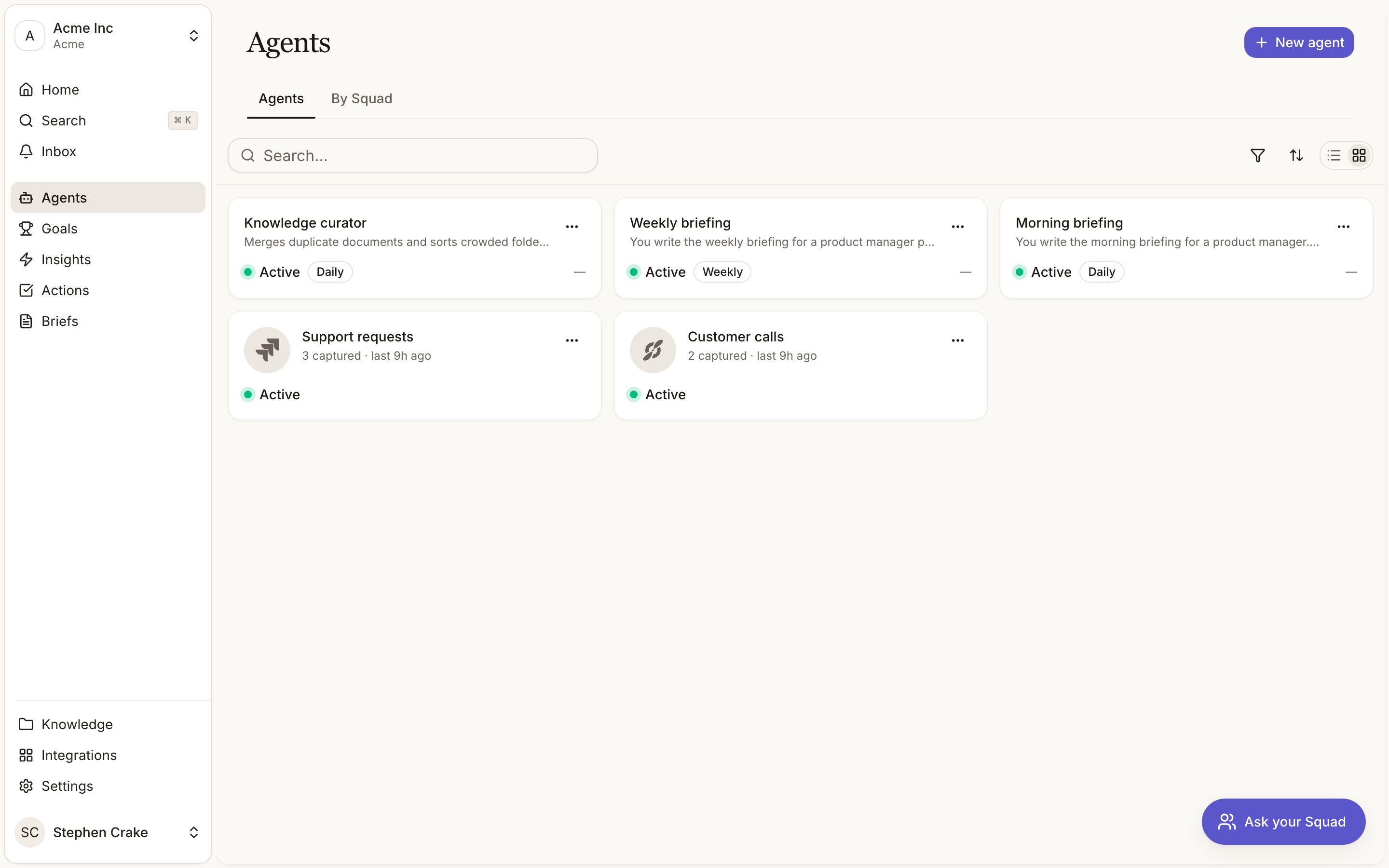
Every workspace comes with two briefings already running. Morning briefing reports each day on what moved in the last 24 hours, and Weekly briefing covers the trailing seven days with the trends and the watch list a planning session needs. Both read your signals, insights, actions, and goals, and neither needs a source or a connected tool. The first morning briefing lands a day after the workspace is created, the first weekly one a week after. They are ordinary agents, so you can edit the brief, change the cadence, add a Slack delivery, pause them, or delete them. Both appear under Agent reports in everyone’s notification settings from day one, so anyone can follow them without touching the agent.Knowledge curator
Every workspace also runs the Knowledge curator, an agent that keeps your knowledge base clean so Squad answers from one up-to-date version of each fact. Each night Squad checks your knowledge base for its Context Health score. When that check finds something to tidy, the curator runs straight after it. It looks for two things. The first is pairs of documents that say nearly the same thing. It keeps the better one, adds any facts only the other had, and moves the other to Trash. The second is folders holding more than 50 documents, which it sorts into up to three themed subfolders. It makes at most 10 merges and 3 folder regroups a day, however many times it runs. It leaves report documents and system folders alone, along with any document another agent has written to in the last 30 days, since that agent may rely on finding it. Each run lists what it merged and moved in Run History, and a merged document shows Merged into its survivor in Trash. Restore it within 30 days and the curator will not merge that pair again. On a night with nothing to tidy it doesn’t run at all, and its detail page shows Runs: After the nightly Context Health check in place of a next run time. The curator is managed by Squad. Its detail page has Run now and Pause, and no Edit or Delete. Pause it if your team prefers to look after the knowledge base by hand.The agents list
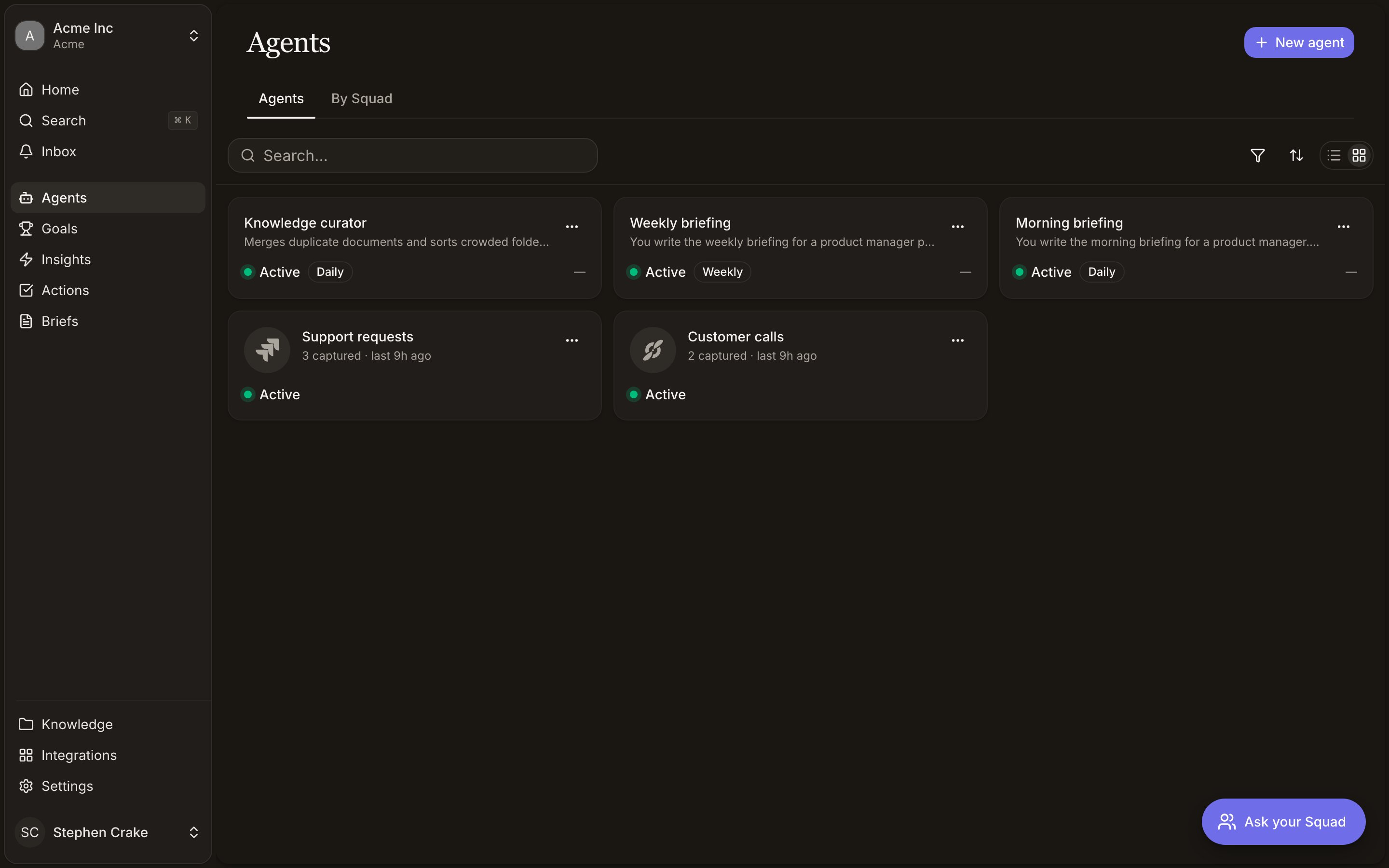
The list opens as a grid of cards, one per agent. The toolbar toggles to compact rows and carries search, filters, and sort. Filter by Status (Active, Paused, Error) or by Cadence (Hourly, Daily, Weekly, Monthly, Quarterly, Annually). Your choice of view, filters, and sort stays in the URL, so a filtered list is shareable. Each card and row shows the agent’s name with a second line naming the page it watches or the opening of its brief, then its cadence, when it last ran, and its status. The overflow menu holds Run now, Pause or Resume, and Delete. Right-clicking a row opens the same menu. Click anywhere else to open the agent. Any workflows you have switched on sit in this list too, under a cadence of As it happens. A workflow has no brief and no run history, so it carries no Run now.Statuses
An agent is in one of three states.Active
Active
Scheduled and event triggers fire normally.
Paused
Paused
Nothing fires. The agent keeps its configuration and history. Hit Resume to bring it back.
Error
Error
The last run broke badly enough to stop the agent. It won’t recover on its own, which stops a dead source being retried forever. Open the agent, expand the most recent run, read the error, fix the cause, then Resume.
Building an agent
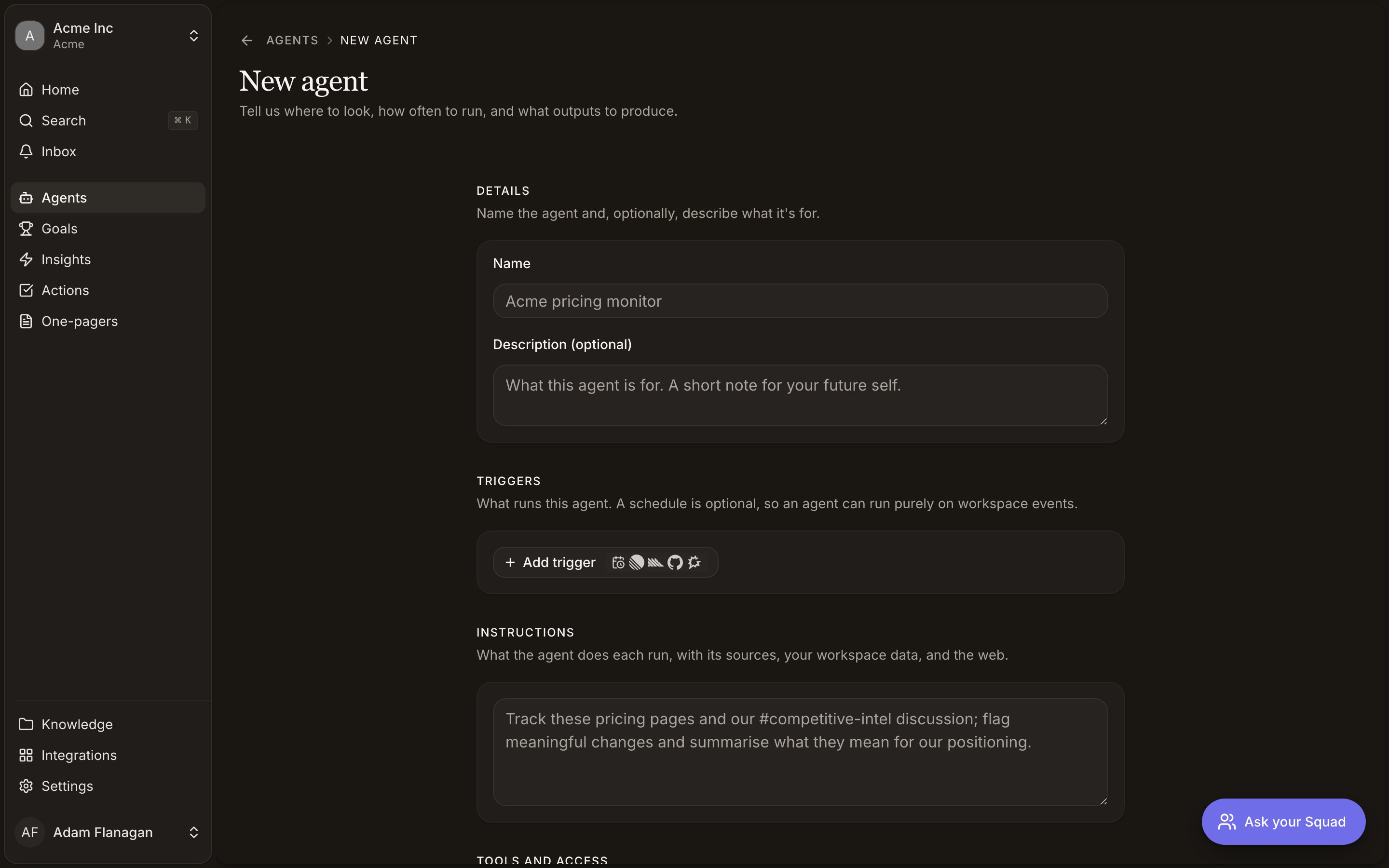
New agent opens one scrolling form. Fill it top to bottom and click Create agent.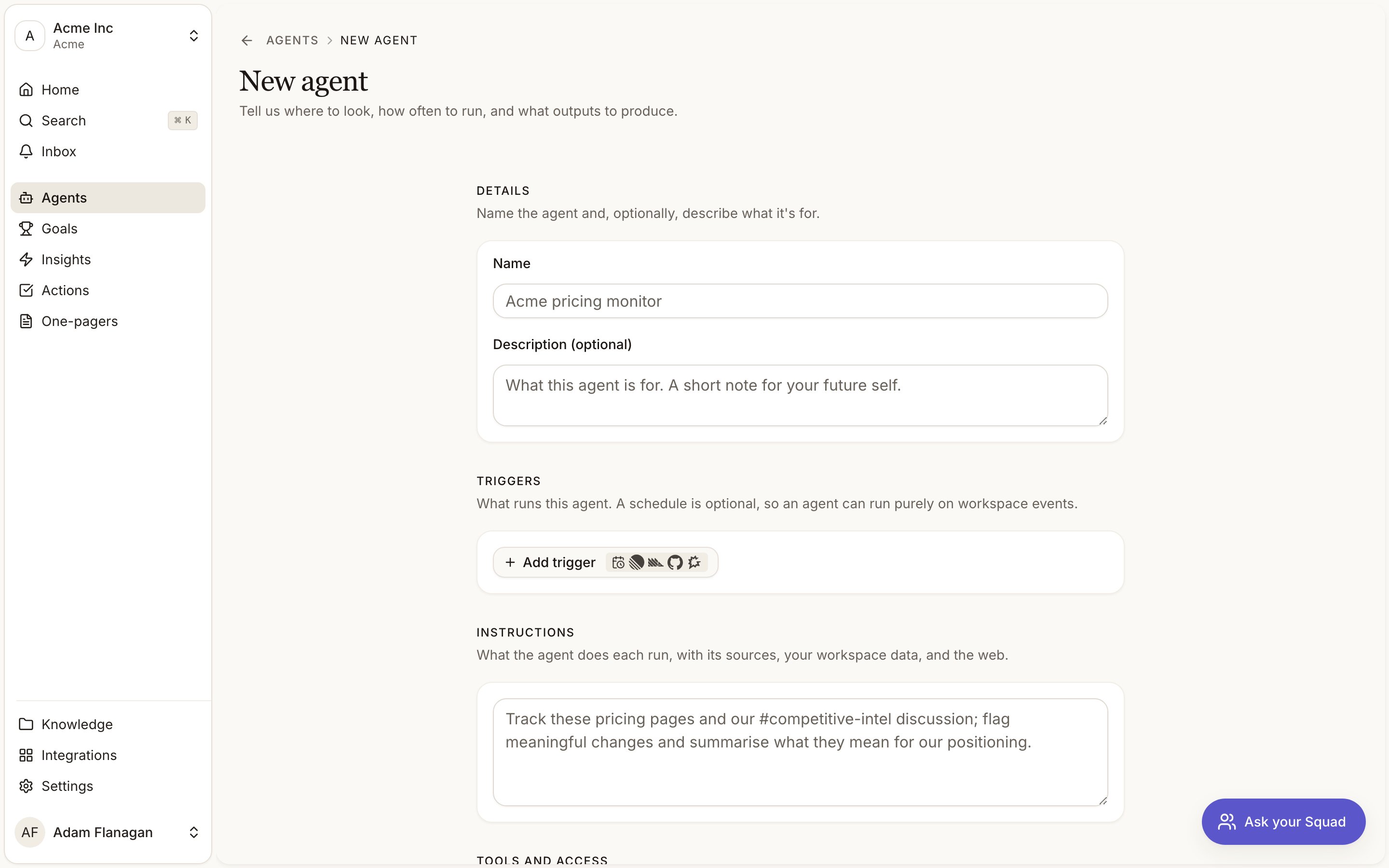
Details
The name (unique in your workspace) and an optional description. The description is a note for your future self and is never fed to the agent.
Triggers
Decide when the agent runs. A schedule, a workspace event, an integration event, or a mix. See Triggers for every option.
Instructions
The standing brief the agent reads on every run, written in plain English. Say what to look at, what counts as worth flagging, and what a good result looks like. The agent decides each run what to reach for within the access you gave it.
Tools and access
What the agent may touch, covering your knowledge base, insights, goals, the open web, and any connections you add.
Outputs
What the agent produces.
The three outputs
Three independent switches. Turn on any combination.Discover insights
Extracts product signals from what the agent read this run and pushes them into the pipeline, where they cluster into insights alongside everything else.
Gain knowledge
Lets the agent update or create documents in your knowledge base from what it found.
Generate report
Produces a written brief answering a question you set. Turning it on opens the report settings underneath it.
At least one output must be on. With all three off, the form refuses to submit and tells you why.
Report settings
The Report question is what every report from this agent answers. Squad drafts one from your instructions the first time you turn reports on, and redrafts it when you edit the instructions and click away. Regenerate rewrites it on demand. Edit it freely. Report title is optional and accepts{{date}} and {{agent.name}} as placeholders.
Every report is saved to the system Agent Reports folder, editable and searchable even with no delivery configured. It also reaches everyone subscribed to the agent, always, with no setup. Delivery adds copies somewhere else, and there is one channel: Slack, available once Slack is connected. Knowledge and insights aren’t delivery channels. The Gain knowledge and Discover insights outputs already handle those.
Who hears about a report is decided in Settings, on the Notifications tab, not on the agent. Every agent that writes reports has a row there, and each person picks in-app, email or both for themselves. That means the list never goes stale when someone changes team, and nobody has to maintain it. See Notifications.
The agent detail page
Opening an agent gives you the whole thing on one page. The header carries the name, description, and the lifecycle controls. Run now, Edit, Pause or Resume, and an overflow menu with Delete. Deleting stops future runs and removes the agent. Reports it already wrote stay in your knowledge base. Below that, every part of the configuration is editable in place. Instructions, Triggers, Tools and access, Report (shown only when reports are on), and Run History. The sidebar holds an Info panel with Status, Next run, Last run, and Created, a Latest Report card linking to the newest report, and an Output panel summarising what this agent produces.Run now
Run now needs an active, idle agent. On the detail page the button stays visible and goes disabled with a tooltip saying why. The agent is paused (resume it first), it has errored (review the latest run first), or a run is already in progress.One run at a time per agent is a hard rule. In the list menus, Run now appears for active agents and greys out while a run is in flight.
Recipes
Watch a competitor's pricing weekly
Watch a competitor's pricing weekly
Point the instructions at the pricing page, add a weekly schedule, add the page under Web pages in Tools and access, and turn on Generate report. Accept the drafted question and add a Slack delivery to your competitive channel.
Keep a knowledge doc current
Keep a knowledge doc current
Describe what to capture, add a daily schedule, give the agent the sources it needs, and turn on Gain knowledge only. No report, no delivery.
React to strong insights
React to strong insights
Add a workspace trigger for Insight created with a minimum score and turn on Generate report. Whoever needs to act subscribes to the agent in their own notification settings. No schedule required.
Send execs a monthly digest
Send execs a monthly digest
Add a monthly schedule and turn on Generate report with Report when nothing changed on, so the digest always ships. Anyone who wants it subscribes to the agent in their own notification settings.
Run a morning or weekly briefing
Run a morning or weekly briefing
Your workspace already has both. If you deleted one, rebuild it from the Morning briefing or Weekly briefing template. Both are ordinary report agents. The instructions tell Squad to survey the period’s signals, insights and actions, and the report question asks what moved and what to watch. Add a Slack delivery if the team should read it in a channel; anyone who wants it individually subscribes under Agent reports in their notification settings. No sources needed, because the period comes from your own workspace.