

The sidebar
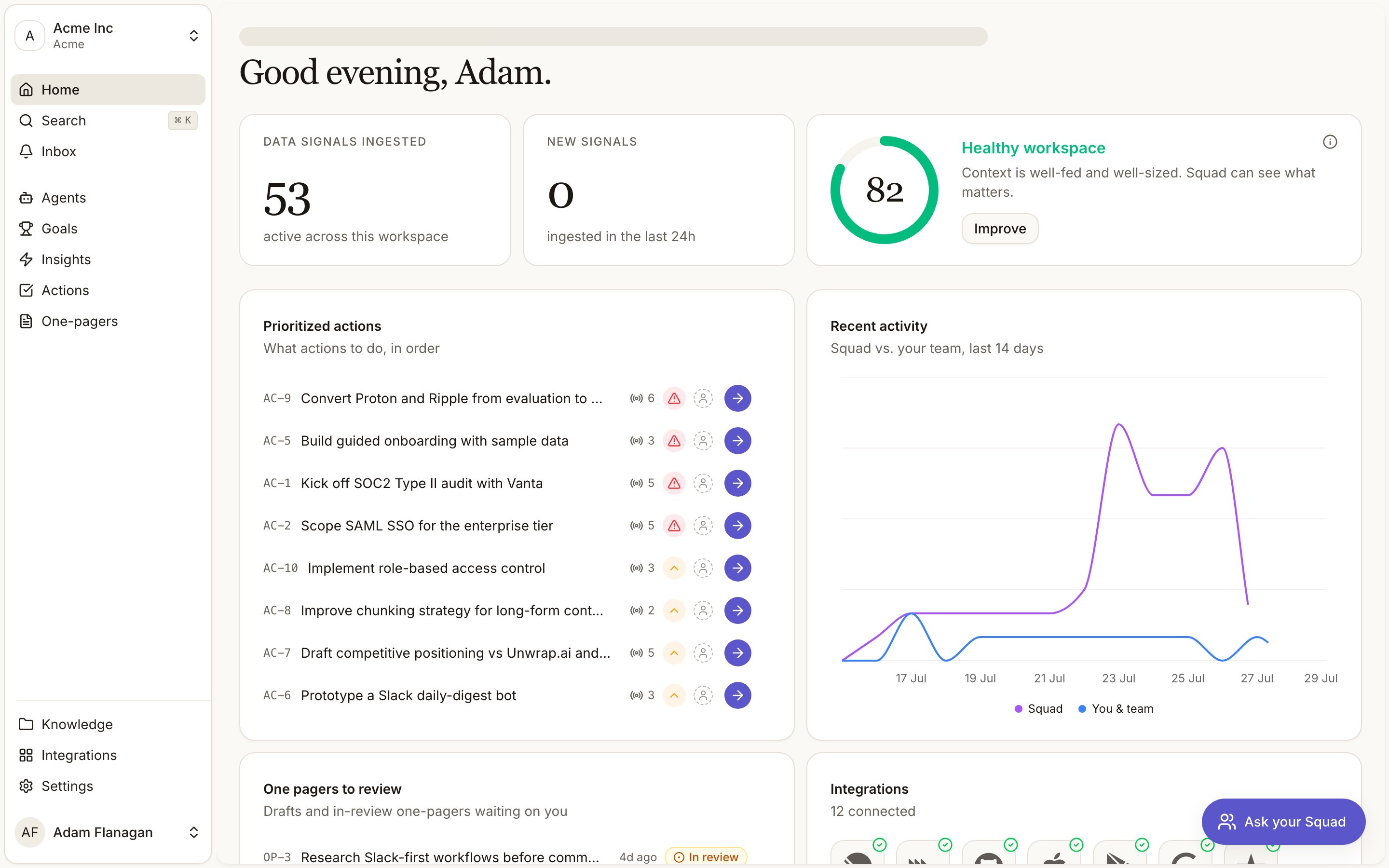
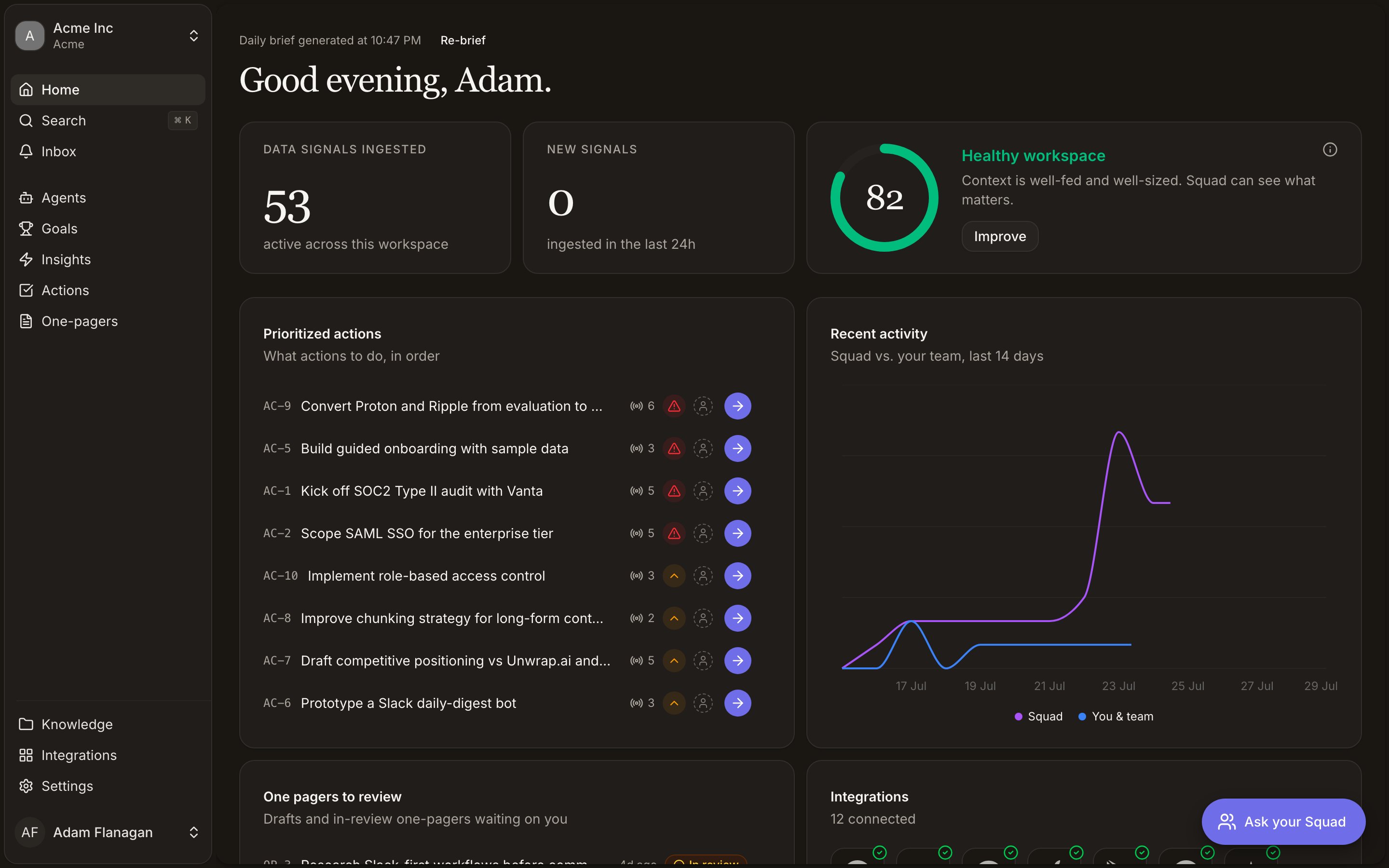
The workspace switcher sits at the top, showing the current workspace with your organisation underneath. Below it are three quick actions. Home, Search (which opens the command palette), and your notification Inbox. The main list follows, in this order.- Agents. Agents that watch your sources and write up what they find.
- Goals. The objectives you’re working toward.
- Insights. The scored findings drawn from your evidence.
- Actions. Suggested and in-progress next steps.
- Briefs. PRDs and decision briefs.
- Knowledge. Documents, folders and version history.
- Integrations. The services you’ve connected.
- Settings. Workspace name, logo, and preferences. See Workspace settings.
The page with no sidebar entry
You reach it through a link or the URL bar.Activity
Activity
The record of who changed what. Reach it from See all on the dashboard’s Recent activity
widget, from All activity at the foot of your notification inbox, or from All activity
next to the History section on an insight, goal or brief detail page (those arrive
pre-filtered to that entity type). See Activity.
The command palette
Press Cmd/Ctrl+K, or click Search in the sidebar. Start typing a command or a search term. The palette opens on General. Copy URL puts a link to the current page on your clipboard, and Switch Theme leads to Light, Dark and System. Next comes Navigation, the same nine destinations as the sidebar. Below that sit your Documents and Folders, matched on both title and path. Type more than a word or two and three live search groups appear. Insights, Goals and Data Signals, each result showing its title and reference (IN-12, GL-4, SI-88). A Workspaces
group at the bottom switches workspace, with the current one marked Current.
Selecting any result takes you there and closes the palette. Escape dismisses it.
Reference chips
Entities link to each other through reference chips, small clickable tags carrying an ID. Click one to open the item. They show up in the daily brief, inside briefs, on action rows, in goals and in agent messages. Each type has its own prefix, so you can read a reference without context.
Folders carry no prefix, so you reach those by name.