

The greeting and daily brief
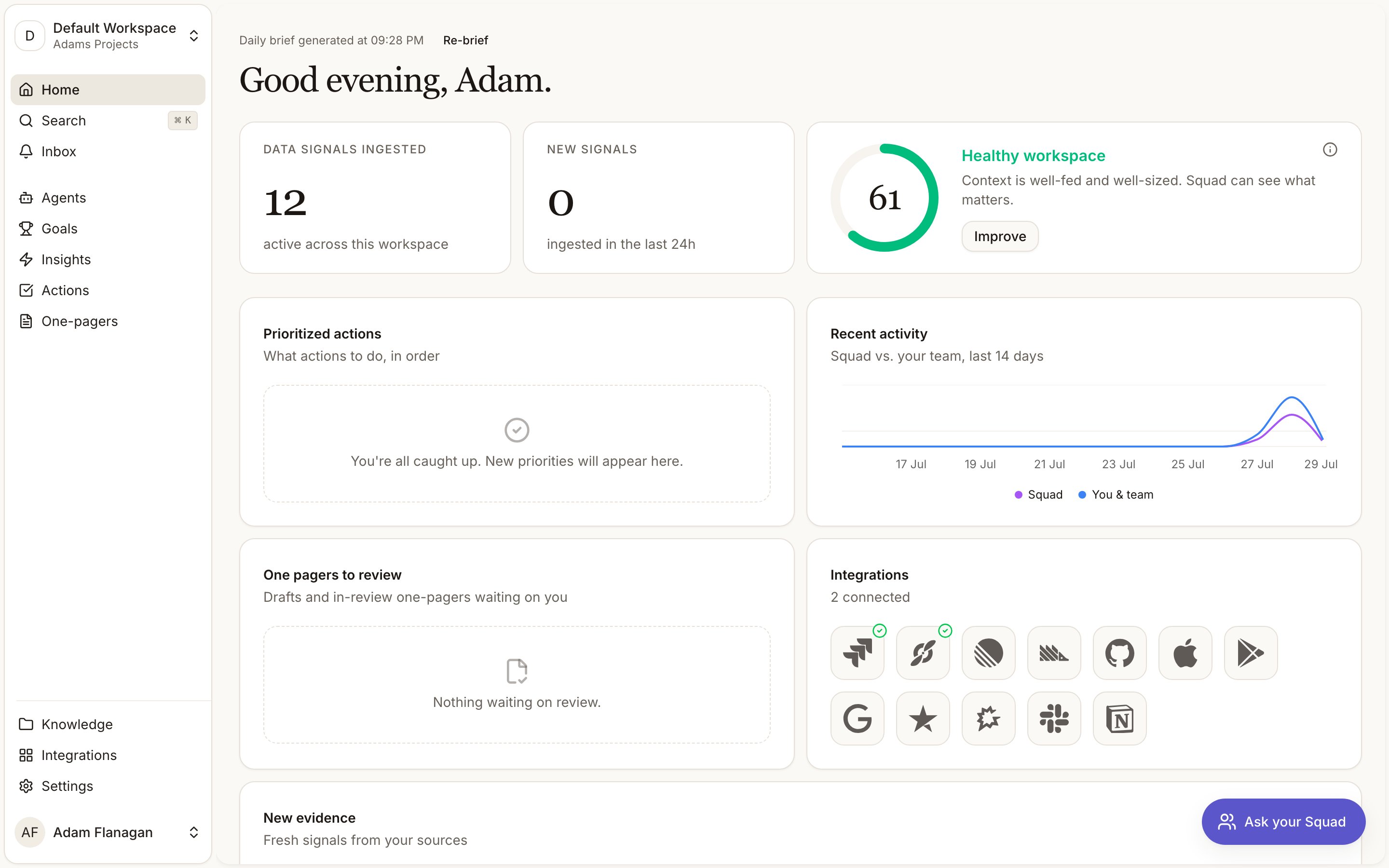
A time-of-day greeting leads with your first name, either “Good morning”, “Good afternoon”, “Good evening”, or “Up late” before 5am. Above it, a caption records when your daily brief was written (“Daily brief generated at 08:14”) with a Re-brief button beside it. The brief is produced once a day and cached, so the page loads instantly. Press Re-brief after a triage session to regenerate it against the current state of the workspace. The button spins while it works. If no brief can be produced, the caption disappears and you get the plain greeting. Nothing else on the page is affected.Counters and context health
Two counters sit next to a workspace health card. Data Signals ingested counts the active signals in the workspace. New signals counts the ones that arrived in the last 24 hours, so it reads zero on any day nothing came in. Both link through to the Signals page. If the numbers can’t load, the pills show an error rather than a misleading zero. Context health scores the workspace from 0 to 100 and labels it Starved, Lean, Healthy, Bloated or Flooded. Five components make up the score, listed under the info icon in the corner.
Press Improve for the full breakdown plus a list of recommendations, each with a button that acts
on it. Connect an integration, add goals, check an agent, review documents, compact the knowledge
base. A brand new workspace is treated as a cold start and reads “A fresh workspace starts empty.
Connect a source or two to get going.”
Prioritized actions
The widget lists open actions from across the workspace, both suggested and in progress, sorted by priority (P0, then P1, then P2), then by due date, then by recency, capped at eight. Its subhead reads “What actions to do, in order”. Actions whose underlying insight has gone stale or been archived drop out. Due dates show where an action has one, and most don’t. An action without a due date still appears in the list, with a blank date cell. Work a row without leaving the page. Start with Squad hands the action to the chat with its full context and moves it to in progress, at which point the button becomes Continue with Squad. Ticking a row marks it done, with a short strikethrough before it leaves the list so you can undo a mis-click. Priority and owner are editable inline. The row menu holds Snooze 3 days, Dismiss, Generate PRD and Generate decision brief. Clicking the row opens the action. With nothing open the widget reads “You’re all caught up. New priorities will appear here.” See all goes to Actions.Recent activity
A 14-day chart plots two lines, Squad (what the agents did) against You & team (what people did). Read it for how much of the work is running on its own. A workspace with no changes in the last fourteen days shows “No activity in the last 14 days” instead. You get the same message when everything was loaded further back than that. See all goes to Activity.Briefs to review
Briefs in draft or in review, up to ten, in either type. Each row carries itsBR- reference, the title, when it was last updated, a status you can change from the row, and a
menu. Click the title to open it. The list updates live as documents change anywhere in the
workspace.
With nothing waiting it reads “Nothing waiting on review.” See all goes to
Briefs.
Integrations
A grid of provider icons, connected ones first, up to twelve with a+n tile for the rest. A green
tick marks a connected provider, an amber badge marks one that still needs setup. The subhead counts
how many are connected. Click any icon to open that provider. See all goes to
Integrations.
This widget never sits empty, because it lists every provider Squad supports rather than only the
ones you’ve connected.
New evidence
The ten freshest active signals, each shown as a quote with its source. Click a quote to open the signal. With nothing yet it reads “No new signals yet.” See all goes to Data signals.Getting around from here
The sidebar and the command palette (Cmd/Ctrl+K) reach the rest of the workspace.Getting around
The sidebar, the command palette and reference chips
Chat assistant
Handing the work to Squad instead of doing it yourself